&lt;div>An In-Place upgrade means reinstalling Windows keeping everything of yours including files, installed applications and settings. It would be just like when your system upgraded from Windows 10 build 10240 to Windows 10 build 10586, widely called the November update to windows 10.</p>
<div>There are two ways to to upgrade your OS to the latest build, one is a more automated process and other one requires a bit of effort from your side.Without wasting time, let us discu
ss both of them:</div></p>
le=”text-align: left;”>Method 1
<p><div>This method is fairly simple.You just need to download a tool and select upgrade this PC now after opening and accepting the license terms.The tool will automatically download the setup media and perform the upgrade.</div>
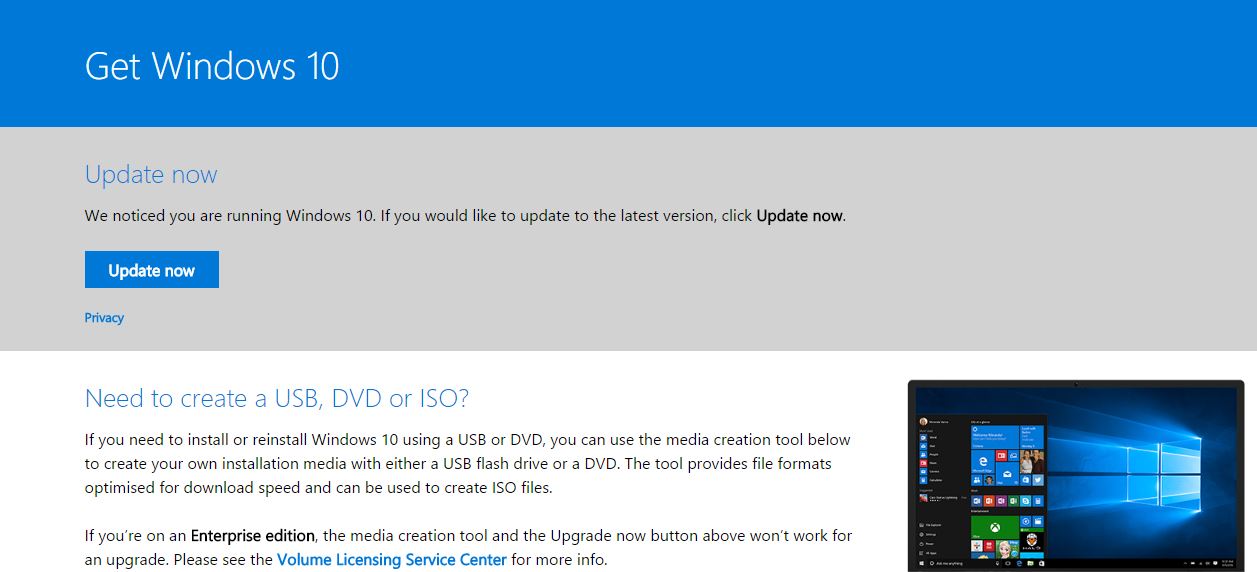
Download the Media Creation Tool Now
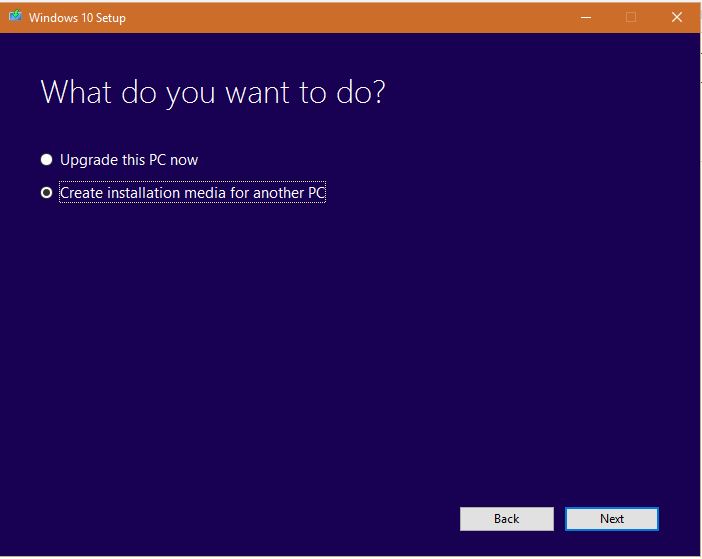
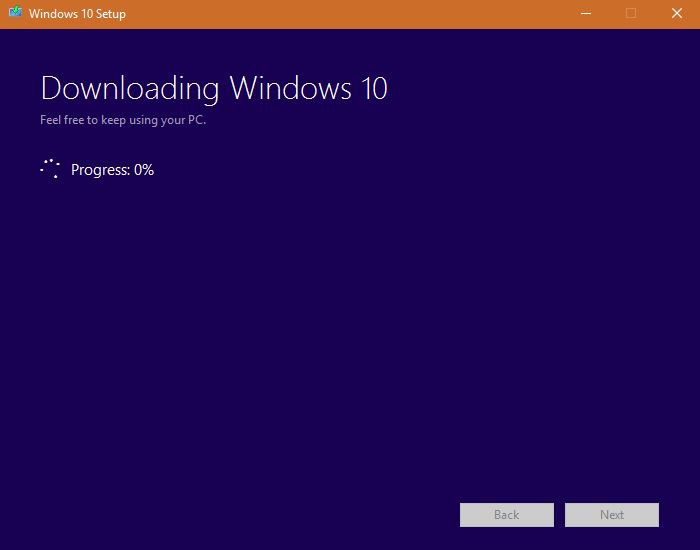
To upgrade your PC to the November update, click Next and the Installation media download would begin like this:
>Method 2
<div>Though somewhat more complicated, this method would allow you to keep an Installation media for future purposes if you want to do a clean Install.</div>
- tyle=”text-align: left;”>
-
- “text-align: left;”><l
i>First of all, dow
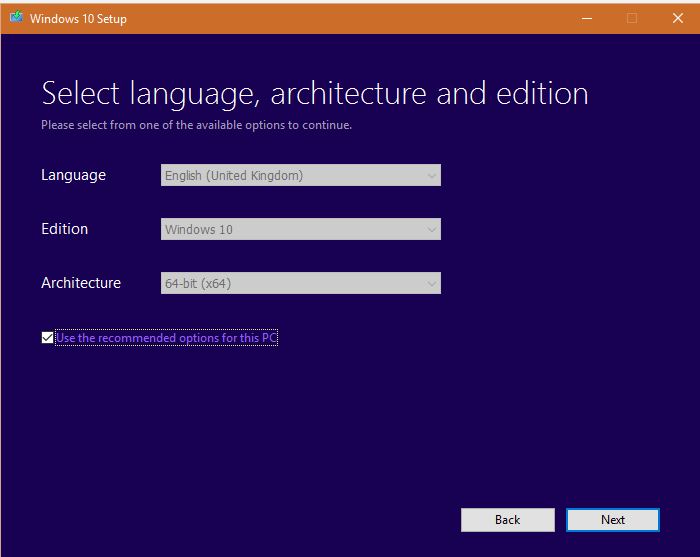
nload the media creation tool and select Create Installation media for another PC at the screen which says What do you want to do?</li></li&g
- t;
- <ul style=”text-align: left;”><l
i>Then, if you wish to upgrade the same PC, make sure the checkbox at the bottom which says “Use recommended option for this PC” is checked.Click on Next afterwards.</li&g
- t;
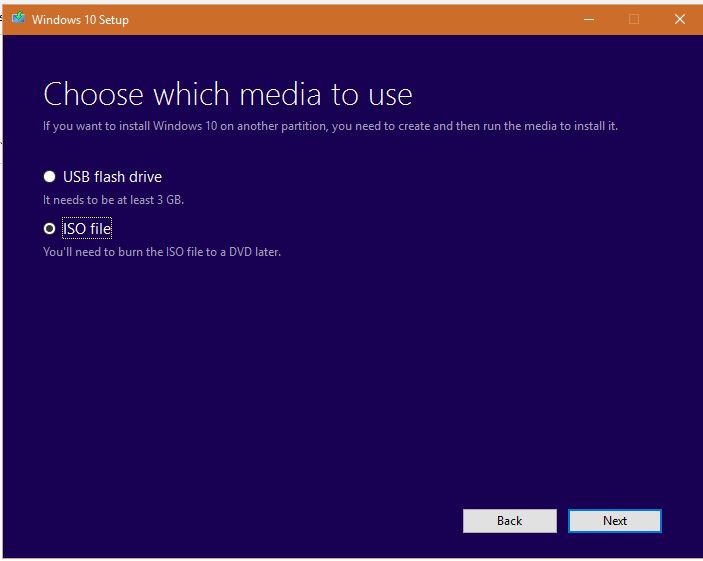
- Then select ISO file on the screen which says Choose which media to use.Click on Next.
-
- Save the ISO to any other drive and click OK in the path chooser dialog box.The ISO download should begin.
<l
i>When the ISO download finishes, navigate to the ISO file location from file explorer and double click it.It should mount as a virtual drive as shown here:<img src=”https://1.bp.blogspot.com/-hnQCRWFKDgA/V290plFS9cI/AAAAAAAAEc8/L_Z8Gfkj5UkGGNEebyxjHZuHNW-IsLSLQCKgB/s640/Capture.JPG” width=”640″ height=”203″ /&g
-
- t;
- Open the virtual drive and launch setup.exe named file, it would start preparing:<img src=”https://1.bp.blogspot.com/-0tfEu9ad7uE/V3Dw5mRPhmI/AAAAAAAAEeY/Ga2eN-j0DMoAmd3DZgZQRURQWkF-gMSZACKgB/s640/Screenshot%2B%252849%2529.png” width=”640″ height=”358″ />
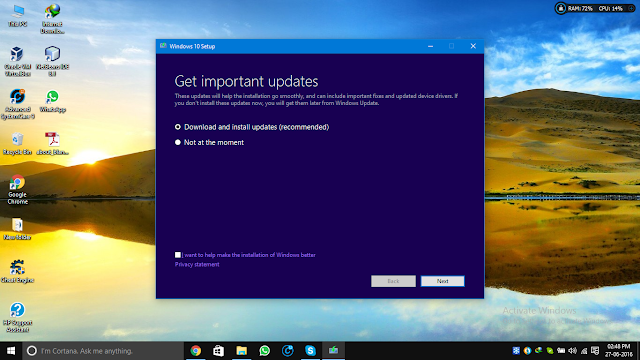
- The next step is checking for updates.Windows would get the updates after the upgrade, so select not right now.
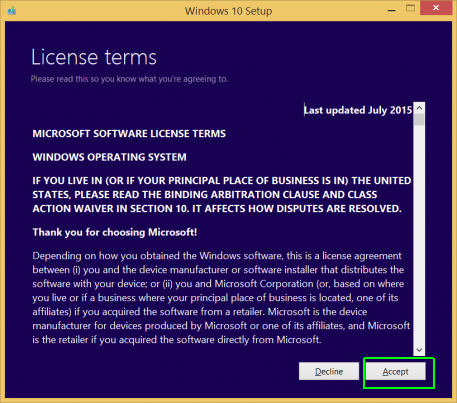
- Accept the license terms:
- Then after a while, it would show the following:
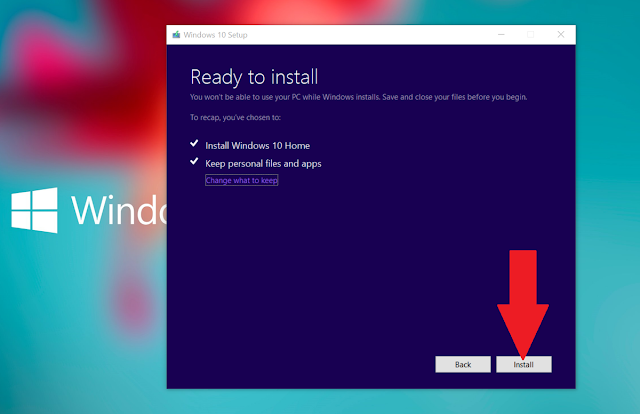
Make sure Keep personal files and apps is ticked. - After clicking next the Installation starts:
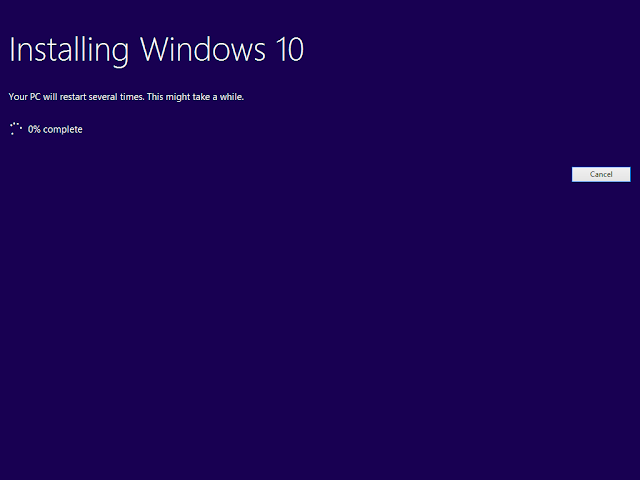
- After a restart, the progress screen is shown:(resembles windows update now!)
<l
 der=”0″ />
i>After completion, customize your OOBE settings.Click on Express settings, if you want Microsoft defaults and click on customise in the bottom left if you want to customise them according to your settings.
<img src=”https://2.bp.blogspot.com/-bL0HmSh-aA0/V3D0ZdI25yI/AAAAAAAAEfY/Ad4XC5V8_eMUE_8SNYXDdbngBfp0ovFpQCLcB/s640/getgoingfast-600×453.png” width=”640″ height=”483″ /&g
- t;
- And your computer is now updated with Windows 10 v1607 called the Anniversary update.
Method 3:
- <ul style=”text-align: left;”><l
i>You can download the installation file from the following page and then go to Step 4 of method 2.To Download the ISO go to:</li&g
-
- t;</ul>
-
- It is quite handy as the you can pause the ISO download for sometime if you wish. The catch is the download must complete in 24 hours.
<div>To remove the older windows Installation that would be removed automatically after 10 days you can >see this article(the bottom section).</a>