Often, Windows 10 and Windows 11 users with Windows Hello PINs encounter an error that prevents them from using their PIN to sign in to their computers. This article discusses how to resolve the error message “Something went wrong, and your PIN isn’t available” or “Sorry, the PIN isn’t working for your organization resources,” i.e., your Windows Hello PIN not working. If you see this message on the login screen, try logging in with an alternative method, such as a password.
Delete the NGC folder to fix the Windows Hello PIN error
The first and foremost step that often fixes the issue is to delete the contents of the Ngc folder. The Ngc folder stores PIN in an encrypted format. To do this, perform the following steps.
- Open an elevated Command Prompt, i.e., CMD(Admin). For that, execute the steps below:
- Right-click the Start button and select Run.
- Type cmd. Press Ctrl+Shift+Enter.
- Press Yes when prompted.
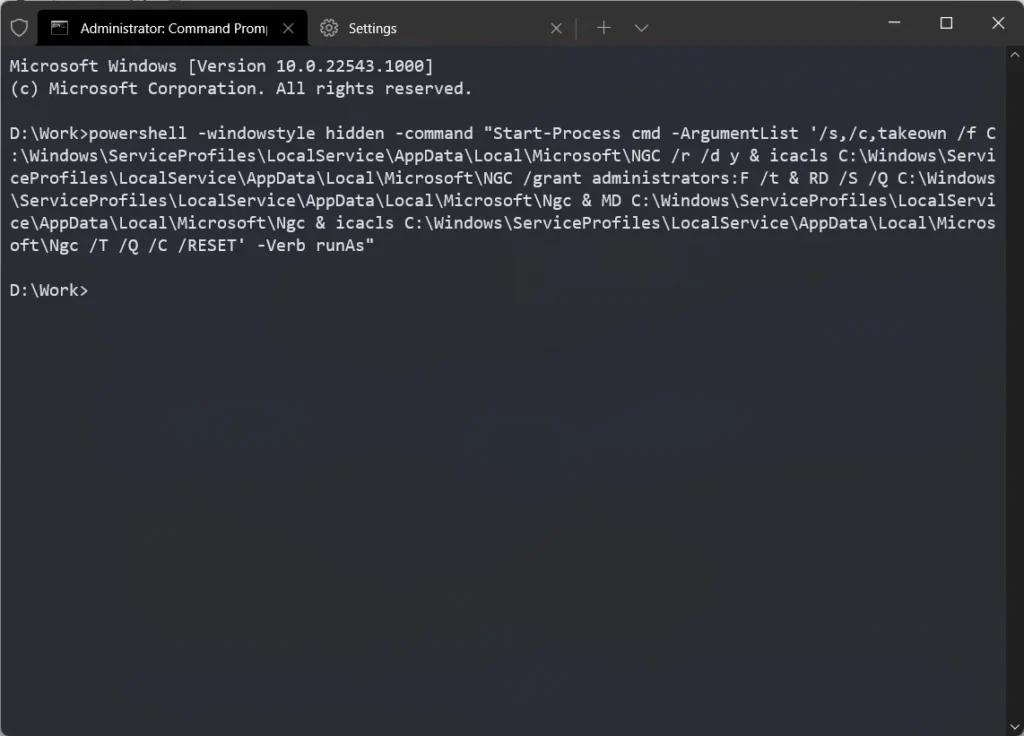
- Paste the following command to delete the Ngc folder:
powershell -windowstyle hidden -command "Start-Process cmd -ArgumentList '/s,/c,takeown /f C:\Windows\ServiceProfiles\LocalService\AppData\Local\Microsoft\NGC /r /d y & icacls C:\Windows\ServiceProfiles\LocalService\AppData\Local\Microsoft\NGC /grant administrators:F /t & RD /S /Q C:\Windows\ServiceProfiles\LocalService\AppData\Local\Microsoft\Ngc & MD C:\Windows\ServiceProfiles\LocalService\AppData\Local\Microsoft\Ngc & icacls C:\Windows\ServiceProfiles\LocalService\AppData\Local\Microsoft\Ngc /T /Q /C /RESET' -Verb runAs"- When done, open Settings>Accounts> Sign-in options. After that, click Set up under PIN and set the PIN.
- Restart your computer and check.
Make sure the Windows Biometric service is up and running
Another thing you can test is whether the Windows Biometric service is up and running which can help you resolve windows hello pin not working issue.
- Type services.msc in the search/start menu.
- Locate the Windows Biometric service.
- Right-click the service and choose Stop.
- Right-click the service and choose Start.
- Restart your PC.
However, in case something isn’t right, you can reset the Windows Biometric service. To reset it, use the link provided in the Registry section.
Disable Fast Boot/ Quick Boot
Sometimes, disabling Fast Boot or Quick Boot may help. You need to do it from the UEFI firmware settings. Also, make sure TPM is enabled. Please refer to the computer manufacturer for further information.
Enable TPM and Secure Boot in BIOS
PIN problem can also arise if a BIOS update or a BIOS reset has turned it off. Go to BIOS Settings and try enabling TPM/Security chip and Secure Boot. For this:
Please open the Windows Recovery environment using these steps.
- On the Lock Screen, Press and hold the Shift key. Then, click the restart button on the lock screen located at the bottom right situated in the Power menu, to open the Windows Recovery options.
- If you cannot reach the Lock screen or start your computer, restart your PC two times when the boot screen is shown. If your PC has no restart button, press and hold the Power button until the computer shuts down. Do this twice.
- Select UEFI Firmware Settings.
- Choose Security>Look for the Intel PTT/Security chip option in the firmware Settings.
- Clear the same and save the changes.
Run a Repair install to resolve Windows Hello PIN error
If neither step has helped, a Repair install will likely be needed. A repair Install keeps everything and reinstalls Windows; you can check it out here. You can also try performing a Windows Reset.
To conclude, these steps should help you resolve the “Something went wrong, and your PIN isn’t available” message i.e. Windows Hello PIN not working.