This article advises some troubleshooting steps for Taskbar not hiding in the Retail versions of Windows 11. Additionally, this is one of the most common issues reported with the Taskbar on Windows 11.
Start by checking the appropriate Settings in Taskbar behaviour Settings in Windows 11:
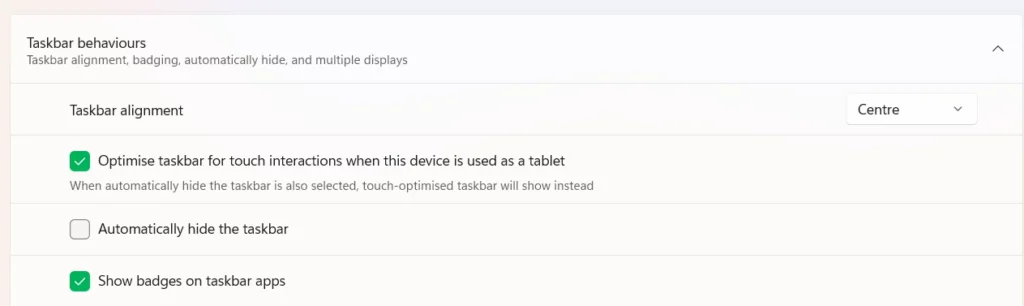
Check for any app that consistently shows notifications
Often, the cause of the Taskbar showing automatically might be an app. This includes WhatsApp and Discord, which trigger a message when something arrives. In that case, see if disabling an app notification or controlling them would help. You can disable the apps temporarily for troubleshooting purposes.
NVIDIA-related troubleshooting steps
People have reported that Nvidia GPU driver Settings might be connected to the taskbar not hiding in Windows 11. See the following tips on what you can do:
- Uninstall the GeForce Experience software, which several people have reported to interfere with the auto-hide feature.
- In Nvidia Settings, go to HUD > turn each layout off, and log off the user account. This might also fix the auto-hide problem.
Miscellaneous
Some of the following miscellaneous troubleshooting steps might also help in fixing Taskbar not hiding in Windows 11 issue.
- Click each icon of the Window on the Taskbar. The Taskbar might not auto-hide correctly if an application requests your input.
- If you are using multiple monitors, see if the Taskbar on the 2nd monitor is involved. Try to right-click or hover on the Taskbar on the 2nd monitor and see if it works as intended.
- Reinstall the GPU drivers for both integrated and external graphics.
- Uninstall any Taskbar customizer like StartAllBack, etc.
To conclude, these steps might help you in troubleshooting taskbar not hiding in Windows 11.
Also check
https://yourwindowsguide.com/2021/09/restore-missing-functionality-windows-11-taskbar.html