One of the highly requested features in Windows 11 is to remove news from the Widgets. This article provides instructions on how to hide or disable the news feed in the Widgets Board of Windows 11.
Table of Contents
Microsoft promised last year that you could hide the feed from the Windows 11 Widgets Board. Keeping this promise, Microsoft has now rolled out an option in the Widgets to hide the News Feed.
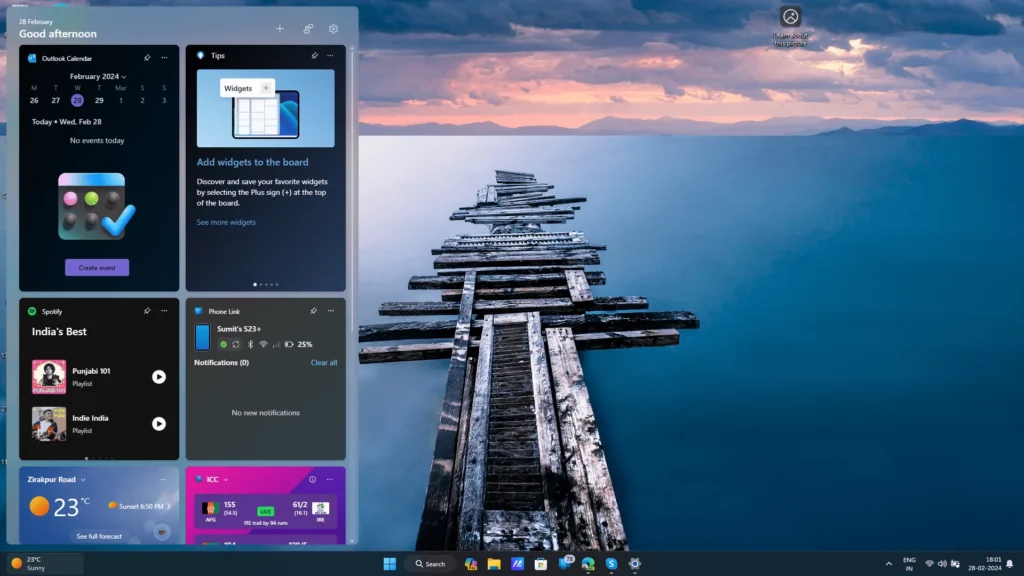
How to hide or disable the news feed in Widgets of Windows 11
To remove news from Widgets of Windows 11, see the steps below.
- Open the Widgets Board, either by Win+W keys or by clicking the icon on the left of the Taskbar.
- Click the gear icon on the top right to open Settings.
- Open the Show or Hide Feeds menu item.
- Turn off the slider titled ” Microsoft Start”
- Close the Widgets Board.
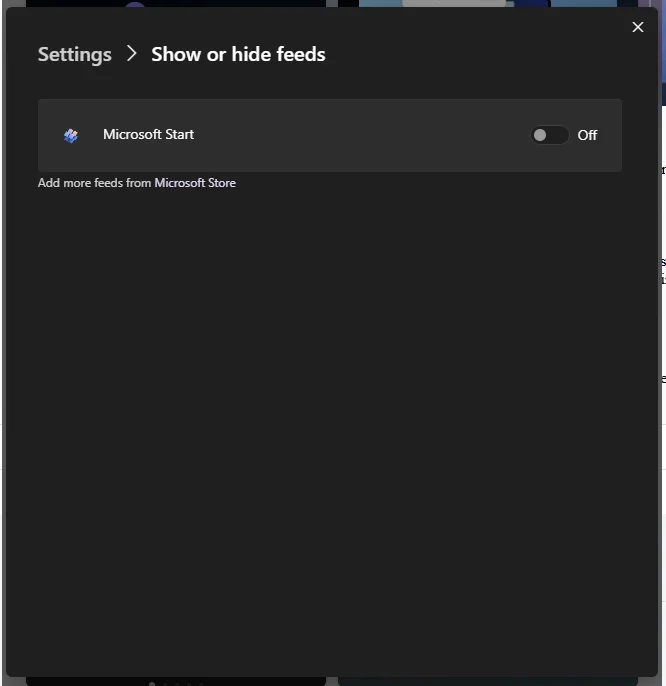
To conclude, these steps can help you disable the MSN feed in the Widgets board i.e. remove news from Widgets in Windows 11. Please note that this option is only available with the Windows 11 23H2 update, which requires the February update to be installed at a minimum. More about the update is explained here , which I wrote earlier.
We also recommend checking: