This article explains how to disable ads in Windows i.e. disable ads in all the versions of Windows. It is a multi-step guide—follow each step for the best outcome.
Table of Contents
Disable ads in Shell components of Windows
In Windows Shell, advertisements can be disabled in many components. Let’s examine each one.
Disable tips on the Lock Screen
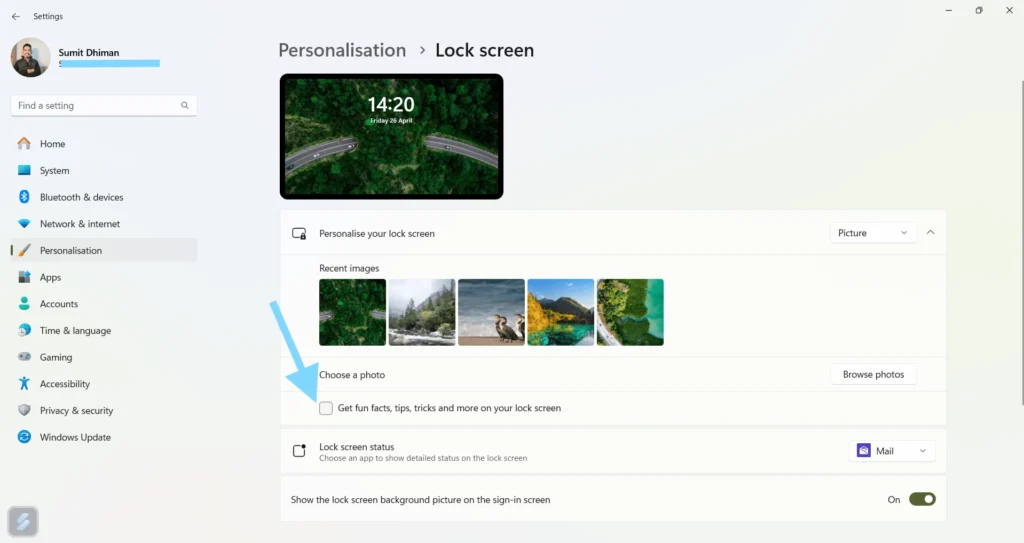
First, disable Tips/suggestions on the Lock screen, an option in Windows.
- Go to Settings > Personalisation > Lock Screen.
- Uncheck “Get fun facts, tips, tricks and more on your Lock screen.“
Turn off tips in the File Explorer.
Occasionally, Microsoft may show tips in File Explorer. To disable that, see the steps below:
- Click three dots in the File Explorer.
- On the view tab, uncheck (disable) and show sync provider notifications.
- Click OK.
Disable ads in Windows by turning off tips and suggested content in the Notifications
Sometimes, you may see tips on how to use Windows in the Notifications. Concurrently, settings exist to disable that. Follow the steps below:
- Open the Windows Settings App.
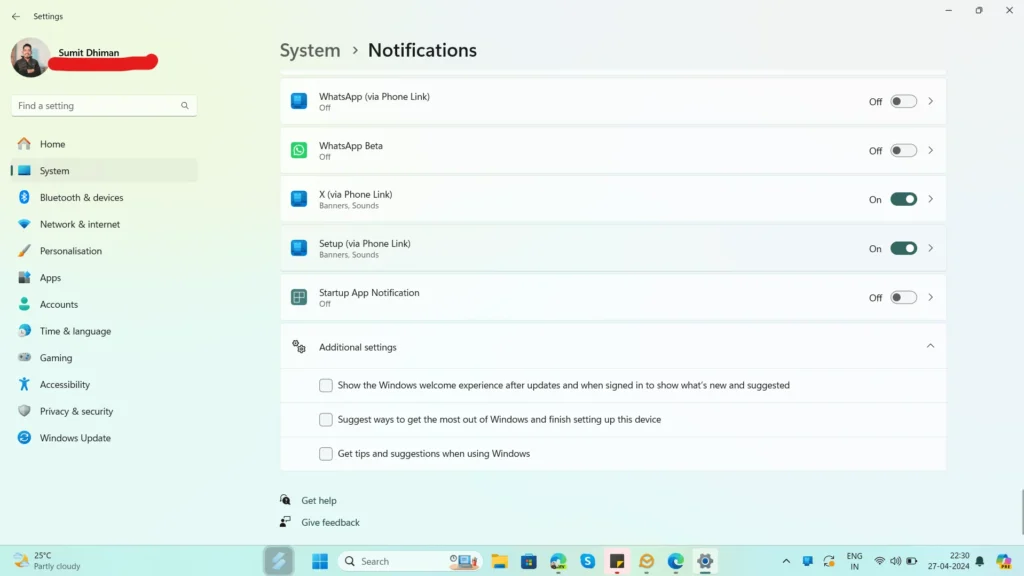
- In System > Notification, scroll down to additional settings.
- Uncheck the “Get tips and suggestions when I use Windows” option.
Disable Recommended content in the Start Menu as another recommendation to turn off ads in Windows
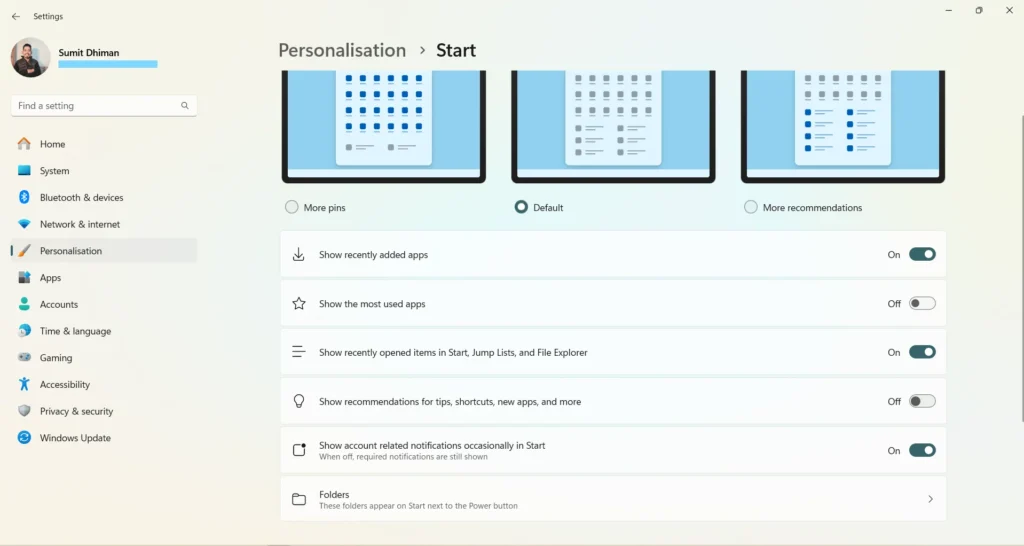
Often, items in the start menu in the lower half may show Recommended apps for you. To disable them, see the following:
- Open the Settings App and Navigate to the Personalization menu.
- Open the Start menu: Inside the available options and uncheck the option to show recommendations for tips, shortcuts, new apps, and more.
Disable Advertisements in OOBE, i.e. Welcome experience in Windows
Often, after an update, Windows may display tips during OOBE. Additionally, you might see some reminders if you choose to skip them during setup. To disable those, effectively disable ads in Windows related to OOBE, see the steps below:
- Open Settings > System > Notifications > Advanced Settings as mentioned above.
- Uncheck ” Show the Windows welcome experience after updates and when signed in to show what’s new and suggested” and “Suggest ways to get the most out of Windows and finish setting up this device”.
Miscellaneous
To conclude, some miscellaneous settings you can disable are as follows. These options help you disable advertisements using Microsoft’s data. You can read more about them here.
- Go to Settings > Privacy and Security > General > Turn off “Let apps show me personalized ads by using my advertising ID”
- Go to Settings > Privacy and Security> Diagnostics and Feedback > Turn off Tailored Experiences.
Also, check the following article about Windows 11 24H2:
Windows 11 24H2 – the next update to Windows 11