This article willguide you to use and install Winget in Windows 11. WinGet, also known as the Windows Package Manager, is a command-line tool developed by Microsoft to simplify software management on Windows. It allows quick installation of packages from a central repository, automates software deployment, and integrates with the App Installer on Windows 10 and 11. Additionally, it is ideal for developers and IT professionals who need efficient software management. Moreover, it also serves as an alternative for end consumers to Install Apps outside the Microsoft Store.
Table of Contents
Step 1. How To Install WinGet in Windows 11
To install the package manager, verify whether it’s already preinstalled on your system. It is automatically included with the App Installer package on Windows 11 . Also, the latest two versions of Windows 10 are supported, where WinGet can be used.
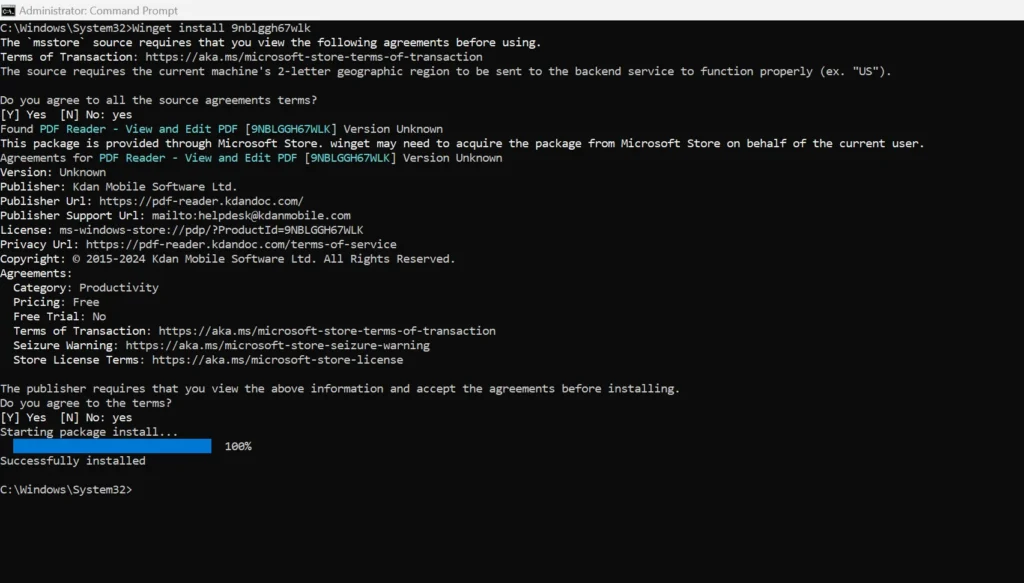
Step 2. Using the package manager
The commands for it allow you to efficiently manage software on your Windows system through the command line.
Concurrently, to open a command line, also known as Command Prompt, see below:
- Open the Windows Start menu.
- Type cmd, right-click it, and choose run as administrator.
Various switches of the Package Manager used to Install apps outside the Microsoft Store
- First essential step, To install an application, you can use the ‘WinGet install < package-name >’ command, where ‘<package-name>’ is the specific identifier for the software you want to install.
- If you’re unsure of the package name, you can use the WinGet search ‘<keyword>’ command to find it, replacing ‘<keyword>’ with a relevant term or part of the application’s name.
- To update an existing application, the ‘WinGet upgrade <packet-name>’ command is handy, ensuring you have the latest version of the package.
- If you want to update all installed applications simultaneously, use ‘winget upgrade –all’ .
- Last, for removing software, the ‘WinGet uninstall <package-name>’ command. It will uninstall the package, aka the application you use the Command for.
install <package>
uninstall <package>
upgrade
show <package>
search <search_string>
export – export the list of installed programs to a file
import – installation of programs (packages) according to the list in the file
Examples of using WinGet
For example, to install Firefox, type the following command:
winget install Mozilla.FirefoxAlternatively, to uninstall Firefox, swap install with uninstall.
To list all installed packages on a system, type the following command:
winget list The WinGet export and Import commands help restore the apps to your computer if you need to reinstall them.
winget export -o C:\1.json 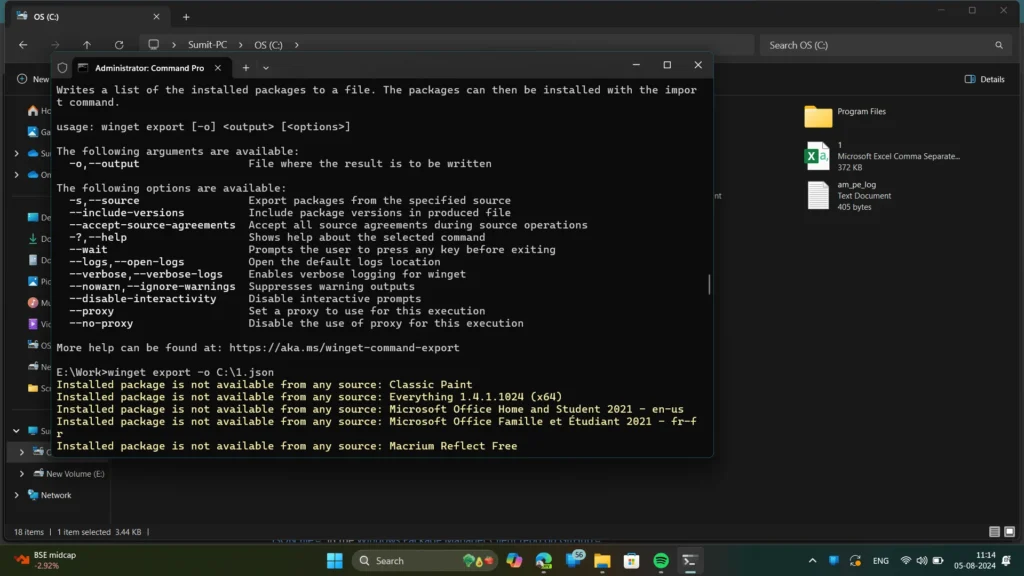
A GUI for the package manager
Furthermore, while this is primarily a command-line tool, a graphical user interface (GUI) can enhance its usability for those who prefer visual interactions over text-based commands. One such GUI is UnigetUI, which provides an intuitive and user-friendly interface for managing software packages.
UnigetUI, which can be considered a Graphical version of the package manager, enables you to manage packages through a GUI application. The interface often includes search functionality, making it easy to find specific applications without needing to remember exact package names. Additionally, WingetUI offers advanced features, such as batch operations, which allow users to install or update multiple applications simultaneously. This helps in saving time and effort. Moreover, by offering a visual representation of installed and available software, a GUI interface it makes it accessible to a broader audience, including those unfamiliar with command-line operations.
To summarize, these steps would help you to install Winget in Windows 11