This article can help you if you encounter an Audio Renderer error in Windows 11 while using YouTube in a browser, such as Microsoft Edge or Google Chrome, or in Windows itself as a PWA.
Table of Contents
What is Audio Rendering?
Audio rendering is the process by which a computer or device converts digital audio data into sound waves that can be heard through speakers or headphones. It involves decoding audio files or streams and processing them to adjust volume, effects, or position in space. After that, it sends the final audio signal to the hardware that makes sound. Essentially, audio rendering transforms digital information into the enjoyable sound experience we have every day.
Fixing Audio Renderer error in Windows 11
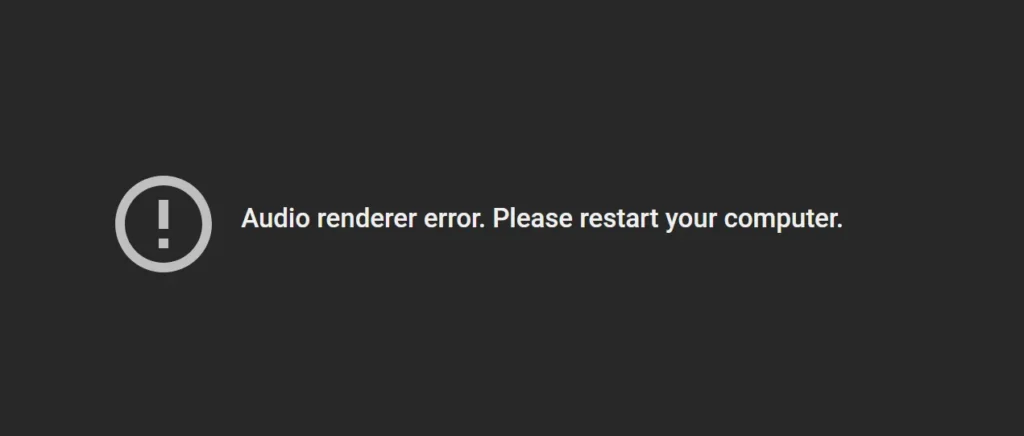
There are several fixes for Audio renderer errors in Windows 11 that commonly work. I list some of those below:
Restart the Windows Audio service
A simple stop and resume of the Windows Audio service works in most cases. For that:
Open an elevated Command Prompt (Run as Administrator) and execute the following commands one after the other:
net stop audiosrv
net start audiosrv
This will stop and then start the Windows Audio service. Try reproducing the issue; hopefully, it will be gone afterwards.
Remove or Uninstall 3rd Party Equalizers
Sometimes, 3rd party audio amplifier programs like Boom 3D are not compatible with websites like YouTube, which have the capability to Play Audio. In that case, if you recently installed something similar, the recommendation would be to remove the application. After that, restarting the computer would resolve the issue.
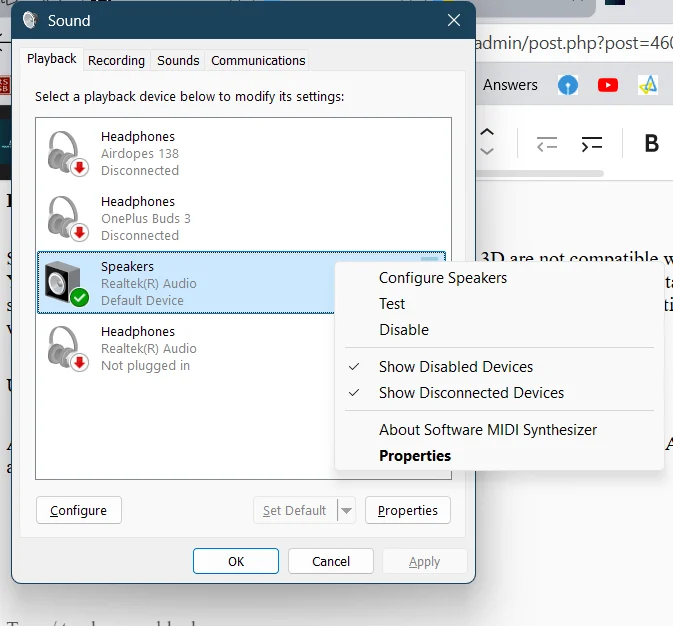
Use the Sound Control Panel
A simple swap between your Audio devices and then changing back to the default Audio device can also help. For that, see the steps below:
- Please open the Run Dialog box using the Win+R keys.
- Type “mmsys.cpl” without quotes and press Enter.
- On the Playback Tab, switch between your headphones by right-clicking the device and choose “Set as default device”.
- Then undo the changes by selecting the desired device as the default device.,
Disable Graphics Hardware acceleration
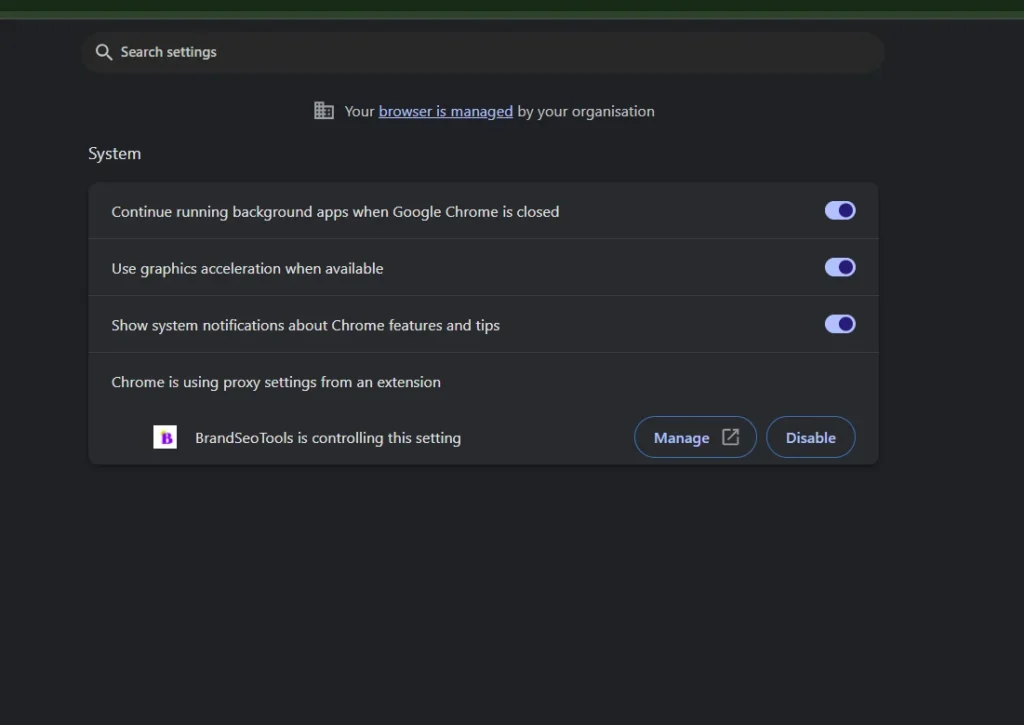
A fix that most commonly works is to disable the GPU for the Microsoft Edge process. This method can be referred to as the duct tape method, which shifts the load of running the Edge process to the CPU. For this fix, see the following.
- Open Microsoft Edge or Google Chrome’s settings by clicking the three dots on the right.
- For Microsoft Edge, choose the System and Performance menu.
- For Google Chrome, choose the System menu.
- Look for Graphics Acceleration.
- Turn the slider off.
Disable and re-enable the Audio device to fix Audio renderer error
Sometimes, simply disabling and then enabling the Sound device in Windows 11 can also resolve many issues. To do that, see the steps below:
- Press the Windows key + X and select Device Manager.
- Expand “Sound, Video, and Game Controllers”.
- Locate your Sound Device, and right-click it.
- Choose Disable device.
- Furthermore, enable the device.
Restart the computer and verify if the problem has resolved.
Additionally, if you have issues related to playing Sound, please refer to this article on our website.