This guide discusses how to assign shortcut to certain apps in Windows 11, thereby providing Quick access to the Application.
Table of Contents
Windows 11 shortcuts to access Applications
Want to open your favourite apps with a single key combo? Windows 11 lets you assign keyboard shortcuts to specific apps either natively (by creating a shortcut and setting a Hotkey in its Properties) or with more power and flexibility using Microsoft PowerToys.
Assign shortcut to certain apps in Windows 11 using the Taskbar shortcut
The easiest way to access an app is to pin it to the Taskbar. As soon as you pin it, a number shortcut is assigned to it, in the order they are placed. For example, look at the screenshot below of the Windows 11 Taskbar.

If you press the Windows key + 1, it would open Microsoft Edge. Concurrently, when you press Windows key + 2, it opens File Explorer and so on. The shortcut number for your device would be in the order apps are pinned to your Taskbar. If you want, you can drag the items in the Taskbar to your preferred location, which would also swap the shortcut key of the app.

Method 2: Assign shortcut to certain apps in Windows 11 using Powertoys
Powertoys, an excellent tool, also works as a keyboard remapper. You can get more information about Powertoys from this link, which includes downloads and setup instructions. For assigning a keyboard, see the steps below.
- Open Powertoys and navigate to the Input Output section. Afterwards, select the keyboard manager section.
- Click the Remap a shortcut menu in the Keyboard manager section. This would help us assign shortcut to certain apps in Windows 11.
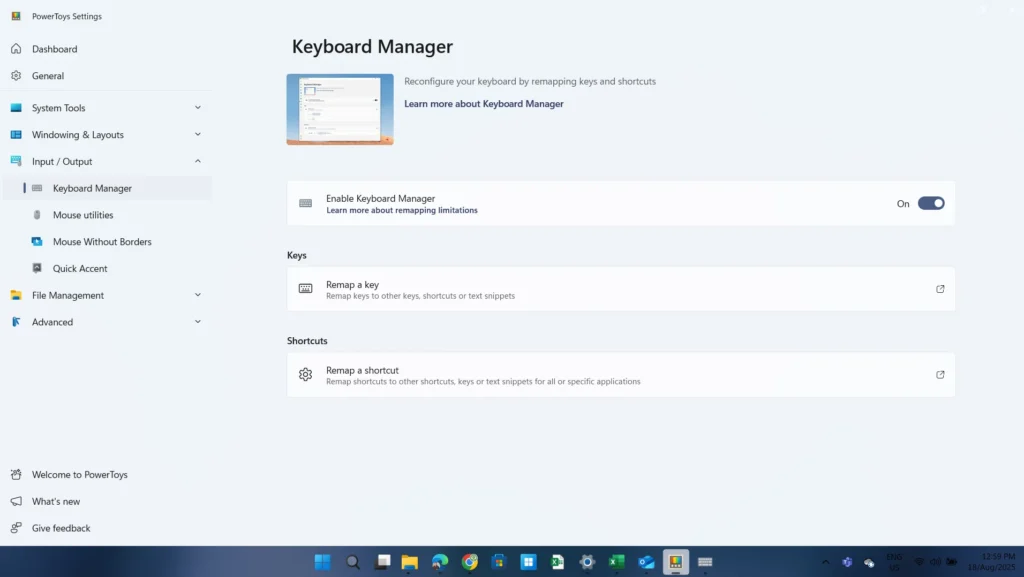
- In the new page that opens, follow the instructions carefully:
- Click Add shortcut remapping. Click the pencil icon and press your desired shortcut. Confirm it and press OK.
- Under the “To” column, under Action, select run a Program.
- Click the App Section to enter the path, or browse to the executable path.
- Change the other Settings like Arguments, elevation, etc., as desired.
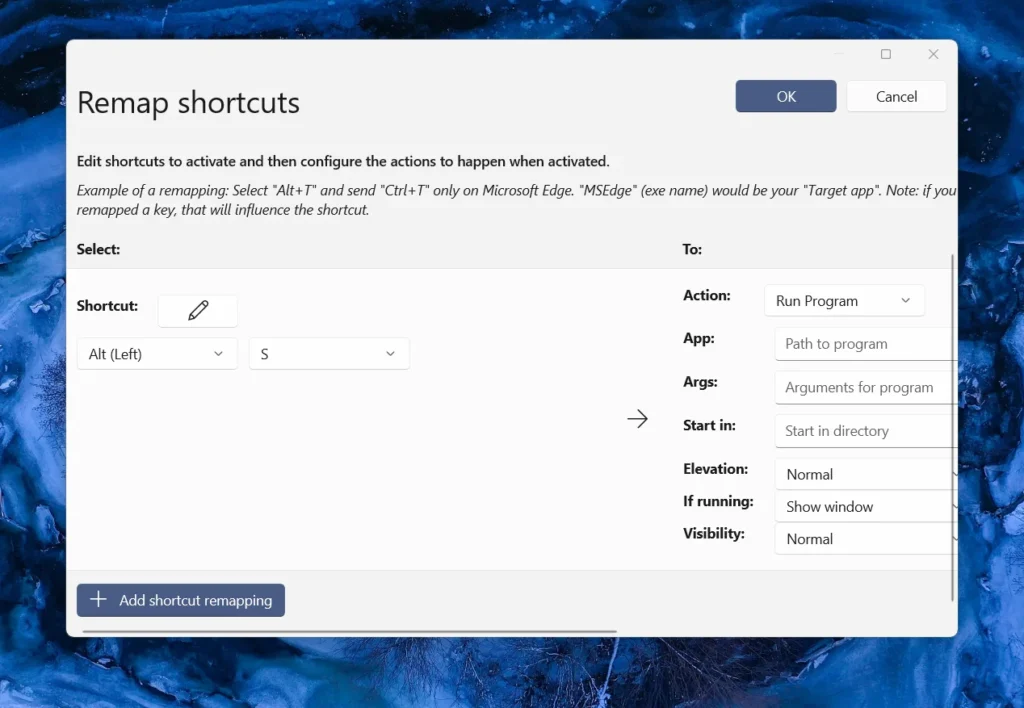
- A couple of points related to Powertoys: Powertoys must be running in the background for the Shortcut remap to work. Additionally, the Target must be set to all apps in the Shortcut Window.
To summarise, these steps would help you assign Windows 11 shortcuts to the apps in Windows 10 or Windows 11.