This article explains scenarios on how to recall an Email in Outlook or unsend an Email in Outlook.
Table of Contents
What is Outlook, and its various versions
Microsoft Outlook is a personal information manager application from Microsoft. Its primary function is to serve as an email client. However, it also includes a calendar, task manager, contact manager, note-taking, and journal. It is widely used in corporate environments for communication and scheduling, as well as by individuals for personal email and organization. Outlook is available as a desktop application, a web-based client (Outlook on the web), and as mobile applications for various platforms.
It is available in three main versions.
- Outlook for Microsoft 365 is the full-featured desktop application that is part of the Microsoft 365 subscription.
- Outlook on the web provides access to email and calendar through any web browser, offering portability.
- The new Outlook for Windows is the latest version, intended to replace the built-in Mail and Calendar apps in Windows, providing a modern experience.
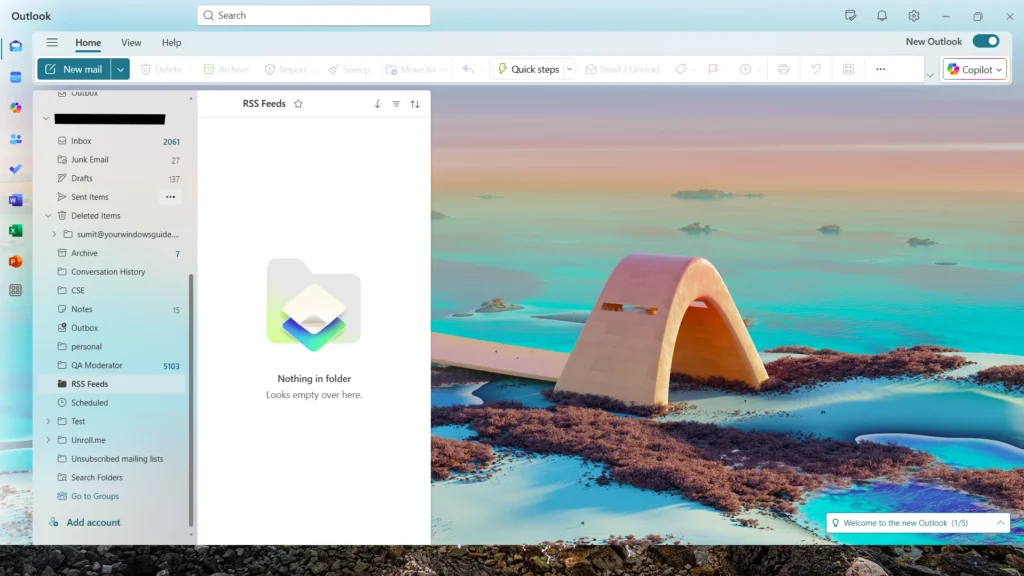
While these versions share a core design, some advanced features, such as the ability to recall an email in Outlook, are valid only for Outlook Exchange accounts.
Can you recall an Email in Outlook?
Now back to the primary question – is it possible to unsend an Email in the Outlook app or web version? The answer depends. In short, recalling an email in Outlook works only for Microsoft 365/Exchange work or school accounts, and typically only within the same organisation; it does not work for Outlook.com/Hotmail personal accounts, Gmail, or across organisations directly. I explain it below in detail.
Business users
If you have Microsoft Exchange set up at your organisation level, i.e. the same domain is there, you can recall the message using the Recall message button in the Sent items folder. For this case, the following applies.
Outlook Classic configured with a Work/School account
- Open Sent Items, then double‑click the email to open it in its window.
- On the Classic Ribbon, go to the Message tab > Actions > Recall This Message.
- On the Simplified Ribbon, open the Message tab, select More commands (…) > Actions > Recall This Message.
Details
If Recall This Message isn’t visible, the account likely isn’t an Exchange/Microsoft 365 work or school account, or the feature is disabled by the organization.
Recall isn’t available in Outlook on the web.
Recall is also not available for Outlook 365 for Mac
You can additionally see this video from Microsoft support:
Outlook New / Outlook web configured with a Work/School account
Process to unsend an Email in Outlook is comparatively easy. Open Sent Items from the left folder pane, double‑click the sent email to open it in a separate window, then choose Recall Message on the ribbon and click OK when prompted.
Personal Users – How to Recall an Email in Outlook for Microsoft accounts
As told earlier, the unsend feature works only for Microsoft 365/Exchange work or school accounts, and does not work for Outlook.com/Hotmail personal accounts, Gmail, or across organisations. That being said, Microsoft has added a delay feature in Outlook for Web, which allows you to delay sending the message. To enrol in the delay, see the steps below:
- Open Outlook for Web or Outlook New. If you have Outlook 365, you need to set up a rule to accomplish the delay. See this support document for that.
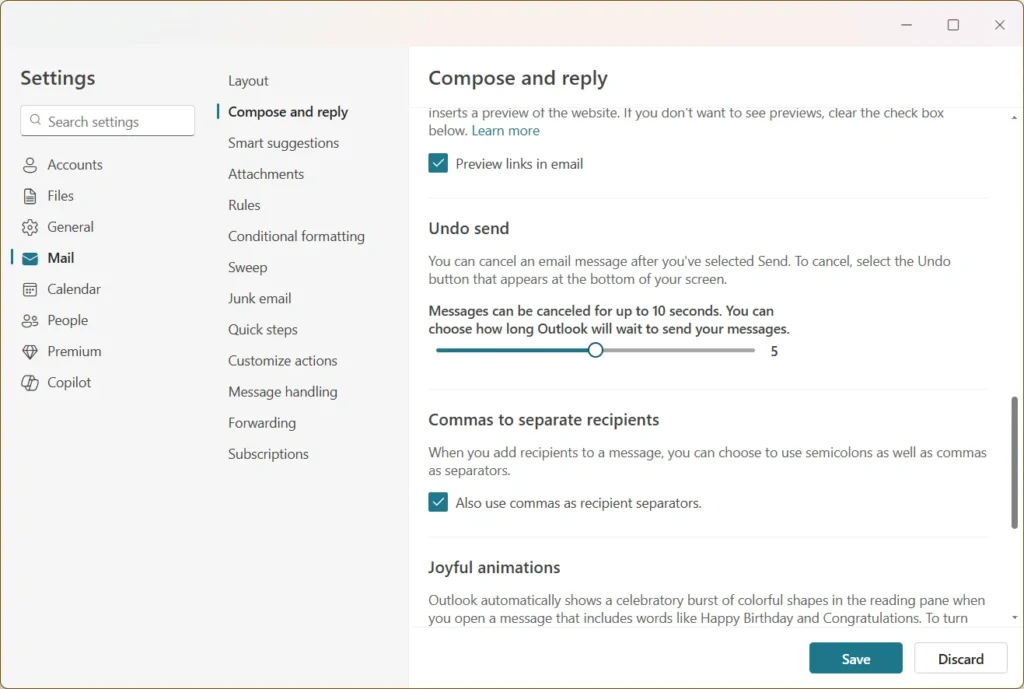
- Open the Settings and go to Mail > Compose and Reply option.
- Under Undo send, set the slider to 5 or 10 seconds based on your choice.
- Click Save. From now on, the sent messages would be sent by the set delay so that you can undo that if necessary.
To summarise, these steps would help you unsend an email in Outlook if you sent it mistakenly.