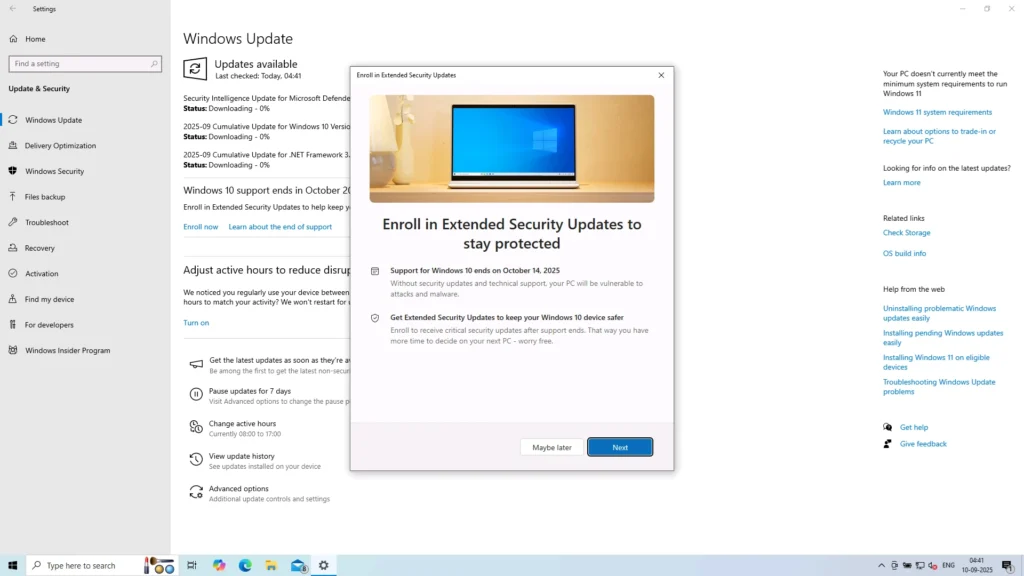
A while ago, we covered the Windows 10 ESU program, which allows you to get Windows 10 Extended security updates for free for 1 year, if you have a Microsoft Account or 1000 reward points. This article is helpful for you if your device can’t enroll in Windows 10 ESU Program, i.e., Windows 10 ESU not showing up in Windows update.
If you want me to fix this remotely, fill out the form. Our premium service can also help you to get Windows 11 on your unsupported PC at a nominal cost.
Table of Contents
Background of Windows 10 Extended updates Program
With the end of support for Windows 10 scheduled for October 14, 2025, Microsoft has introduced the Extended Security Updates (ESU) program as a paid service for users who cannot transition to Windows 11. This program provides critical security updates for up to 1 year for the end-of-life date, i.e. October 2025, ensuring devices remain protected against new vulnerabilities. Participation requires a specific enrollment process, which is covered in our other article. For commercial organisations, activation is typically handled through volume licensing keys, while a separate, yet-to-be-detailed process will be available for individual consumers. Therefore, not seeing the ESU program in Windows Update is expected behaviour, as it is a deliberate, paid extension of service rather than an automatic update offering.
Making the ESU program pop-up appear if you can’t enroll in Windows 10 ESU program
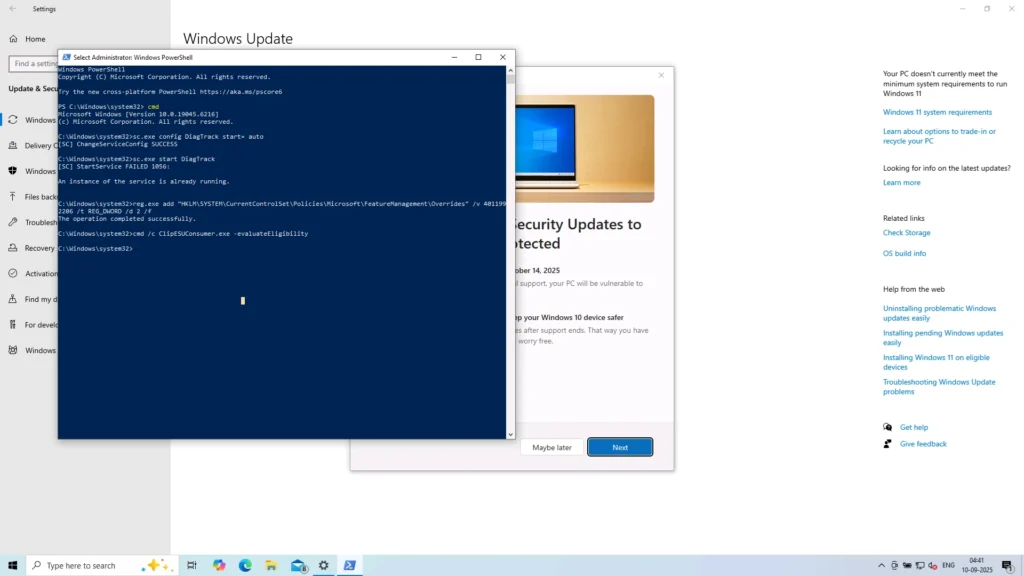
If the ESU Program popup is not appearing in Windows Update, we can force Windows to show the enrollment dialogue box using some commands. Here are the detailed steps on how to achieve the same. All credits to Askwoody.com to find the solution.
- First of all, ensure the Connected User Experiences and Telemetry (DiagTrack) service is not disabled. For that, in the Windows search, Type cmd, right-click it, and choose Run as Administrator. Enter this command:
sc.exe config DiagTrack start= auto
sc.exe start DiagTrack- Add the following registry key, using the same Command Prompt admin that forces the ESU feature to appear:
reg.exe add "HKLM\SYSTEM\CurrentControlSet\Policies\Microsoft\FeatureManagement\Overrides" /v 4011992206 /t REG_DWORD /d 2 /f
- Restart the Computer once.
- Use this command to trigger the ESU Popup in the Windows update area, which would resolve the ESU Program not appearing in Windows update issue.
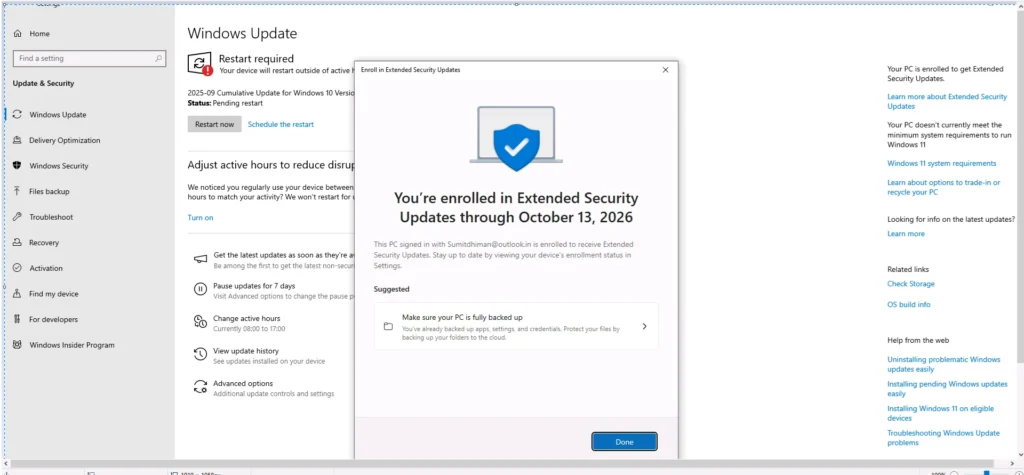
cmd /c ClipESUConsumer.exe -evaluateEligibility- Restart again, and you should see the pop-up in Windows Update, thereby fixing the issue related to Can’t enroll in Windows 10 ESU program.
This would help you fix the issue where Windows 10 ESU not showing in WU, i.e. make the ESU Program appear in the Windows update section.
More details here in this Microsoft Support document and credits to this post and ASKWOODY for the solution.
Additionally, a Video for the detailed steps is available here:
Consider supporting this post if it helped you:
