This article provides instructions on how to view or check the WiFi password on Windows devices.
Table of Contents
WiFi functionality in Windows
If you’re using a Windows PC, managing Wi-Fi is pretty straightforward and handy. Windows makes it easy to connect to wireless networks, save them for future use, and even share them with other devices. Sometimes, though, you might forget the password of a Wi-Fi network you’ve already connected to. Instead of resetting the router or asking someone again, you can simply check the Wi-Fi password in Windows through the settings or Control Panel. This small but valuable feature ensures you’re never locked out of your own network and can reconnect your devices without hassle.
How to check WiFi password in Windows – various methods
The various methods for finding the WiFi Password in Windows 10 or Windows 11 are as follows.
Check WiFi Password in Windows using the traditional method of Settings
The conventional way to view WiFi Password on Windows is using the Settings app. For that, see the steps below:
- Open the Settings App using Win+I keys.
- Navigate to Network & Internet > Wi-Fi > Manage known networks. The navigation might be a bit different in Windows 10,
- Select your known network.
- Click “Show” beside Wi-Fi Network Password and the password should be visible.
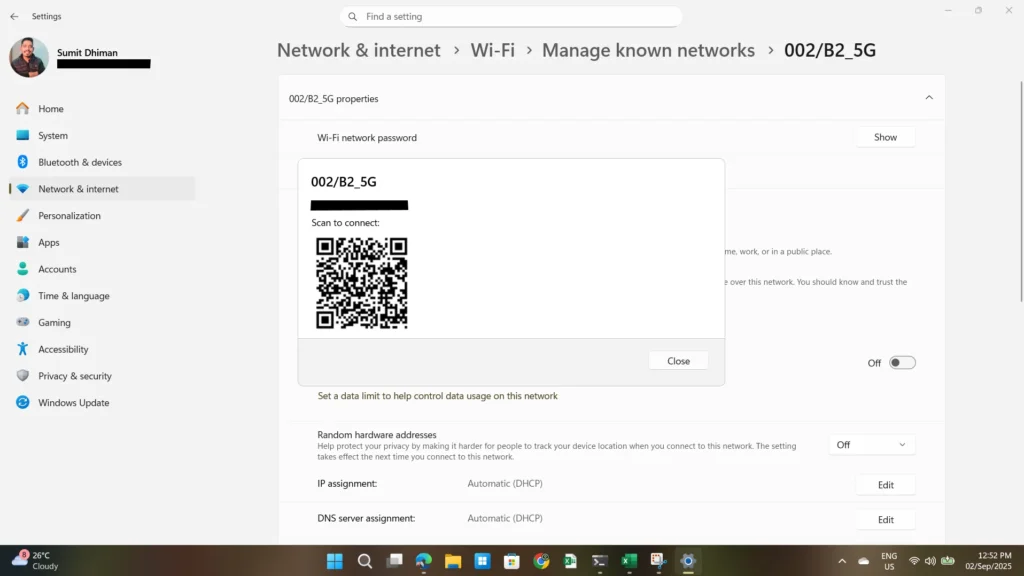
View WiFi password in Windows using CMD
The easiest method to check the WiFi password in Windows is using Command Prompt, the command line tool in Windows 11.
- In Command Prompt, type:
netsh wlan show profilesThis lists all saved Wi-Fi networks.
- Find the network name (SSID) you want, then run:
netsh wlan show profile name="NETWORK_NAME" key=clear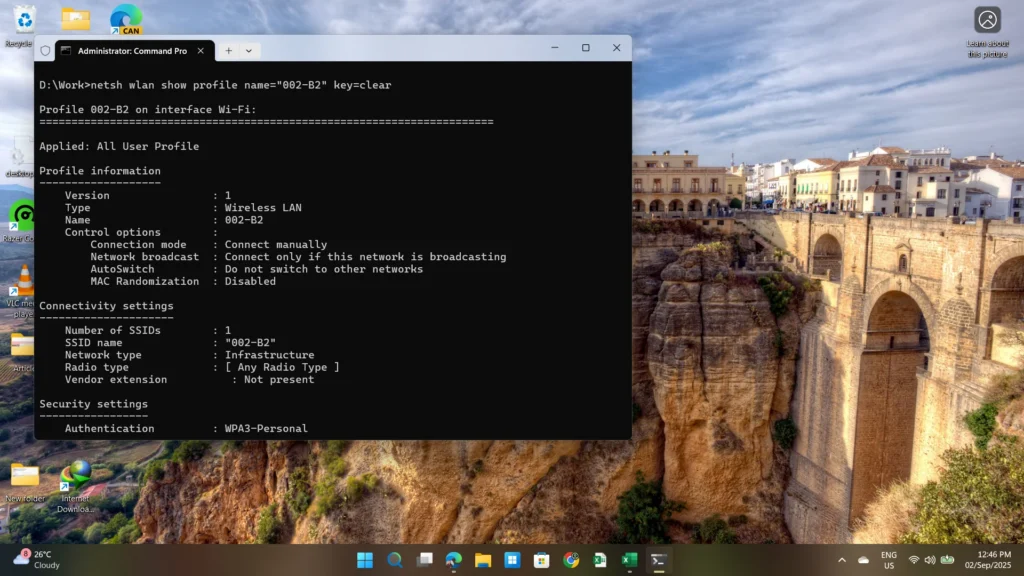
- Replace
NETWORK_NAMEwith your Wi-Fi name.
- Scroll to Security settings → Key Content. That is your Wi-Fi password of the network name you entered in a Command Prompt.
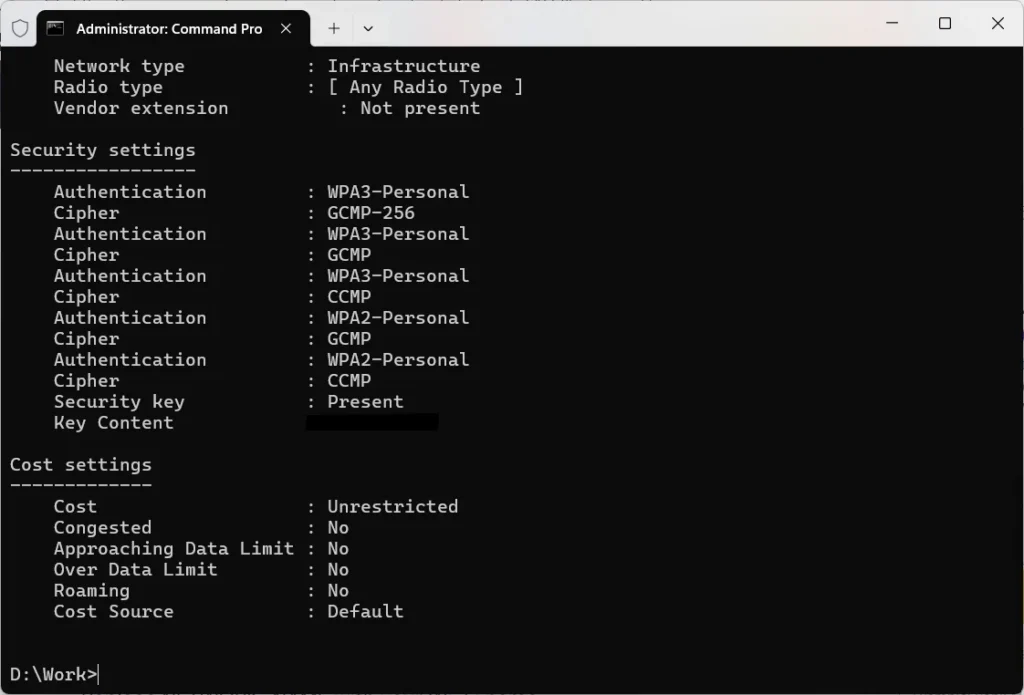
These two methods are reliable and effective ways to view the Network password on Windows 10 and Windows 11. If you experience any Mapped drive network issues, refer to this article for assistance.