At times, Windows updates can give you issues. The issues range from minor problems like an app not working to even larger issues that might prevent your computer from starting. At the end of the article, you will learn the steps to uninstall the Windows update that might get rid of the problem.
Table of Contents
About Windows update
Keeping your Windows operating system updated is crucial for security and performance, as these updates deliver essential patches and new features. However, on rare occasions, a specific update might lead to unforeseen issues, such as application conflicts or system instability. If you suspect that a recent patch is the source of a new problem, the most direct troubleshooting step is to uninstall a Windows update. This action removes the problematic files and can often restore your computer to its previous, stable condition while you await a revised update from Microsoft. How do I uninstall a Windows update?
How to Uninstall Windows update
The steps on how to uninstall Windows Update are below:
- Boot to the Windows Recovery environment using either of these two methods. A comprehensive guide is given here.
- Reset your PC twice when the boot screen is shown. The third time, the Recovery environment should open.
- Please go to Settings > System > Recovery. Subsequently, click “Restart Now”.

- In the Windows Recovery environment, click Troubleshoot.
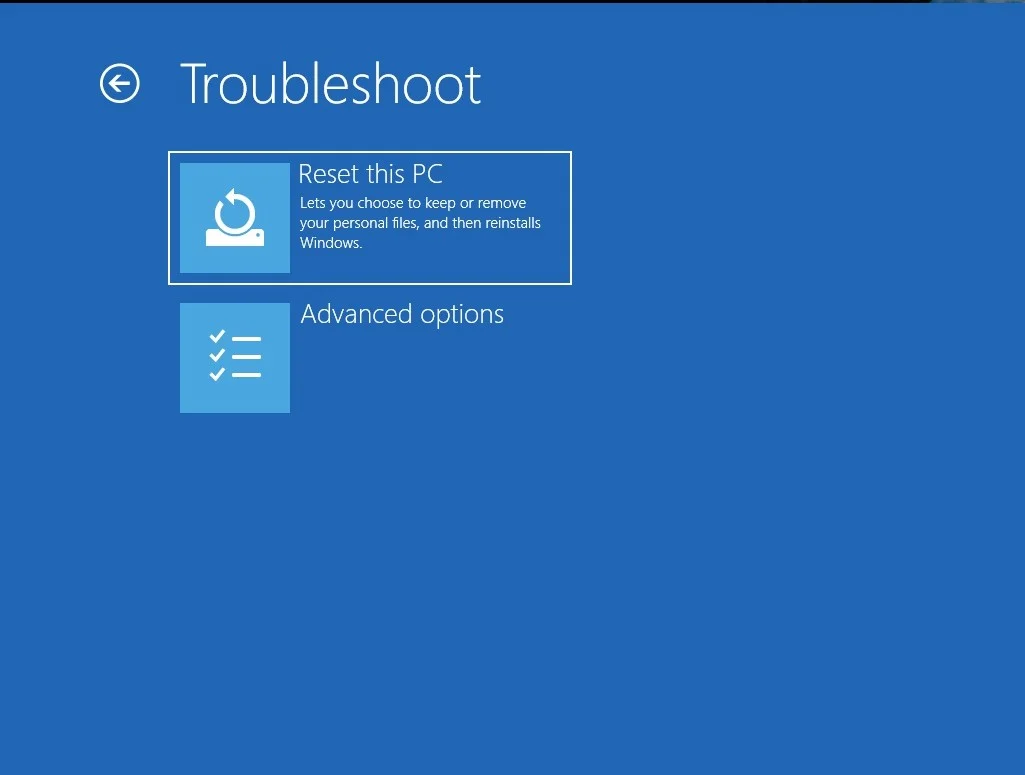
- Click Advanced Options. Then, click Uninstall Updates which should lead you to this:
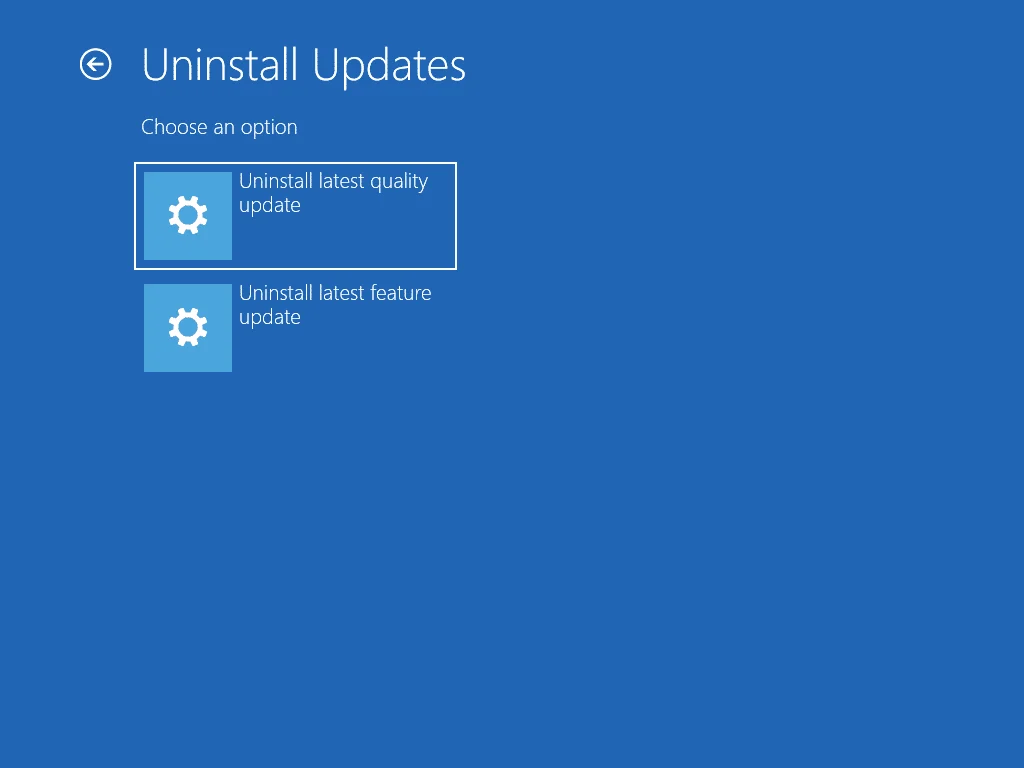
- Click “Uninstall latest Quality update”
- Enter your Microsoft Account password to authenticate your account. After that, the Uninstall Windows update task would be done.
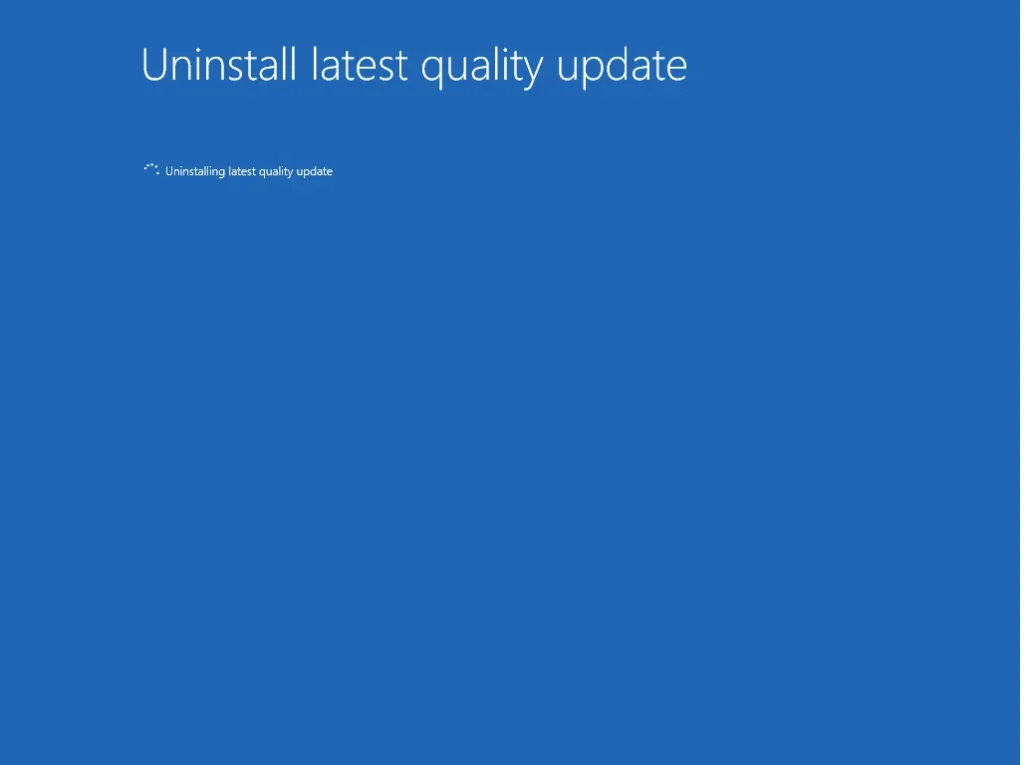
You can now pause the updates for a brief period, until the latest update is scheduled.
To summarize, this guide would help on how to uninstall Windows update for Windows 10 and Windows 11.