This article serves as a comprehensive guide for users to resolve Network Sharing not working properly or entirely in Windows 11. Symptoms include cannot open shared drives or folders, Mapped drives showing error, and Network sharing credentials not working.

Network Sharing in Microsoft Windows
Network sharing in Windows lets you access files, folders, and printers on other PCs in the same home or office network without using USB drives. When you connect to another PC’s shared resources, Windows may ask for Network sharing credentials in Windows 11, which are simply the username and password of an allowed account on that remote machine. If password-protected sharing is turned on, only users with valid credentials can open or modify shared content, helping keep your data secure. On the other hand, misconfigured credentials or sharing settings can trigger repeated “Enter network credentials” prompts, which is a common cause of Network sharing not working properly in Windows 11 and Windows 10.
Common Causes of Network Sharing Not Working
There are a lot of common causes for File/Folder recording not working in Windows, which are below:
- Network sharing turned off.
- Network services are not running on the host and guest computers.
- Using a Microsoft account, especially Passwordless.
- Recent Windows changes, i.e. Windows update.
- SMB 1.0 turned off when required.
We will cover each aspect in detail.
Enable Network Discovery and Services for troubleshooting network files and folders
For each device, to ensure File and folder sharing works properly, you must turn on Network sharing. To do this, open the Network option in File Explorer and enable it.

If your Network Discovery is on, some services in Windows 11 ensure fix for Network sharing not working. The steps are below:
- Press Windows key + R and type services.msc.
- In the Window that opens, ensure the following services are running. Additionally, set them to run automatically instead of manually.
- Function Discovery Resource Publication
- Function Discovery Provider Host
- SSDP Discovery
- UPnP Device Host
- Do these steps on all the computers connected to the Network.
- Once you do that and disable/enable your Network, the file folder sharing in Windows should work properly.
Credentials issue while accessing shared items
Often, when you can access your PC, the next bottleneck you encounter is that your credentials don’t work. This includes using your Microsoft account credentials to log in or using Windows Hello PIN. Additionally, you might see the error messages like:
Check the spelling of your name.
The credentials are incorrect, try again.
The connection has not been restored.
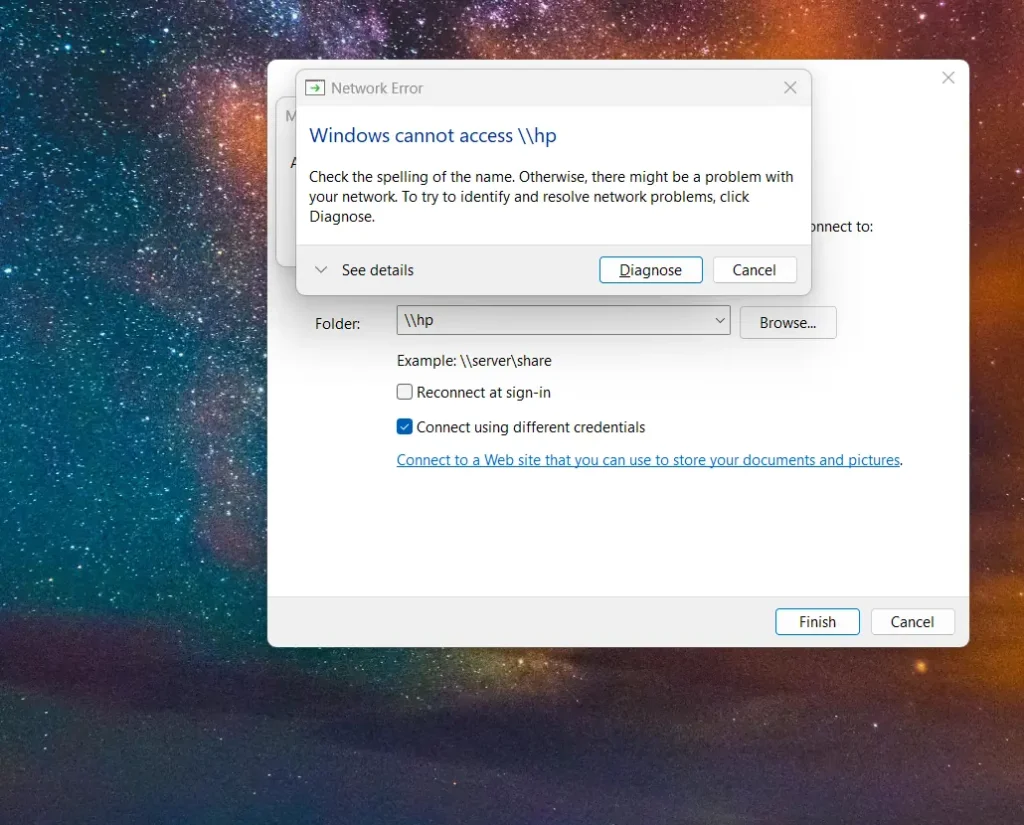
To fix Network sharing credentials Windows 11 issue, try a couple of steps.
- Change your Microsoft account password, then let it sync with the device. This can take up to 12 hours to synchronise.
- You can remove Windows Hello PIN from Settings > Accounts > Sign-in options and try again using the password.
- Clear cached credentials:
Refresh network credentials to fix Network Sharing not working
This fix works in most cases. To do this, we would request a Microsoft account password reset via a command. See the steps below.
- On the second machine, open an elevated Command Prompt and run the following command. Replace the MSA with the actual MSA you are using to sign in.
runas /u:MicrosoftAccount\joe@outlook.com cmd.exe- When prompted, enter the Microsoft account password for the Email.
- Now connect to the share on the second machine, using the username
MicrosoftAccount\<your MSA>And the same password; access should succeed.

Ideal fix for File folder sharing in Windows – make a temporary account
However, the best approach to resolve this is to create a temporary user account for Network sharing credentials Windows 11, which will fix the Network sharing issue. The steps below outline it:
- Press Windows key + R and type netplwiz.exe
- Click the add button. Follow the steps to create a local account as detailed here. You can give the name something simpler, since we would use it only to access the Network.
- Make the local account administrator. Use these to access Network sharing.
- Once it is done, the Windows 11 network sharing credentials issue is resolved.

Older Mapped drives fix for Network sharing
Microsoft has made some recent changes to increase the security of the mapped drives in Windows 11. To revert the change, you need to run some PowerShell commands. This is better described in this post below:
Once you run both commands mentioned above, network sharing should start working properly.
To summarise, these fixes comprehensively address file folder sharing in Windows issues, which includes 11 and Windows 10.