Use this simple guide to turn off web results in Search and keep local search results only.
Windows 11 Search can show web suggestions and search results when you type in the taskbar search box. If you want a cleaner search experience and only local results from your PC, you can disable web search in Windows 11 Search using a registry tweak or a policy-based method, depending on your edition of Windows 11.
Table of Contents
What is web search in Windows 11?
Web search is the online result layer inside Windows Search. When it is enabled, Windows can send search terms to Microsoft services and show web results alongside local apps, files, and settings. This can be useful for some users, but it also makes Search feel crowded and less focused.
If you only want to find files, apps, and settings on your PC, turning off web search gives you a more local and predictable experience.
How to disable web search in Windows 11 Search
There are multiple ways to disable Web Search in Windows 11.
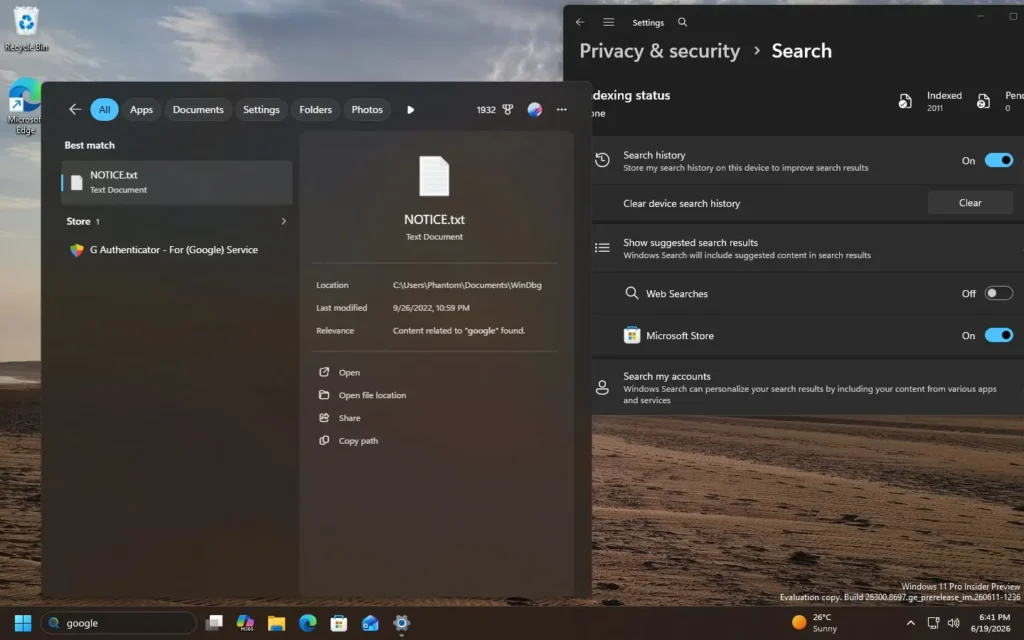
Method 1:
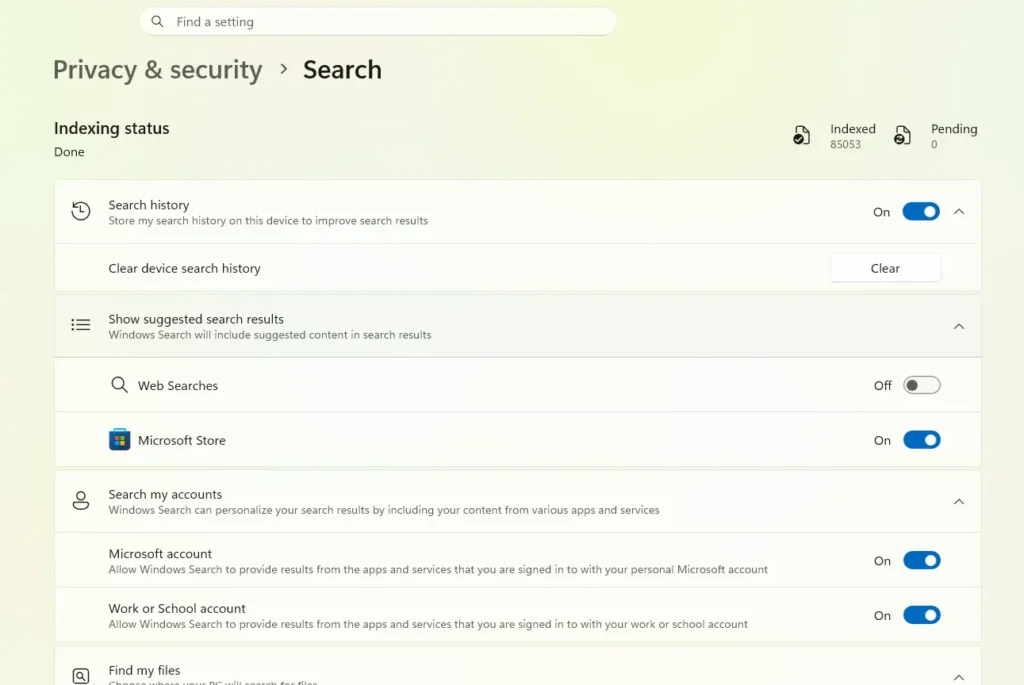
- Go to Settings > Privacy and Security > Search.
- Turn off the Web Searches slider.
- This is still rolling out, so it might not show up – Windows 11 26H2 release will have this feature.
Method 2: Use Registry Editor (DOES NOT WORK YET)
This will work in the future.
- Press Win + R, type regedit, and press Enter.
- Go to the following path:
HKEY_CURRENT_USER\Software\Policies\Microsoft\Windows - If the Windows Search key does not exist, right-click Windows, select New > Key, and name it Windows Search.
- Inside Windows Search, create or modify this DWORD (32-bit) Value:
- Name:
DisableWebSearch - Value:
1
- Name:
- Restart your PC, or sign out and sign back in.
If the setting is applied correctly, Windows Search should stop showing web results in the search panel.
Method 3: Use Group Policy Editor to turn off web results in Search (NOT WORKING YET)
This method is available on Windows 11 Pro, Enterprise, and Education in the future.
- Press Win + R, type gpedit.msc, and press Enter.
- Go to: User Configuration > Administrative Templates > Windows Components > Search
- Find the policy named Do not allow web search.
- Open it and set it to Enabled.
- Also check Don’t search the web or display web results in Search if it appears in your build.
- Click Apply, then OK.
- Restart Windows Explorer or reboot the PC.
This method is cleaner than using the registry because it is built into Windows policy controls.
Final note
To summarize, you can disable web search in Windows 11 by using Settings, Registry Editor, and Group Policy Editor. Thanks to PCMag for the tip.