Use this simple guide to eliminate Mouse Without Borders Lagging Cursor issue
If you use Microsoft PowerToys Mouse Without Borders to control multiple computers, dealing with a lagging or stuttering cursor can be incredibly frustrating. The good news is that this input latency is usually caused by simple network confusion or conflicting Windows display settings. Here are the two most effective ways to fix lag and restore smooth cursor movement.
Table of Contents
Why is Mouse Without Borders lagging?
Mouse Without Borders relies entirely on your local network to send cursor coordinates and keystrokes between your devices. When your computer is actively listening for wireless displays, or when it has multiple virtual network adapters installed, the network traffic gets confused. This packet delay translates directly into a choppy, lagging cursor on your screen.
Fix 1: Disable Projecting to this PC
Turn off screen mirroring features
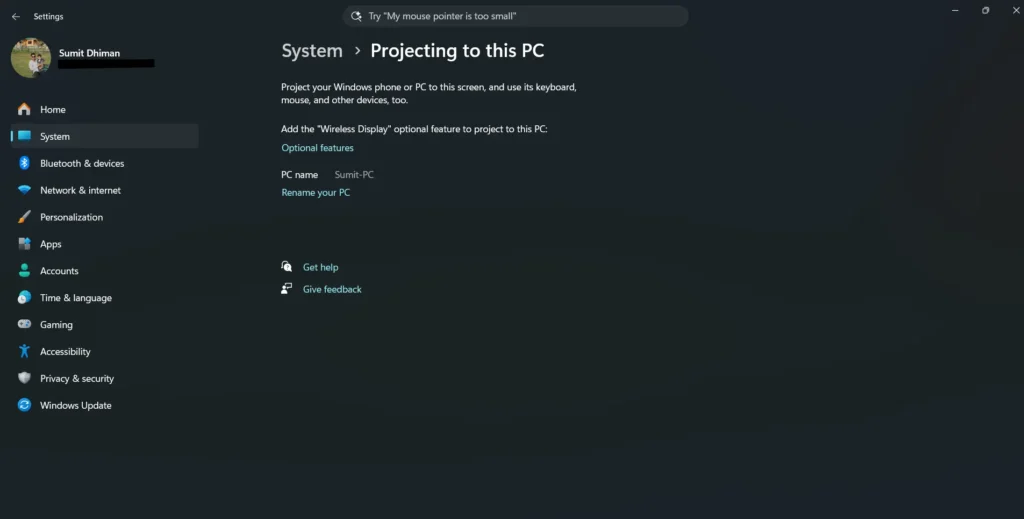
Many users report that the built-in Windows wireless display feature causes severe latency with Mouse Without Borders. If your PC is constantly scanning for devices to project to, it disrupts the real-time input data. Turning this off drastically improves the Mouse without Borders lagging issue, together with latency.
- Open the Settings app by pressing Windows key + I.
- Navigate to System on the left menu.
- Scroll down and click on Projecting to this PC.
- Change the first dropdown menu setting to Always Off.
- Restart Mouse Without Borders to apply the changes.
You can refer to this support document from Microsoft for this.
Fix 2: Resolve Network Adapter conflicts (VirtualBox / VMware)
Force the app to use your physical adapter
If you have hypervisors like VirtualBox or VMware installed on your laptop or desktop, they create virtual network adapters. MWB often gets confused about which adapter to use for its connection, accidentally routing your mouse movements through a virtual network instead of your actual Wi-Fi or Ethernet.
You can fix this by temporarily disabling the virtual adapters in Windows:
- Press Windows key + R to open the Run dialog box.
- Type ncpa.cpl and press Enter to open your Network Connections.
- Look for any network adapters labeled VMware Network Adapter or VirtualBox Host-Only Network.
- Right-click the virtual adapter and select Disable.
- Restart both computers.
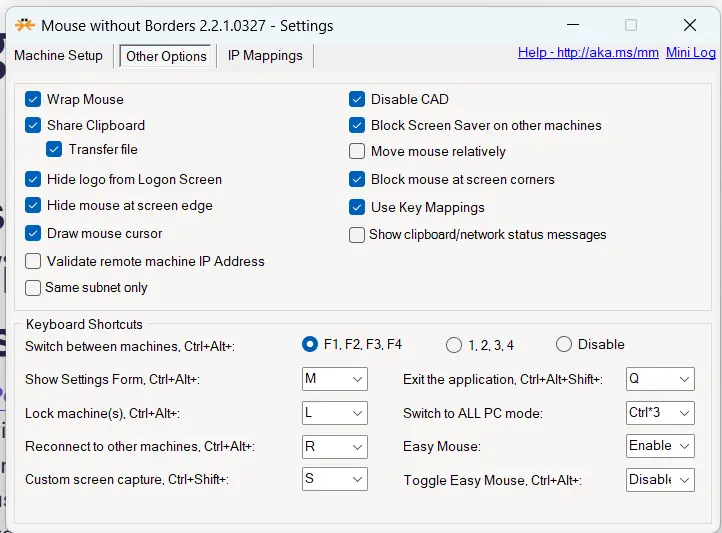
Alternatively, you can open the Mouse Without Borders settings, go to the IP Mappings tab, and explicitly type the correct IPv4 address of your physical machine to force the connection over your actual network.
To summarize, turning off the Windows projecting feature and disabling conflicting virtual hypervisor adapters will resolve the vast majority of Mouse without Borders lagging issues.