Excel users are reporting copy and paste problems after installing the latest Office updates
21-September-26: The problem has been resolved for most of the users with Microsoft deploying a fix:
The issue is fixed in the latest updates of the following versions:
- Office LTSC 2024 was fixed in Build 17932.21000.
- Office LTSC 2021 was fixed in Build 14334.20918.
STATUS: MITIGATED FOR THE FOLLOWING BUILDS
Office LTSC 2019 was mitigated in Build 10417.20208. If the workbook contains conditional formatting, paste operations might continue to fail.
Office 2016 was mitigated with KB5002665. If the workbook contains conditional formatting, paste operations might continue to fail.
If Ctrl+C and Ctrl+V are not working in Excel after a recent Office update, you are not alone. Several users have reported that copy and paste stopped working after updating Office, with the problem affecting multiple Office versions.
The issue appears to be related to recent Office builds rather than a problem with the keyboard or an individual PC.
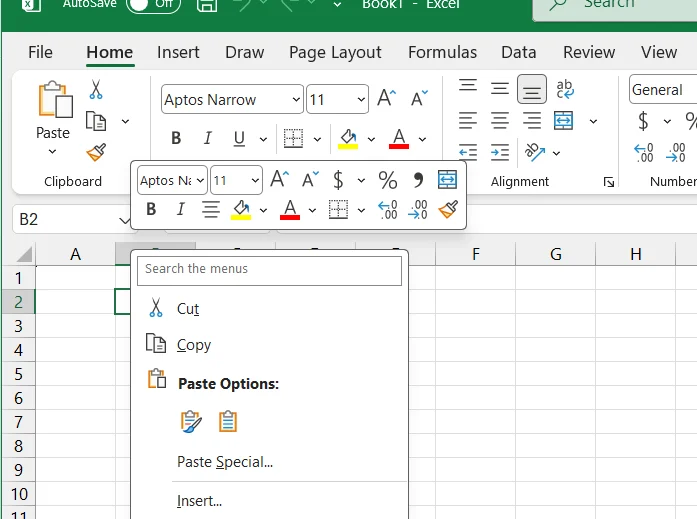
What is the Excel copy and paste problem?
The problem has mainly been reported after updating Office 2021 to Version 2108 (Build 14334.20906), which was released on September 8, 2026.
After the update, users may find that:
- Ctrl+C and Ctrl+V not working in Excel
- Copying between Excel cells or workbooks does not work
- Fill Handle and AutoFill may not work correctly
- Ctrl+D and Ctrl+R may also stop working
- Pressing Esc may not cancel the copied-cell selection
- Excel may put the copied data into the Windows clipboard, but Ctrl+V will not paste it back into Excel
Interestingly, the clipboard itself can still contain the copied data. One user reported that Windows + V showed the copied content and allowed it to be pasted into other applications, but Excel would not accept it using Ctrl+V.
Which Office versions are affected?
The reports are not limited to Office 2021.
Users have reported similar clipboard problems with Office 2024 LTSC, Office LTSC 2021, Office LTSC 2019, and even Office 2016. One organization reported the problem across around 1,500 computers running Office LTSC 2019 and 2021.
Another report says the Office 2024 LTSC build 17932.20976 has the same clipboard problem.
So, if you are experiencing this after an Office update, it may not be related specifically to Office 2021.
Restarting Excel or repairing Office may not help
Some users have already tried the usual troubleshooting steps, including restarting Excel and the computer, repairing Office, disabling add-ins, and testing different keyboards.
None of these resolved the problem in the original report. However, rolling back to an earlier Office build fixed the Ctrl+C and Ctrl+V Not Working in Excel issue.
This is a strong indication that the problem is related to the newer Office build.
A temporary workaround
There are a couple of workarounds you can try while waiting for a proper fix.
One user reported that when using the Paste dropdown in Excel, the default paste option did not work, but choosing Formulas or Formulas & Numbers did.
Another user reported that Paste as Formula works as a temporary workaround.
If Ctrl+C works but Ctrl+V does not, you can also check whether Ctrl+X followed by Ctrl+V works. One affected user reported that cut and paste continued to work even though copy and paste did not.
These are workarounds, not a permanent fix.
How to fix Ctrl+C and Ctrl+V not working in Excel
The most successful solution reported so far is to roll back Office to an earlier build, as mentioned in this QA post.
For Office 2021, one reported working build is 16.0.14334.20848. To roll back, close your Office applications, open Command Prompt as Administrator, and run:
"C:\Program Files\Common Files\Microsoft Shared\ClickToRun\OfficeC2RClient.exe" /update user updatetoversion=16.0.14334.20848Users reported that this downloaded and installed the earlier build and restored copy and paste in Excel.
For Office 2024 LTSC, another report cites 16.0.17932.20910 as a rollback target. If you manage multiple PCs, one organization reported rolling back Office LTSC 2019 to 16.0.10417.20197 and Office LTSC 2021 to 16.0.14334.20806 through Group Policy.
What about Office 2016?
Office 2016 users have also reported the same problem.
For Office 2016, one user reported that uninstalling the Excel update KB5002914 fixed the problem.
This suggests that the exact rollback or uninstall method depends on the Office version installed on your computer.
Should you disable Office automatic updates?
If you roll back Office, be aware that automatic updates can reinstall the problematic build, which can trigger Ctrl+C and Ctrl+V Not Working in Excel issue again. One reported workaround recommends disabling automatic updates after rolling back.
Is Microsoft aware of the problem?
The reports show that the issue is affecting multiple users and different Office versions, but the material available here does not confirm an official Microsoft acknowledgement or permanent fix yet.
For now, rolling back to a known-working build appears to be the most reliable workaround reported by affected users.
To summarize, if Ctrl+C and Ctrl+V not working in Excel after a recent Office update, the new build may be causing the issue. Try the paste workarounds first, and if you need Excel to work normally again, rolling back to an earlier build has worked for several affected users.