From a missing Family Organizer to an incorrect Date of birth in Family Safety, everything is covered here
This article is a comprehensive guide if you are stuck with Family Safety restrictions and want to disable Microsoft Family Safety altogether.
Table of Contents
What is Microsoft Family Safety
Microsoft Family Safety is a parental control tool from Microsoft that helps parents manage their children’s screen time, monitor app and game usage, and set content restrictions. It allows parents to create a family group, set screen time limits for Windows PCs and Xbox consoles, and filter websites and search results when using Microsoft Edge. Parents can also view activity reports to understand how their children use their devices. Microsoft Family Safety helps parents create a safer digital environment for their children while encouraging healthy screen time habits.
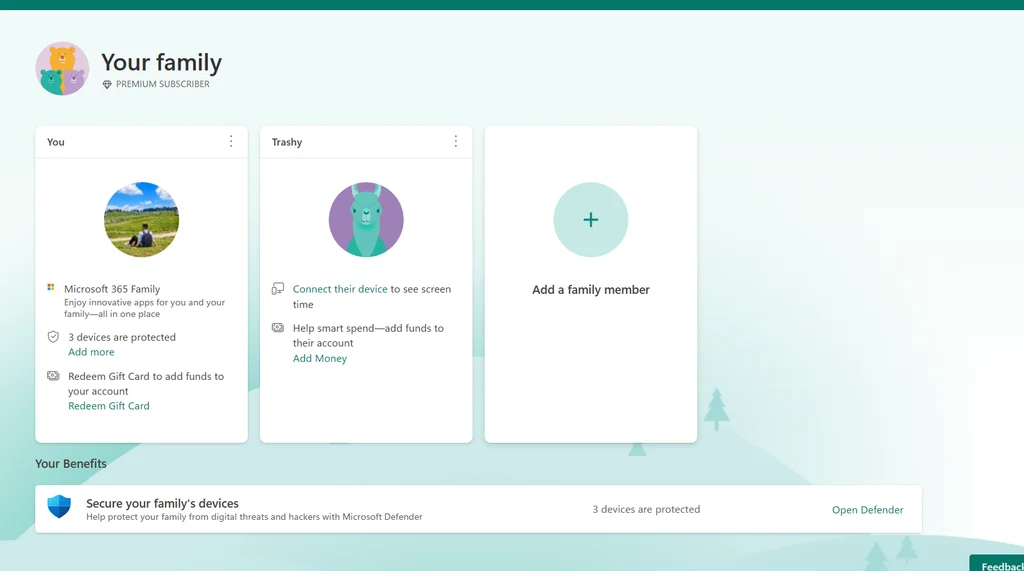
What are organizers and members in a Microsoft Family group?
Organizers manage a Microsoft Family group. They can add or remove members, configure parental controls, set screen time limits, apply content filters, and review activity reports for child accounts.
Members are people who belong to a Microsoft Family group. Depending on their role and account settings, they may be adults or children. Members can access shared family features, such as Microsoft 365 Family benefits, where available. Organizers can set restrictions for child members, including screen time limits, content filters, and app usage controls.
Various Scenarios for Family Safety Issues: Why you may want to turn off Microsoft Family Safety Popups
Discussed below are various scenarios related to Microsoft Family Safety, sorted from most common to least common.
Microsoft Family Safety Portal Organizer account not accessible
If your account is below the statutory age in your country (under 16), Family restrictions will apply. This scenario can also happen when you are actually an adult but have mistakenly put an incorrect date of birth. Because Family Safety is designed to apply restrictions to the member account, to turn off Microsoft Family Safety, you will need to recover the Organizer account.
Here are some resources for the same:
Account recovery unsuccessful
Reset a forgotten Microsoft account password
Help with the Microsoft account recovery form
Some tips to help you to recover the account:
- Use the same device, browser, and IP/location you usually sign in from; consistency matters.
- Submit the form from a trusted network you’ve used before (home or office Wi-Fi).
- Provide accurate recent passwords; even partial or older ones help.
- Enter exact account details: full name, date of birth, country/region as originally set.
- List recent activity precisely: last successful sign-in date, services used, approximate dates.
- For Outlook/Hotmail accounts, include recent email subjects, recipients, and folders you created.
- Add Xbox, Skype, or OneDrive details if linked—gamertag, console ID, or file names.
- Use the same recovery email/phone previously associated with the account.
- Avoid guessing; leave fields blank if unsure—wrong info reduces chances.
- If rejected, wait 24 hours, gather better details, and resubmit once.
Microsoft Family Safety Portal shows no organizer
In this second scenario, if the Microsoft Family Safety has no organizer, your account may still be limited in various areas due to the Date of Birth. If you are an actual adult, see below on how to turn off Microsoft Family Safety in this case:
- Create a new Microsoft account: Create a separate Microsoft account that meets Microsoft’s adult account requirements. Use this account as the Family Organizer.
- Open Microsoft Family: Sign in with the new account and visit family.microsoft.com.
- Create a Family group: Follow the on-screen instructions to create a Family group. If you already have a suitable group, you may be able to use that instead.
- Add your existing account: Invite your current Microsoft account to the Family group and accept the invitation using that account.
- Try updating your date of birth: Once your existing account is in the Family group, check whether you can update its date of birth in Microsoft account settings or through the available family management options.
- Remove the accounts if needed: After completing the necessary changes, you can leave or remove accounts from the Family group if you no longer need them. Keep in mind that leaving a Family group may affect access to family features or shared subscriptions.
Family Safety settings enforced on an actual adult with no Family group
If you are running an administrator account on your Windows 11 PC, and you still are getting restrictions despite being an organizer, there may be a glitch. Follow these steps, as indicated in the support document:
- On your computer keyboard, press and hold the Windows key
 followed by the R key to open the Run dialog box.
 - Enter cmd, then select OK
- Copy or type the following into the command prompt box, followed by return or enter.
schtasks /run /tn “Microsoft\Windows\Shell\FamilySafetyRefreshTask” - Restart your computer.
The Family Safety leftover configurations should go away, solving the problem.
If the Organizer account is inaccessible or a phantom one
If you have no luck and cannot disable Microsoft Family Safety, Microsoft Support may be able to help you remove the account on the backend.
Exact steps to reach support:
- Please go to the https://support.microsoft.com/en-us/home/contact page.
- Click Microsoft Office / Windows depending on the issue.Click Get Home Support.
- Type “Billing” and press Enter.
- Please click on the “Contact support” button at the bottom.
- Select the support category based on your needs.
Other Misc options to fix Family Safety issues
Some other options you can do to turn off Microsoft Family Safety are below:
- Remove the consent at https://account.live.com/mykids.aspx
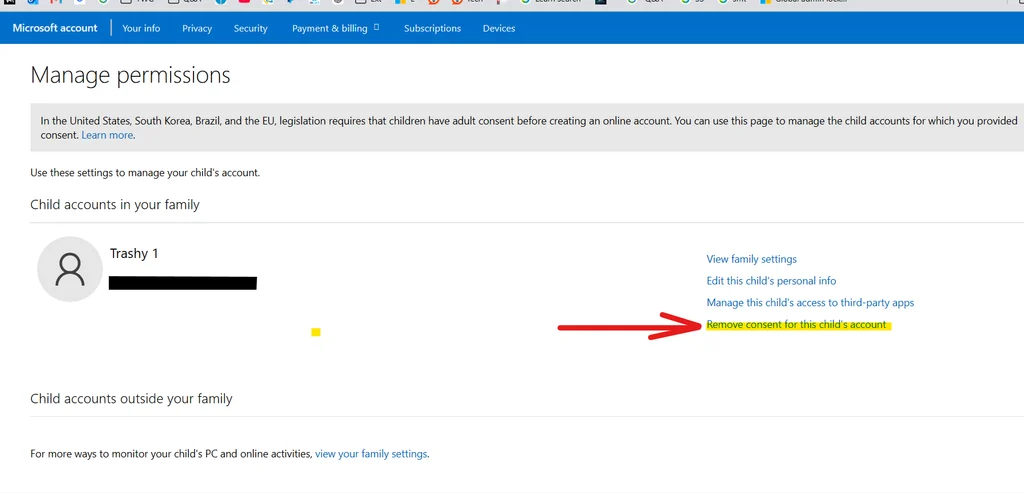
These comprehensive steps can help you turn off Microsoft Family Safety.