Microsoft released the November 2026 Security Update (KB5132061) for Windows 11 users running versions 26H2 and 25H2 on 10th November. The update includes several security fixes and improvements, but some users are reporting installation problems. One such issue is error 0x800f0993, which prevents the update from completing even after multiple restarts.
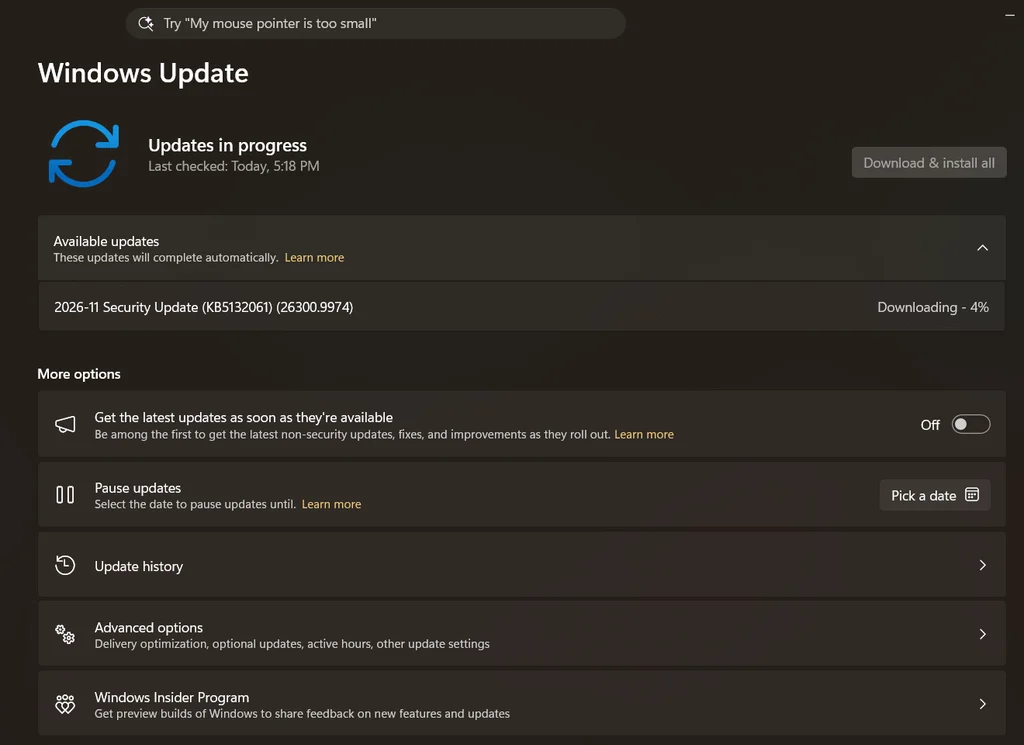
The issue has been reported on Microsoft Q&A, where affected users have mentioned that Windows Update repeatedly fails to install KB5132061. Although Microsoft has not officially listed this error as a known issue with the update, reports suggest that missing servicing stack prerequisites or problems with the Windows Update components could be responsible.
Table of Contents
Here’s how you can fix the KB5132061 install error 0x800f0993.
What is KB5132061?
KB5132061 is the November 10, 2026, Security Update for Windows 11. It is available for Windows 11 versions 26H2, 25H2, and Enterprise editions of 24H2. After installing the update, Windows 11 26H2 and 25H2 move to OS Build 26300.9974 and 26200.9974, respectively.
How to fix KB5132061 install error 0x800f0993
Before trying the usual Windows Update troubleshooting steps, check whether your PC has the required servicing stack updates. Windows 11 26H2 has specific prerequisites for installing KB5132061, and missing these updates can prevent the installation from completing.
Check the required servicing stack update
Microsoft requires a Servicing Stack Update (SSU) version 26100.9539 or later for Windows 11 26H2. Your device must also have an update released on or after September 22, 2026, such as KB5124010. To check the installed servicing stack version, see below. This should probably get rid of KB5132061 Install Error 0x800f0993.
- Open Start and search for Command Prompt.
- Select Run as administrator.
- Copy and run the following command:
DISM /Online /Get-Packages | findstr /i "ServicingStack"Check the Package Identity displayed in the results. If the servicing stack version is earlier than 26100.9539, go to Settings > Windows Update and install the earlier available updates first. Also check the Update history to confirm that an update released on or after September 22, 2026, is installed. Concurrently, once the prerequisites are in place, try installing the update again to solve KB5132061 Install Error 0x800f0993.
Install KB5132061 manually
If Windows Update keeps failing, you can download KB5132061 from the Microsoft Update Catalog and install it manually.
Follow these steps:
- Visit the Microsoft Update Catalog.
- Search for KB5132061.
- Download the appropriate package for your system architecture.
- For an x64-based Windows 11 26H2 PC, download both of these packages:
- KB5043080 (checkpoint update)
- KB5132061 (November 2026 Security Update)
- Double-click the KB5043080 MSU file and let the installation complete.
- Once done, install the KB5132061 MSU file.
- Restart your computer after both installations finish.
If Windows reports that the checkpoint update is already installed, you can continue with KB5132061. For ARM-based devices, download packages that match your system architecture instead of using x64 files.
Run DISM and SFC commands
If the standalone installer also fails, check for corrupted Windows system files and repair the component store.
Open Command Prompt as administrator and run the following commands one at a time:
DISM.exe /Online /Cleanup-Image /RestoreHealthWait for DISM to complete the repair process. Once it finishes, run:
sfc /scannowLet the System File Checker complete the scan. Restart your PC and try installing KB5132061 again.
Reinstall Windows using Windows Update
If none of the above solutions works, you can try reinstalling the current Windows version without removing your personal files, installed applications, or settings.
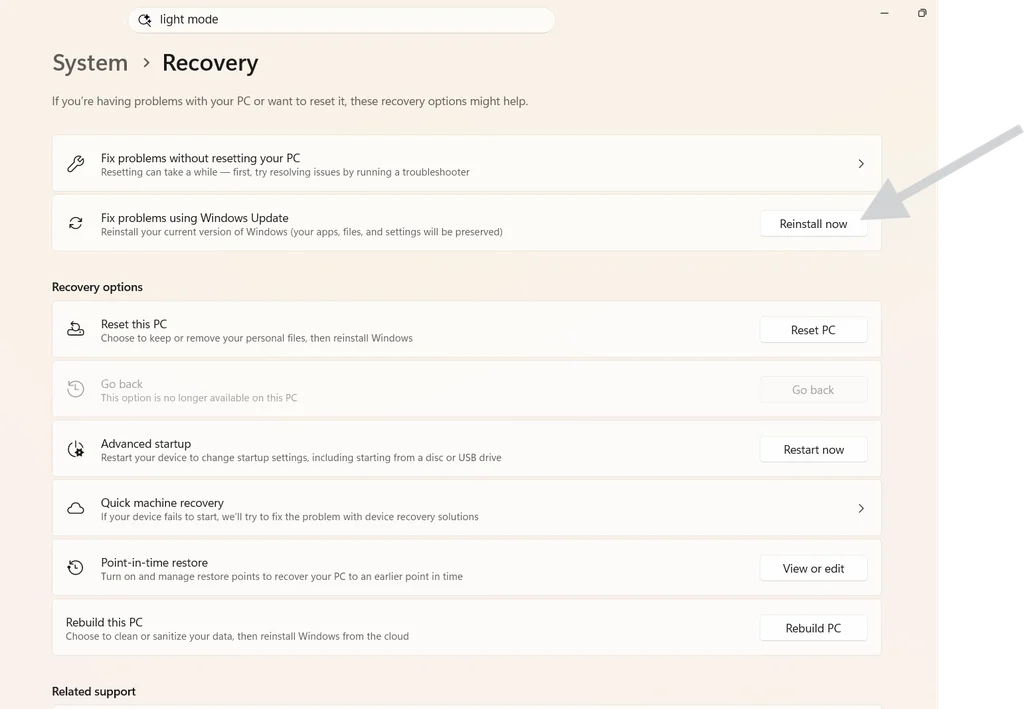
Open Settings and navigate to System > Recovery. Under the Fix problems using Windows Update section, select Reinstall now.
Additionally, Keep your PC connected to the internet and power while Windows downloads and reinstalls the current version. Once the repair installation is complete, restart your computer and check Windows Update again. You can also check the following guide, which is a manual process for the same thing:
Is KB5132061 causing a known issue?
As of November 11, 2026, Microsoft has not officially listed error 0x800f0993 as a known issue with KB5132061. However, Windows 11 users have reported the error, and third-party reports have also mentioned possible installation problems. For now, checking the servicing stack prerequisites and trying to install the update manually is recommended to fix KB5132061 Install Error 0x800f0993.