This article outlines steps to troubleshoot Microsoft Store issues, including problems encountered during app and game downloads from the Microsoft Store on Windows 10 and Windows 11. Many publishers use the Microsoft Store to publish their apps and games.
Table of Contents
Isolate the error for troubleshooting the Microsoft Store
The first thing to check is whether the issue is a connection problem or an app issue. If there is a connection issue, the Microsoft Store will indicate this on the first page, which checks that you are online.
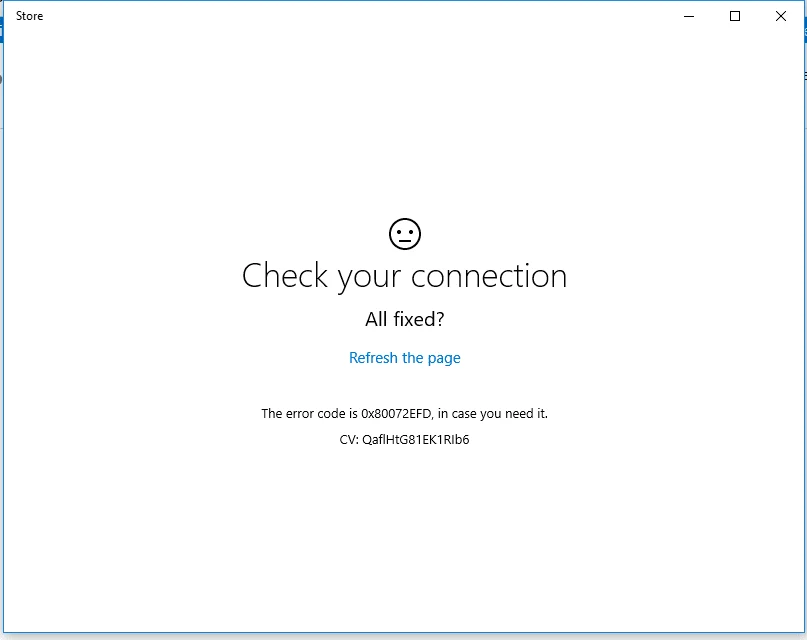
If the error is related to the connection, check the Steps below.
On the other hand, if the error is not a connection-related issue, it may require further troubleshooting. For example, the download Starts and stops at a certain percentage, or you receive an error code like 80070005, which suggests an issue with the Store on your computer.
Troubleshoot Microsoft Store connection-related fixes
To resolve connection-related errors, the following steps should be taken. Check each one individually to see if the issue is resolved.
- Check if your PC is online: Try opening a browser and see if you can access a webpage. Also, Restart your Network Router.
- Make sure you are not using a Proxy server: Certain Store apps have a limitation on location. One app might not be available in a specific country. So if you are using a proxy server to connect to the Internet, try disabling it.
- Temporarily disable your Antivirus: Sometimes, third-party Firewalls can block the connection to the Store. To isolate the issue, try disabling the firewall or third-party antivirus and see if it resolves the problem. Please note that you should not do it for long as it poses a security risk.
- Make sure you are not on a cellular network: Windows Store has problems with the cellular connection as they are set as metered by default. If you are using a cellular connection, please try switching to another network.
- Try changing the DNS server: Change the DNS settings in your Windows to 1.1.1.1 and 1.1.2.2, and see if the issue resolves.
If you are having intermittent problems, network-related files might be damaged. A repair install might be needed to fix it.
Microsoft Store Non-connection-related fixes
Several fixes are available if the Windows Store throws an error after starting the download. Let us discuss them one by one:
WSRESET
Wsreset, as the name implies, is a utility built into Windows to Reset the Windows Store cache, which would help in Troubleshooting Microsoft Store problems. To do it, use the following steps:
- Open Run dialog box(Win+R)
- Type in “wsreset -i” without quotes and Press Enter.
This should reset the Windows Store cache and reinstall it.
Reset Store app
If Wsreset doesn’t help, the next step is to Reset the Store app. To do this, follow the steps:
- Open Run Dialog box(Windows+R key)
- Type in ms-settings:appsfeatures and Press Enter(Alternatively, Start>Settings>Apps and features)
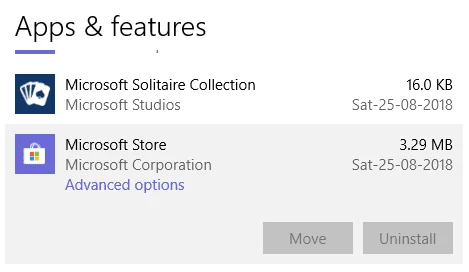
- Locate Microsoft Store
- Click Advanced Options
- Locate and click the Reset Button:
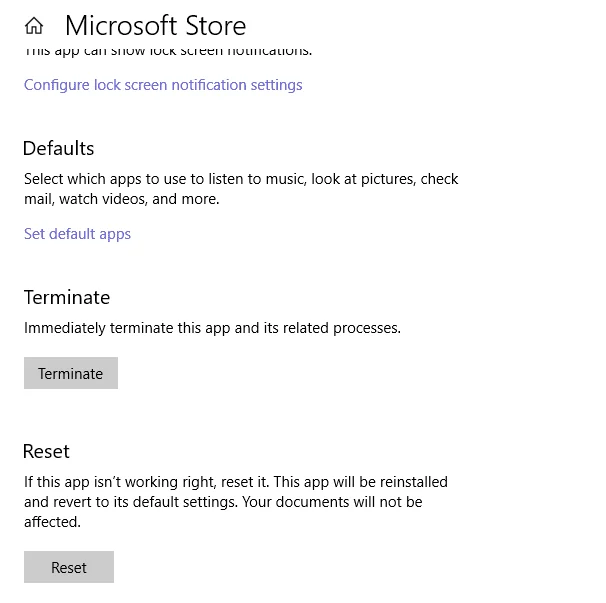
This should reset the Microsoft Store app. Open it and try downloading the app/game again.
Reset Windows update components
Microsoft Store uses the Windows Update Engine to download Store apps, so updating components can sometimes help Troubleshoot Microsoft Store issues. To reset Windows update components, you can see this guide:
Check for necessary services related to the Microsoft Store
Windows Store also requires some services to be up and running. I occasionally encounter cases on Windows forums where people have those disabled. To check if the services are in the correct state, do the following steps:
- Right-click Start>Run and Type in Services.msc to open Services.
- Make sure the status of the following services is Automatic and running
- Windows License Manager
- Background Intelligence Transfer Service.
- Cryptographic Services
- Windows Update
- Windows Store
- If needed, you can restore them using the following Registry keys, which can be downloaded here.
Download Registry Keys to Restore Services Necessary for Windows update
Repair Install Windows to Troubleshoot Microsoft Store
If none of the methods help to troubleshoot the Microsoft Store, the damage might be so severe that a Windows Reinstall is required. A repair install Reinstalls Windows, keeping everything intact. You can refer to this guide for performing a repair install.
How to do a repair Install using a windows 10 ISO to fix a broken windows
Repair Install Windows 11 using an ISO file – Your Windows Guide
Please note that a repair install requires the newest Windows 10/11 Installation media.
Use WinGet
WinGet Package Manager can also get you apps from the command line. See this article for more information.
To summarize, this article can help you troubleshoot Microsoft Store issues.
Also check: Fix problems with apps from Microsoft Store – Microsoft Support