This article describes a known issue in which the January 2024 update KB5034441 may fail to install, resulting in error code 0x80070643. Microsoft has fixed the issue, and the article advisory is completed.
Update 31/03/2024
If you want us to fix this issue with Remote access, fill the form
We have resolved over 100 cases that have sought our assistance.
Update 12/02/2024: Script fix.
Microsoft has provided a script fix in detail on how to run a script that increases the size of the WinRE partition which would fix 8007063 error after KB5034441
#1
In the Windows search,
Search for Windows Powershell, right-click it and choose run as administrator.
Afterwards, select Yes.
#2
Furthermore, make two folders on your C drive root, with names 1 and 2, so their paths are as follows:
- C:\1
- C:\2
Paste the script file you downloaded into folder 1.
In the Powershell window, navigate to the C drive using the following command:
cd \Then enter these commands:
cd 1
Set-ExecutionPolicy -ExecutionPolicy Unrestricted
Press Y when prompted. To summarize, This will ensure the folder which contains the script is selected, and the script can be exectuted. Now, we need to run the script, which increases the size of WinRE. For that, run the following command:
.\1.ps1
After that, press Y to confirm running the script.
When you are asked for the backup directory(this is used to ensure that your device remains bootable if anything goes wrong), enter
C:\2
Press Enter.
Wait till your PC restarts.
After that, if you check for updates, the update should install successfully.
Update 15/01/2024: Microsoft Confirmation
Devices attempting to install the January 2024 Windows Recovery Environment update might display an error related to the size of the Recovery Environment’s partition. The Windows Recovery Environment (WinRE) is used to repair or recover from issues affecting Windows.
Resulting from this error, the following message might be displayed.
- ”0x80070643 – ERROR_INSTALL_FAILURE”
Workaround: It might be necessary to increase the size of the WinRE partition in order to avoid this issue and complete the installation. Note that 250 megabytes of free space is required in the recovery partition. Guidance to change the WinRE partition size can be found in KB5028997: Instructions to manually resize your partition to install the WinRE update.
Next steps: We are working on a resolution and will provide an update in an upcoming release.
Affected platforms:
Windows 10, version 22H2 | Microsoft Learn
- Client: Windows 11, version 21H2; Windows 10, version 22H2; Windows 10, version 21H2
- Server: Windows Server 2022
Root cause
Initially, on January 9th, Microsoft shipped monthly updates for its Windows products, including KB5034441 for Windows 10 version 22H2. For many users, this update is failing with the error code 0x80070643. The error code results from this update trying to address a security issue in the Windows Recovery environment, which helps the PC to restore when it is not working. Additionally, when trying to update the files in the Recovery environment, due to lack of free space, this update fails to update the files and subsequently results in the error.
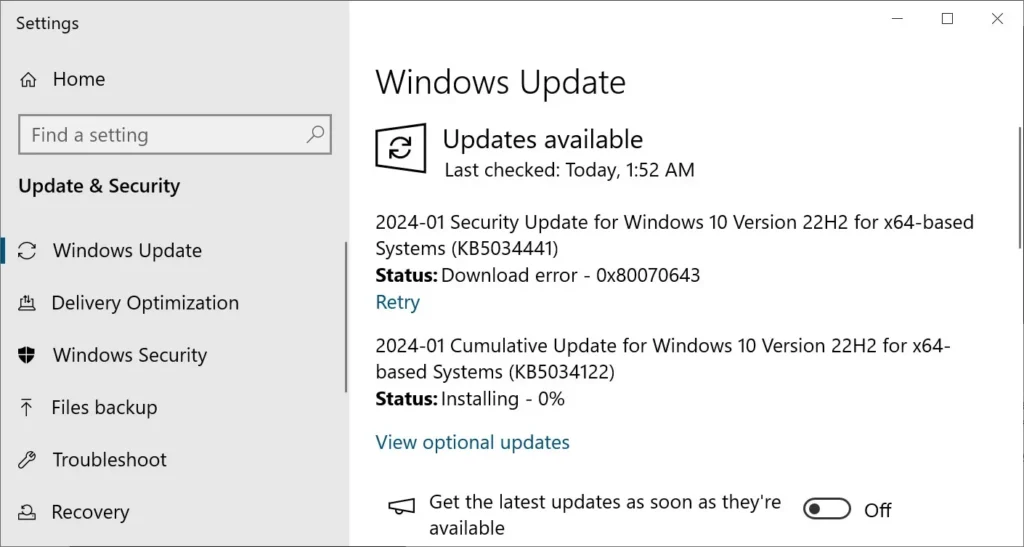
Fix 0x80070643 error in Windows 10
To fix this error, Microsoft has provided a support document to increase the WinRE partition size. Which I quote below:
Manually resize your partition by 250 MB to fix the KB5034441 error
- Open a Command Prompt window (cmd) as admin.
- To check the WinRE status, run reagentc /info. If the WinRE is installed, there should be a “Windows RE location” with a path to the WinRE directory. An example is, “Windows RE location: [file://%3f/GLOBALROOT/device/harddisk0/partition4/Recovery/WindowsRE]\\?\GLOBALROOT\device\harddisk0\partition4\Recovery\WindowsRE.” Here, the number after “harddisk” and “partition” is the index of the disk and partition WinRE is on.
- To disable the WinRE, run reagentc /disable
- Shrink the OS partition and prepare the disk for a new recovery partition.
- To shrink the OS, run diskpart
- Run list disk
- To select the OS disk, run sel disk<OS disk index> This should be the same disk index as WinRE.
- To check the partition under the OS disk and find the OS partition, run list part
- To select the OS partition, run sel part<OS partition index>
- Run shrink desired=250 minimum=250
- To select the WinRE partition, run sel part<WinRE partition index>
- To delete the WinRE partition, run delete partition override
- Create a new recovery partition.
- First, check if the disk partition style is a GUID Partition Table (GPT) or a Master Boot Record (MBR). To do that, run list disk. Check if there is an asterisk character (*) in the “Gpt” column. If there is an asterisk character (*), then the drive is GPT. Otherwise, the drive is MBR.
- If your disk is GPT, run create partition primary id=de94bba4-06d1-4d40-a16a-bfd50179d6acfollowed by the commandgpt attributes =0x8000000000000001
- If your disk is MBR, run create partition primary id=27
- To format the partition, run format quick fs=ntfs label=”Windows RE tools”
- To confirm that the WinRE partition is created, run list vol
- To exit from diskpart, run exit
- To re-enable WinRE, run reagentc /enable
- To confirm where WinRE is installed, run reagentc /info
Note If creation failed or you do not want to extend the WinRE partition, run reagentc /enable to re-enable WinRE.
Windows 10 22h2 security update [KB5034441] fails to install with – Microsoft Community
Method 2: Hide the KB5034441 update
Alternatively, you can hide the problematic update, too, if you want.
You can permanently hide the update. The link to the troubleshooter is below:
Please run the tool(ignore the safety warning as the tool is from Microsoft), click Hide updates, and choose the update in the list.
These steps will help you fix the 80070643 error code while installing KB5034441.
Also, check:
How to Disable Copilot on Windows 10 and Windows 11