This article would help you fix an annoying pop-up that occasionally comes and says something like this:
Get an app to open this ‘killernetworkmanagerlauncher’ link Your PC doesn’t have an app that can open this link. Try looking for a compatible app in the Microsoft Store.
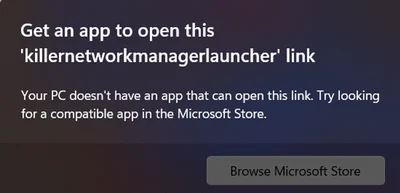
Background for killernetworkmanagerlauncher repeated pop-up
Upon researching the problem, I found that this issue originates from the Intel Killer Performance Suite, which you installed using Intel Driver and Support Assistant, but did not install the Killer Center. Both of these products are from Intel. The widely known Network products manufacturer, Killer, isn’t associated with the pop-up.
Get rid of the Popup
There are multiple solutions for eliminating the pop-up. I describe them one by one.
Autoruns
Starting with the most basic one is to use Autoruns. Autoruns is a Windows utility that shows you everything configured to run at system startup or login, including services, drivers, and scheduled tasks. It’s a powerful tool that can be used to identify and remove unwanted or malicious programs that may be slowing down your PC.
To turn off the Autoruns entry for the killernetworkmanagerlauncher popup, see below:
- Download and run Autoruns from here.
- When Autorun opens, concurrently turn off “Hide Windows Entries” using the provided button.
- Search for the Killer named entry.
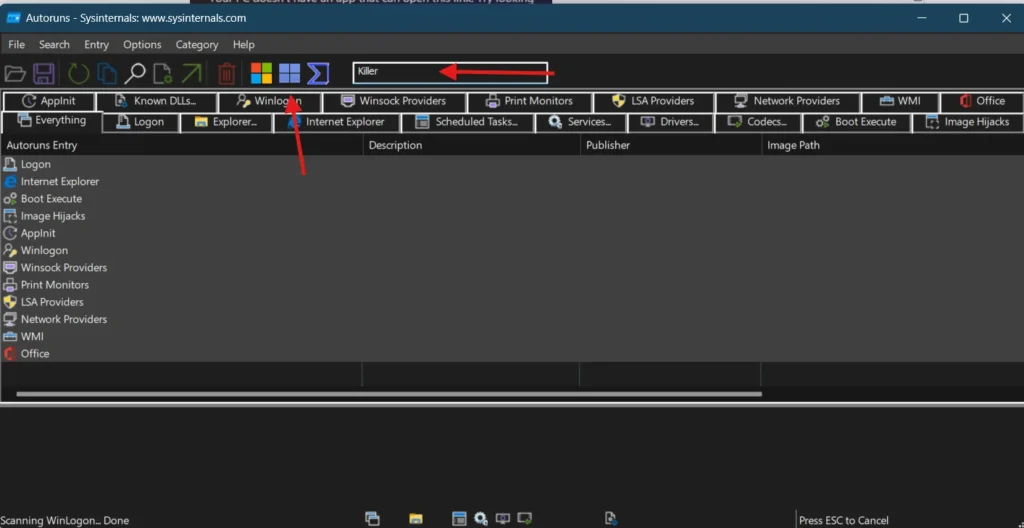
- Concurrently, in the search results, you would see “Killer Startup task”.
- Right-click it and select Delete.
- You can now close the Window.
Furthermore, the changes by Autorun are permanent and would not be reversed if you remove or delete Autoruns.
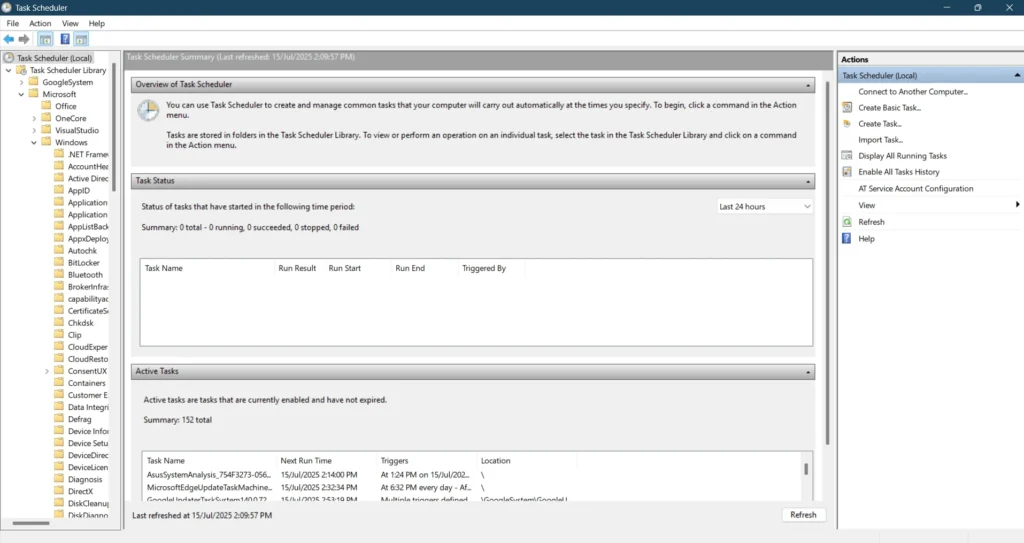
You can also do the same steps using Task Scheduler.
- Open the Task Scheduler using tasksched.msc command.
- Next, click on “Task Scheduler Library” and locate Microsoft > Killer/Intel >”Killer Startup Task”. It can also be named as the Killer Network Task.
- Right-click the Task and choose Disable Task.
- Restart the computer.
Download and Install Intel Killer Performance Suite to eliminate killernetworkmanagerlauncher popup
You can download and install the Intel Killer Performance Suite, which is what the Popup wants to. For that, simply download the Software from here. When you install the software, it will also install the Killer Center concurrently, thereby eradicating the Popup.
Disabling killernetworkmanagerlauncher popup using a Registry Key
Furthermore, you can also disable the Popup using a Registry key. See the steps below for that:
- Open Command Prompt as Administrator.
- Copy and paste the above command and press Enter.
reg add "HKEY_CLASSES_ROOT\Dell\MUP\SAFF9434-8CF0-4FBA-AA68-6669000CB34A" /ve /d 0 /f- Wait for the operation to complete.
- Restart your PC.
To conclude, these steps can help you get rid of the Killer Network Manager launcher pop-up on your device.
Additionally, if you have problems with Windows updates, you can see our How to guide about Uninstalling Windows updates.