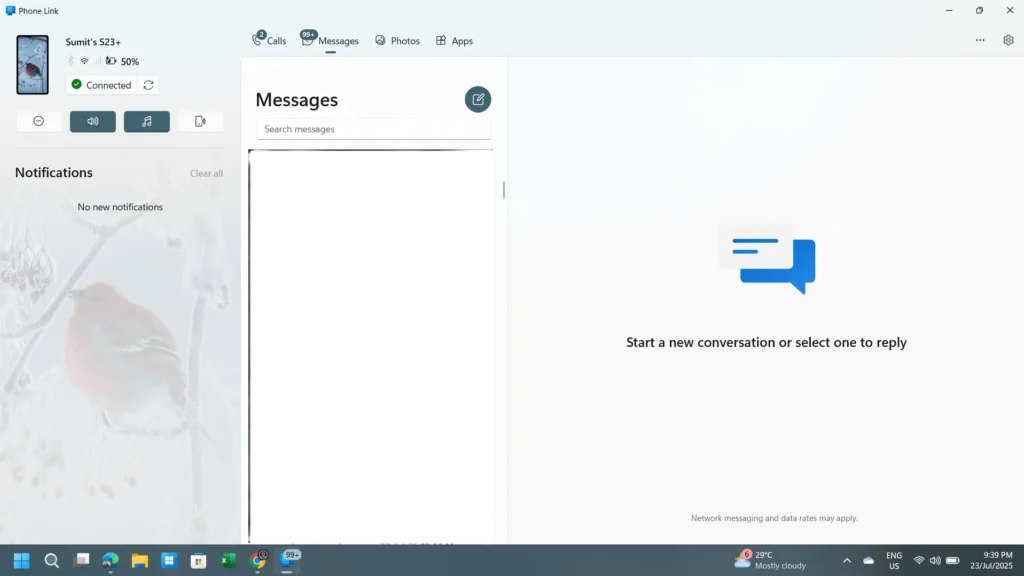
Microsoft’s Phone Link app is one of the best solutions for cross-device experiences. When you are on your Phone, you can access most of the critical features using the PC itself. These are making calls, reading or sending texts, etc. Moving forward, Microsoft is rolling out a new feature in the Phone Link app, which helps you remotely lock your PC from phone.
How to Lock your PC from Phone using Link to Windows App
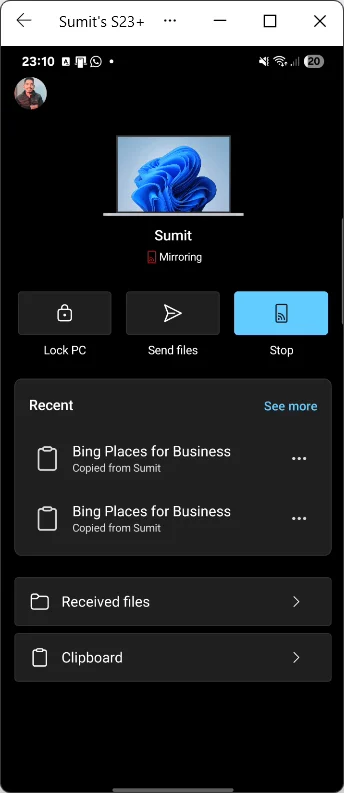
If you forgot to lock your PC and left it somewhere, instead of returning to lock it, you can use the Link to Windows App to lock your PC. Particularly, for that, see the steps below:
- Open the Link to the Windows App from the list of apps on your Phone.
- Select your Computer from the list.
- Select ‘Lock PC,’ and your PC will be locked.
Dynamic Lock App uses Bluetooth to lock your Windows computer
Windows has offered a dynamic lock feature for several years. The Dynamic Lock app, located in Settings, enables your PC to automatically lock when left unattended, based on a Bluetooth connection. Concurrently, this new update to Link to Windows does not require any Bluetooth connection.
Additional new features coming in Link to Windows
Additionally, some new features are also seen in the screenshot posted by Zac in this article. It indicates that from this screen, the user can send files to the computer, view the Windows computer’s clipboard, and cast the Phone screen to the Laptop, which is one of the prominent features of Phone Link.
To summarise, this article tells you how to lock your PC from Phone. This is a very neat feature implemented for a lot of Windows users.