This article helps you resolve an annoying issue where your WiFi icon is not showing in your Windows 11 device, suddenly. This problem is mainly encountered on ASUS devices, but is also observed in some other manufacturers’ devices.
What does it mean when the WiFi option is missing?
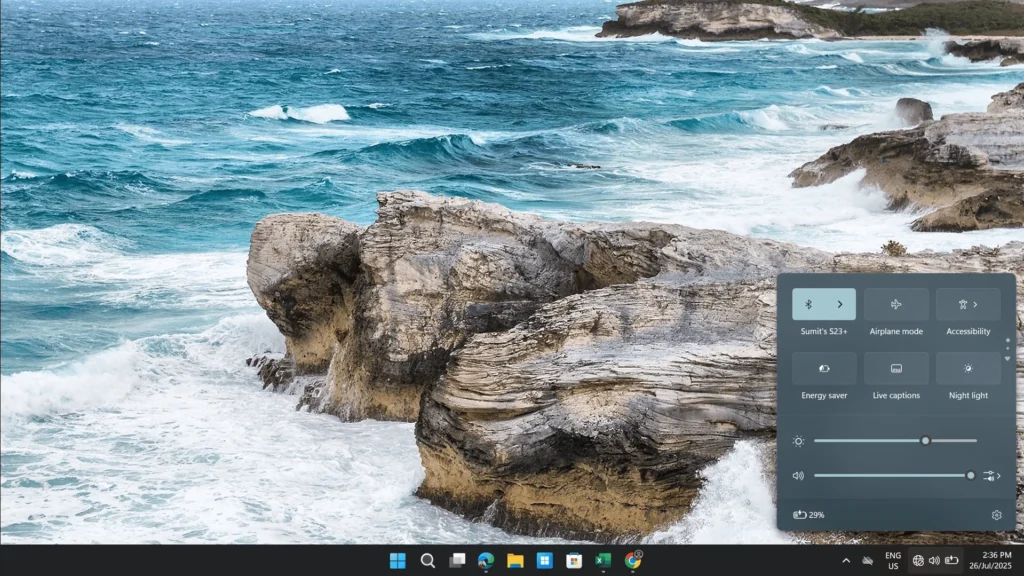
Users who encounter this problem report that the WiFi option from the Quick Controls menu, also known as the Win+A keys menu from Windows Taskbar, disappears suddenly, thereby disabling Internet functionality. Moreover, the Wi-Fi card also disappears from the Device Manager, which can be accessed by pressing the Windows key + X in Windows.
Why does the problem happen?
Upon researching the problem, I see that the issue revolves around a low-quality MediaTek integrated WiFi adapter used by ASUS and other manufacturers on their devices, which was probably not fitted correctly due to Quality control issues in the Assembly lines – some unconfirmed sources support this statement. This spontaneously leads to the WiFi icon not showing in Windows 11.
How to Fix the WiFi icon not showing in Windows 11?
There are two primary fixes for this issue. One is a short-term solution, and the other is a long-term one, which others have also reported as helpful. First of all, let’s discuss the short-term one.
Shut down and turn on the PC once (Not restart)
The fix is simple, serving as a short-term solution. If you shut down the laptop and then turn it back on, the WiFi option will magically appear. This works because of powering down the adapter and resupplying the power, thereby starting it. Furthermore, I am suggesting this as a short-term solution, because the problem would likely recur within days/Weeks or months. The likelihood is very high of that. The second solution, which is permanent, is below:
Long-term solution for WiFi icon not showing in Windows 11 – replug the adapter again
The one solution confirmed by many users is a bit challenging. In this case, you need to do the steps below:
- Open the Laptop Casing. Take the help of a YouTube video or tutorial.
- Locate the WiFi card. Sometimes the Bluetooth and WiFi are Integrated into it.
- Plug out the Adapter/card.
- Replug it again.
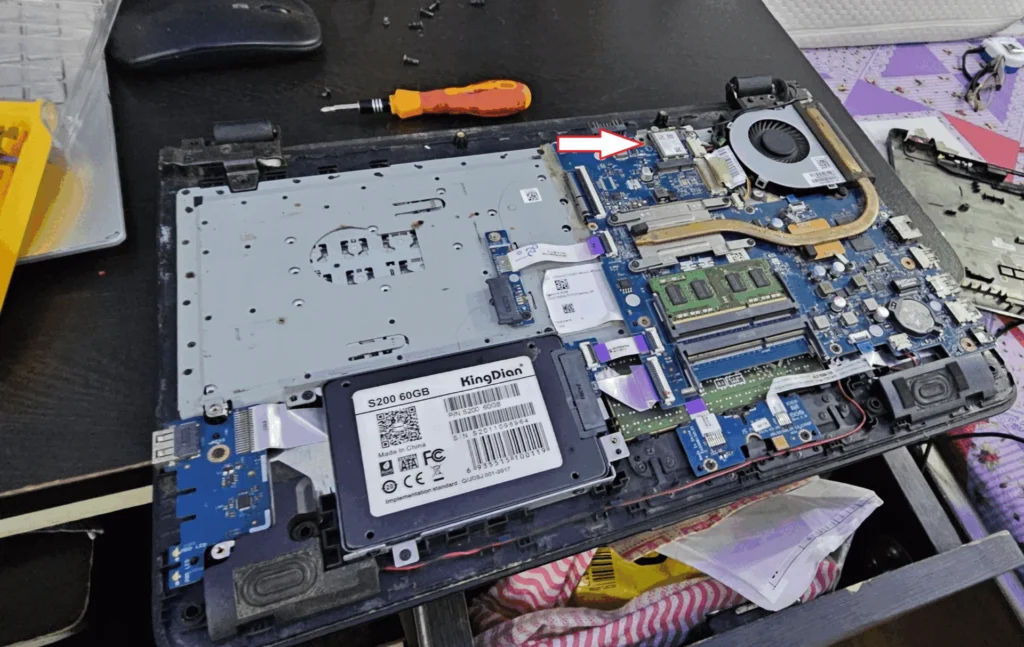
Concurrently, properly reseating the WiFi card would ensure the WiFi issue is resolved for good.
Miscellaneous Solutions
There are other miscellaneous solutions you can use, for example, opening the Device Manager and clicking Actions > Scan for Hardware changes, which may sometimes help.
If you are unable to set up Windows on a new device without an Internet Connection, see the steps in this article.
Finally, these steps should resolve the issue where the WiFi icon is not showing on a Windows device.