This article would help you solve an annoying issue when you hit the “Too Many Requests” error in Outlook or while signing in to your Microsoft Account to access your Outlook or Hotmail and other Microsoft services.
Table of Contents
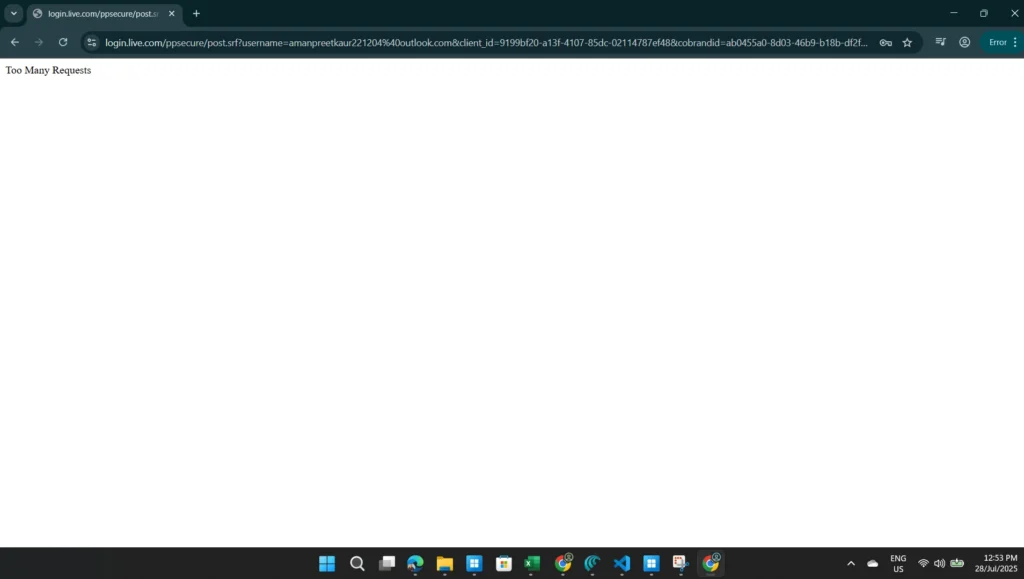
Too many Requests error in Outlook seen lately by many customers
Numerous Outlook users (as reported here and here) have encountered this error message since April 2025 when attempting to log in with their Microsoft account, which causes the “Too Many Requests” error in Outlook. This has been a significant pain point after Microsoft fixed the Outlook Outage earlier in July 2025. The error persists across Windows and Browsers. Unfortunately, Microsoft has not yet acknowledged this issue, and the only available option is to use solutions provided by other customers. The headings below explain the various solutions for this.
Use another network or device temporarily to get rid of Too Many Requests error in Outlook
Many users have reported that this error does not occur when trying to log in using a different network. Concurrently, the error message would not appear if you use another network, as per other reports. This is the simplest and effective fix.
Repeatedly press F5 to brute force
Another solution mentioned in the Reddit post also confirms working for many users. For the same, see the steps below:
- Log in to the Microsoft account and let it fail.
- On the “Too Many Requests error” page while trying to log in to Outlook, refresh the page 5 to 7 times.
- Pressing Fn+F5 keys or the F5 keys would refresh the page.
- After the 7th try, the login should work.
Somehow, after this issue, the error message would go away permanently.
Add an Alias to your account and sign in using it
Microsoft provides an option to add an Email address to your Outlook account, which is known as an alias. Furthermore, one can use that Email Address after adding it to sign in to your account, concurrently fixing the “Too many requests” error message. Please note that this workaround works if the account is logged in to another device from which you can access this page. The steps are given below:
- Open the Manage Alias page from this link.
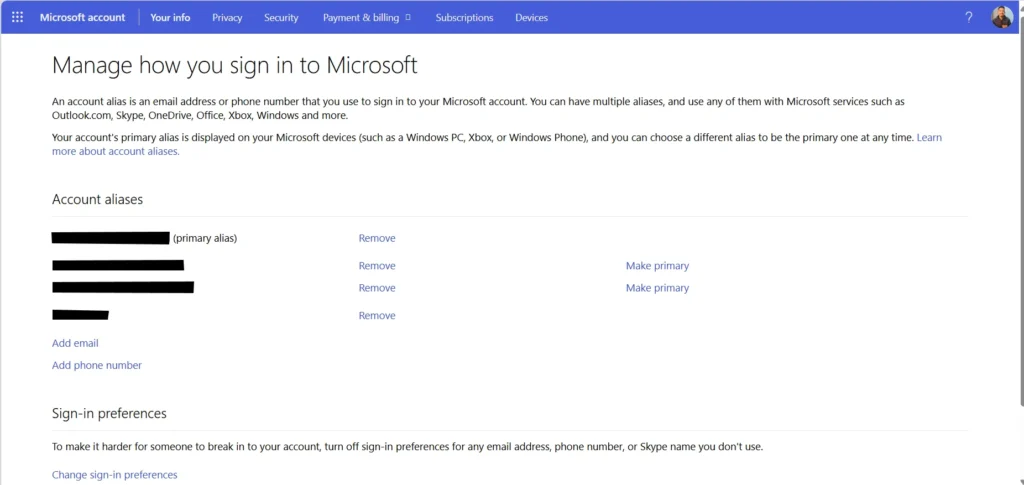
- Click the Add email button and add an email address.
- Verify using on-screen prompts.
- The email would be added.
Now, you can use this email to log in to Outlook and the error message should go away, resolving the Too many requests error.
To summarise, this article will help you eliminate the Too Many Requests error in Outlook while signing in. Additionally, if you get codes related to your Outlook account on your secondary Email, have a look at this article.