If you have a Computer or a laptop, you may be experiencing a Blue screen. This article will help you resolve the DRIVER_VERIFIER_DMA_VIOLATION error on HP devices permanently.
Table of Contents
Botched Realtek WiFi drivers are causing DRIVER_VERIFIER_DMA_VIOLATION error on HP
If you are using an HP device and have suddenly encountered a BSOD on your HP Computer, you are not alone. A significant number of users are reporting system crashes related to the DRIVER_VERIFIER_DMA_VIOLATION error on HP computers. This issue has been traced back to a recent, problematic Wi-Fi driver update that is causing system instability. Fortunately, this is a recognised problem with a straightforward solution to get your device running smoothly again.
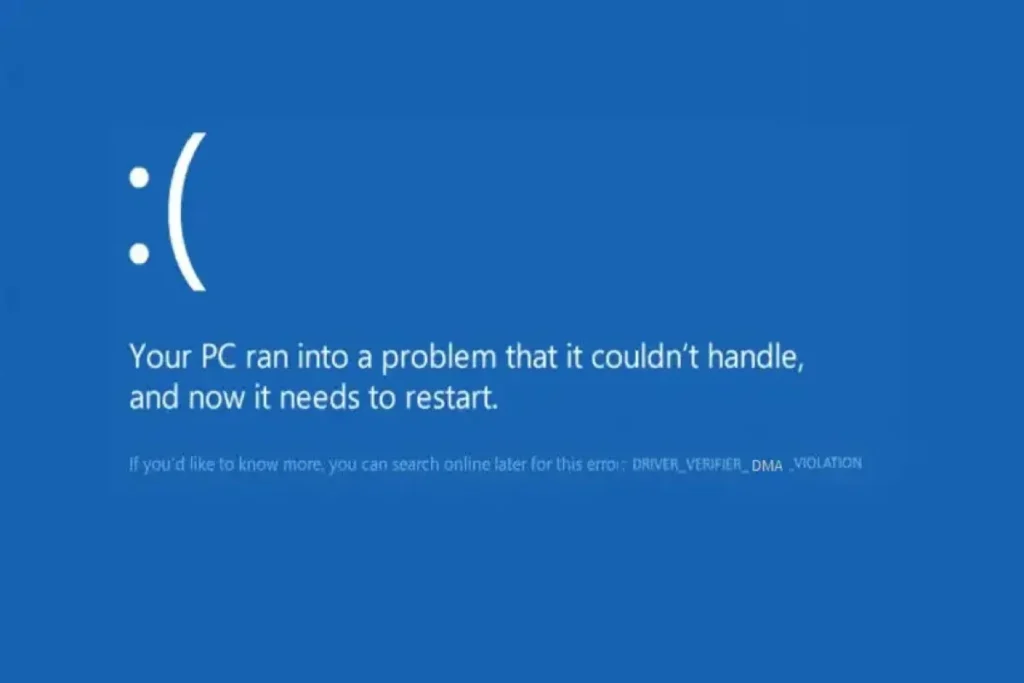
Fixing the Blue Screen of Death error
The solution is straightforward – HP released an update for it, which you need to install. In Layman’s terms, a solution is to remove the existing driver and install the newer WiFi driver. So, without wasting time, let us dive deep into the solution that will help eliminate the DRIVER_VERIFIER_DMA_VIOLATION error on HP devices.
PART 1 – Download the Driver package, which has the fix for the error.
To download the Driver package to solve the BSOD on HP Computer, you can either use the HP website – put the model number in. Or, you can use the following driver package, which HP released for the fix below.
If you are using the HP website, the new Realtek Wireless LAN driver would be dated July 2025.
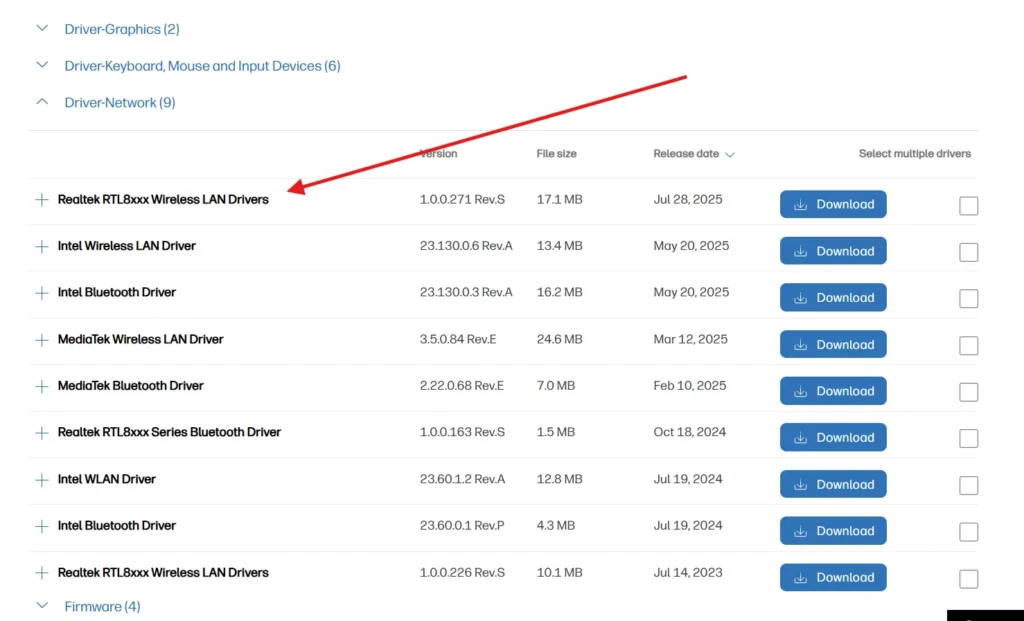
Once it is done, save it in a safe place, since the Internet connection will be lost after Part 2, which can only be restored with this Driver package.
PART 2 – Remove the Realtek Driver
The next step is to remove the Realtek driver, which is causing the Blue Screen of Death. For details, refer to the steps below.
- Open Device Manager.
- Expand the “Network Adapters” category.
- Right-click on your Realtek Wireless LAN device.
- Click “Uninstall“.
- In the confirmation window, check the box that says “Delete the driver software for this device”.
- Click Uninstall to confirm.
PART 3 – Install the Driver package to fix the DRIVER_VERIFIER_DMA_VIOLATION error on HP
The last step is to install the Driver package you downloaded in Part 1. Go to the Downloads folder, double-click it, and the Driver setup should start.
Follow the on-screen prompts, and the DRIVER_VERIFIER_DMA_VIOLATION error on HP device should be taken care of after the installation.
Block Driver updates in the future
If you want to Block Driver updates in the Future so that this issue does not arrive, just to be safe, see below:
- In the Windows search, type “cmd,” right-click it, and select “Run as Administrator.”
- Paste these codes in the Command Prompt:
reg add "HKLM\SOFTWARE\Policies\Microsoft\Windows\WindowsUpdate" /v ExcludeWUDriversInQualityUpdate /t REG_DWORD /d 1 /f
reg add "HKLM\SOFTWARE\Microsoft\Windows\CurrentVersion\DriverSearching" /v SearchOrderConfig /t REG_DWORD /d 0 /f
reg add "HKLM\SOFTWARE\Microsoft\WindowsUpdate\UpdatePolicy\PolicyState" /v ExcludeWUDrivers /t REG_DWORD /d 1 /f
After these steps, no driver updates would download in the future through Windows update, thereby eliminating the scenario of driver issues.
Remove the WiFi Driver using the Command Prompt
If you cannot start your computer and can only access the Windows Recovery environment, you can remove the driver using the DISM command to fix the BSOD on HP Computer. The Memory Integrity article located here, can get you through the Steps.