Microsoft Edge is a browser built into Microsoft Windows. This easy-to-follow guide will help you how to clear Cache in Microsoft Edge, which is particularly helpful in scenarios where the website isn’t working correctly.
Table of Contents

Microsoft Edge’s corrupted Cache can cause issues occasionally
Sometimes, Microsoft Edge can feel a bit sluggish, or a website may not load as expected. In such cases, knowing how to clear the cache in Microsoft Edge can be extremely helpful. The cache is a temporary storage of files and images that your browser saves to make sites load faster. However, over time, it can accumulate and cause problems. Clearing it is like giving Edge a quick reset—it frees up space, fixes minor glitches, and ensures you’re seeing the latest version of a site. A generic article for troubleshooting Microsoft Edge and other web browsers is situated here.
How to clear Cache in Microsoft Edge the easy way using Settings
Without wasting time, let us focus on the steps to clear Microsoft Edge Cache:
- Open Microsoft Edge and click three dots > Settings.
- Navigate to Privacy, Search, and Services section.
- Subsequently, choose the Clear browsing data button.
Bonus Tip: If you copy and paste the following address in MS Edge Address bar, you would reach at the same page. edge://settings/privacy/clearBrowsingData
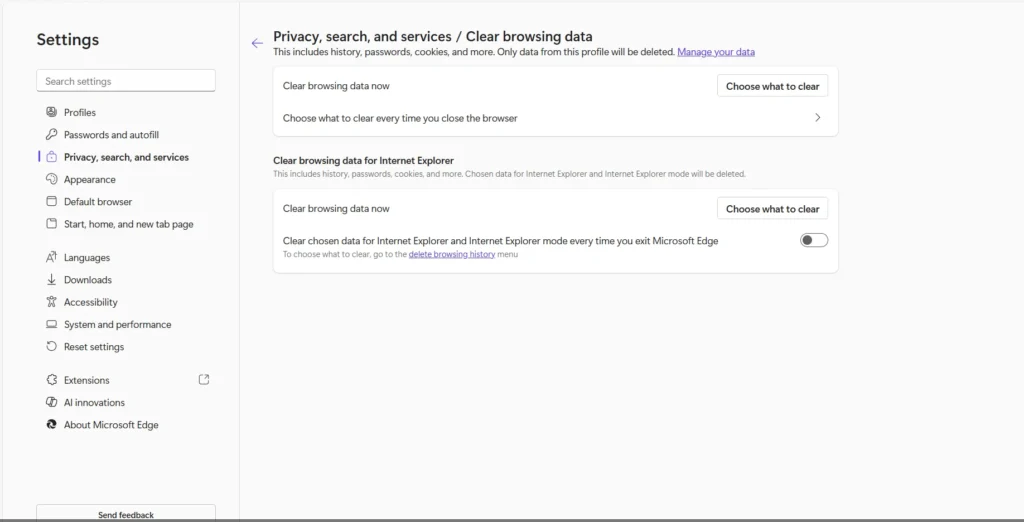
- Click the “Choose What to clear” button.
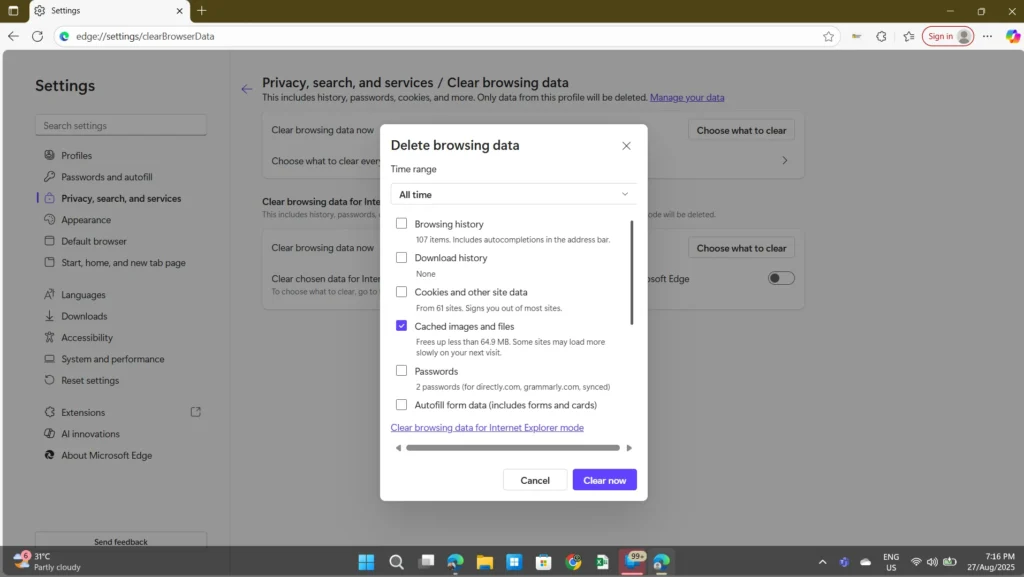
- Select Time Range to all time.
- Next, uncheck everything except “Cached images and files”.
- Click the Clear Now button.
The cache is now cleared for the web browser.
Microsoft Edge Cache Location
The Microsoft Edge Cache is located at the following path, from which you can manually delete the files. You can paste this path into the Run dialogue box to access it.
%localappdata%\Microsoft\edge\User Data\Default\
How to Clear cookies in Microsoft Edge
Rarely, Cookies might also cause cache issues in Microsoft Edge. You can also try clearing cookies in Microsoft Edge, which will clear the cache as well. To do that, you can see the steps below, summarized from the support document.
- Open the Promblematic website.
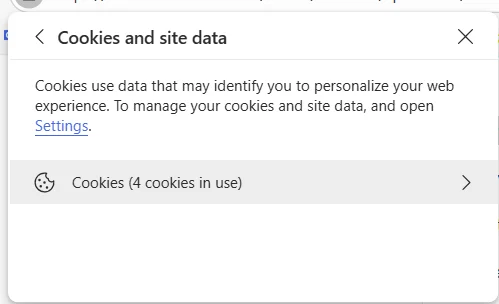
- Click the Lock icon on the Address bar.
- Click Cookies and site data. Clear cookies.
- Remove all cookies one by one.
- After this step, reload the webpage and check whether the problem persists.
To summarise, the steps in this article, can help you clear the Cache and clear the cookies in Microsoft Edge.