In a recent update, Microsoft confirmed the Windows 11 2025 update, aka Windows 11 version 25H2, the next feature update to Windows 11. Windows 11 25H2 would replace Windows 11 24H2 this fall. The company confirmed that version 25H2 shares the same codebase and stack as version 24H2, making it a minor update.
Table of Contents
Windows 11 version 25H2 would be a minor update – what does that mean?
A minor update means that the developers will keep the codebase of 24H2 and Windows 11 version 25H2 the same, and a small package will update the version numbers. This was also observed previously with the Windows 10 22H2 and Windows 11 23H2 releases. In those releases, a minor SSU update in KB changed the size.
This also means that for both the releases, i.e., 24H2 and 25H2, the same update would apply. Concurrently, it would reduce the work for Microsoft.
“New features we develop for Windows 11, version 25H2 are part of the version 24H2 branch. When the new code is complete, we include it in the monthly LCUs for Windows 11, version 24H2 in a Disabled state” says a Microsoft blog post.
Windows 11 2025 update changes seen in the June update to Windows 11
This change is also seen with the upcoming July update to Windows 11 version 24H2, which is bringing many new features, as announced in the June 2025 non-security update. These updates would later roll over to Windows 11 version 25H2 update:
- [App defaults]
- New! We are rolling out some small changes in the European Economic Area (EEA) region for default browsers through the Set default button in Settings > Apps > Default apps:
- Additional file and link types will be set for the new default browser, if it registers them.
- The new default browser will be pinned to the Taskbar and Start menu unless you choose not to pin it by clearing the checkboxes.
- There is now a separate one-click button for browsers to change your .pdf default, if the browser registers for the .pdf file type.
- New! We are rolling out some small changes in the European Economic Area (EEA) region for default browsers through the Set default button in Settings > Apps > Default apps:
- [Click to Do (Preview)] New! Ask Microsoft 365 Copilot is a new action in Click to Do on Copilot+ PCs. Use it to send text or images to Microsoft 365 Copilot, which will respond to your questions. The Ask Microsoft 365 Copilot action requires a Microsoft 365 license and follows your organization’s privacy policies.
- [Narrator]
- New! The Screen Curtain feature in Narrator helps protect your privacy and improve focus by blacking out the screen while Narrator reads content aloud. This is especially helpful in public or shared spaces, where you can work with sensitive information without others seeing your screen. To turn on Narrator, press Ctrl + Windows + Enter. Then press Caps Lock + Ctrl + C to turn on Screen Curtain. While it’s on, you can use Narrator as usual with the screen hidden. Press Caps Lock + Ctrl + C again to turn it off.
- New! Narrator makes it easier to discover and learn about its features directly within the experience. Whether you’re new or exploring advanced options, Narrator will guide you through the latest updates using a series of steps and prompts that explain each new feature and change.
- [PC Migration] New! The PC-to-PC migration experience in Windows is starting to roll out. You’ll begin to see the landing and the pairing page in the Windows Backup app, giving you a first look at what’s coming. In the full experience, you’ll be able to transfer files and settings from an old PC to a new one during setup. Support for this feature during PC setup will arrive in a future update. The rollout is being introduced in phases to support a smooth experience.
- [Settings]
- New! We are starting to roll out the Settings homepage for commercial customers on PCs managed by an IT administrator. The feature will show some existing cards relevant to enterprise-managed PCs like “Recommended settings” and “Bluetooth devices” as well as two new enterprise-specific device info and accessibility preferences cards. For commercial customers who also use their Microsoft account on their managed PC, there will also be a new accounts card indicating the presence of both work and school and Microsoft account types.
- New! The country or region selected during device setup now appears under Settings > Time & language > Language & region.
- Fixed: The storage card in Settings > System > About shows an incorrect or unreadable character instead of the proper disk size.
- [Taskbar & System Tray]
- New! The taskbar now resizes icons to fit more apps when space runs low, keeping everything visible and easy to access. You can adjust how icons appear in settings—reduce icon size only when the taskbar is full (default), keep icons at their original size at all times by selecting Never, or use smaller icons all the time by selecting Always. To change this setting, right-click an empty area on the taskbar, select Taskbar settings, expand the Taskbar behaviors section, and choose your preference under Show smaller taskbar buttons.
- New! In addition to the new grouping of the Accessibility menu in Quick settings, there are text descriptions for the assistive technologies like Narrator, Voice access, and more for easier identification and learning.
- New! Adjusted the indicator (pill) under taskbar apps to make it wider and more visible.
- Fixed: WIN + CTRL + Number doesn’t work anymore for switching windows of an open app in the taskbar.
- Fixed: When using taskbar in Windows, the media controls that appear in the preview windows for apps might unexpectedly flicker.
- [Voice Access]
- New! You can now use Voice access to navigate, dictate, and interact with Windows using voice commands in Simplified Chinese and Traditional Chinese.
- New! You can add custom words to the dictionary in voice access. The feature will be available in all the currently supported voice access languages.
- [Windows Share]
- New! When you share links or web content using the Windows share window, you’ll see a visual preview for that content.
- New! In the Windows share window, you can select a compression level—High, Medium, or Low Quality—when editing and sharing images, instead of selecting from a 0–100 scale.
- [Color] Improved: Adjusted the location of the intensity and color boost sliders under Settings > Accessibility > Color Filters, so the color previews at the top of the page remain visible while adjusting the sliders.
- [File Explorer] Improved: Performance has been enhanced when extracting archive files – this will particularly help in the case of copy pasting large numbers of files out of large 7z or .rar archives.
- [Graphics]
- Improved: Made underlying changes to enhance display related user experiences, including reducing screen flashing during certain display configuration transitions and eliminating unnecessary display resets that occurred in some cases.
- Fixed: Some displays might be unexpectedly green.
- Fixed: If User Account Control (UAC) is set to Always Notify and the button under Settings > System > Display color calibration is selected for your display and canceled, Settings will stop responding.
- [Input] Fixed: Typing in Japanese with the touch keyboard might stop working after switching to typing with an English keyboard and then switching back.
- [MSFTEdit.dll] Fixed: Some apps like Sticky Notes and dxdiag might stop responding when the display language is set to Arabic or Hebrew display.
- [Quick Settings] Fixed: The top three buttons in the top row don’t respond when selecting to enable or disable them.
- [Printing] Fixed: Printed lines might be unexpectedly thicker than expected.
- [Scripting] Fixed: Running a script on a remote Server Message Block (SMB) share might take an unexpectedly long time if the share is hosted on an older Windows Server version like Windows Server 2019.
- [Windowing]
- Fixed: When you press ALT + Tab to switch out of a full screen game, other windows like Windows Terminal might stop responding.
- Fixed: An underlying issue might lead to unexpected changes to window size and position after sleep and resume on some devices.
- Fixed: Explorer.exe might stop working unexpectedly when a window is dragged, if window snapping is enabled.
Some of the features in the list above are Copilot+ PC exclusive as well for Windows 11 version 25H2 update.
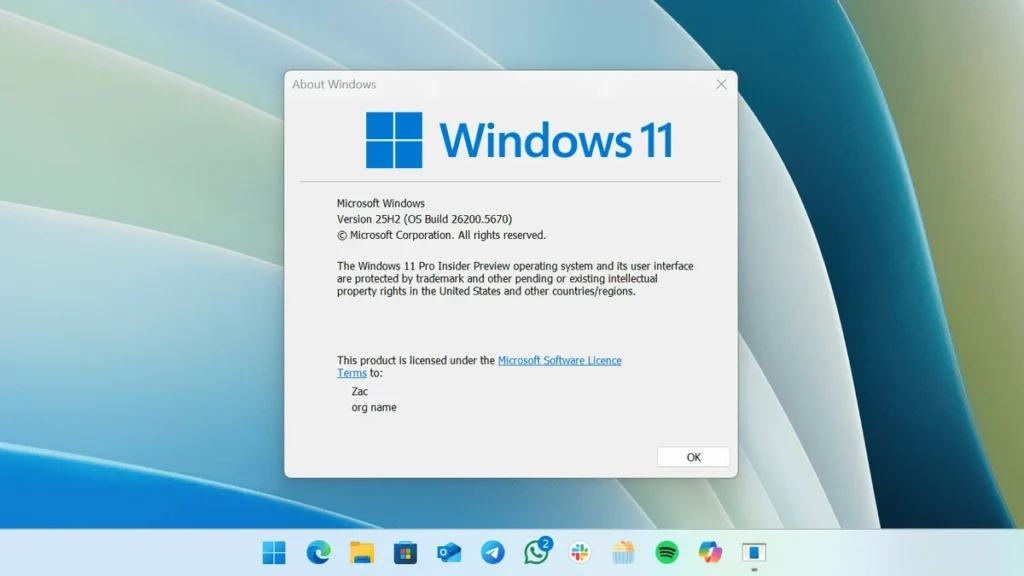
Additionally, the Windows 11 version 25H2 update is expected to introduce several new features. Some of those are expected to be available in July in the Windows Insider channels. Windows 10 users can also check out the extended update article, which is of interest to them. In that announcement, Microsoft announced that Windows 10 updates would be technically free if you use a Microsoft account.
Ultimately, we can see that Microsoft will support this Windows 11 version 25H2 update for 24 months from the date of release. For Enterprise, the support would be for 36 months for the Enterprise version.