This article will help you enter Windows 10 Safe Mode and Safe Mode in Windows 11.
Table of Contents
What is Windows 10 Safe Mode?
Safe Mode in Windows 11 is a diagnostic startup mode that loads only the essential drivers and services required to run the operating system. It’s a troubleshooting environment designed to help identify and fix software conflicts, driver issues, or startup errors that may prevent normal booting. In Safe Mode, third-party programs and non-critical processes remain disabled, making it easier to isolate the cause of system problems. While the feature works similarly, in Safe Mode in Windows 11, it offers a more refined interface, discussed later. This mode is crucial for resolving crashes, malware infections, and driver malfunctions without interference from unnecessary background processes.
Enter Safe Mode Windows 11 / 10
To enter Safe Mode in Windows 10 or Windows 11, see the steps below:
- Press the Windows key + R keys.
- Type msconfig.exe
- Press Enter. Go to the Boot tab.
- Check the box titled “Safe Boot” and click OK.
- To turn on Internet access in the Safe Mode, seelct the Network Checkbox.
- Windows would then boot to Safe Mode from now on.
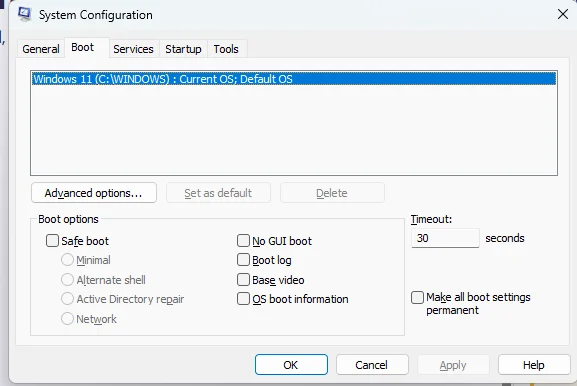
To undo the changes, simply open MSconfig and uncheck “Safe Boot”.
Enter Safe Mode in Windows 11 using the Windows Recovery menu
You can also start Windows in Safe Boot using the Windows Recovery environment, for which various methods are provided here in order to access. Once you are in WinRE, follow the steps below in order to access the mode.
- In WinRE, click the Troubleshoot menu.
- Click on Advanced Options.
- You may be asked for your Bitlocker key. Enter the same.
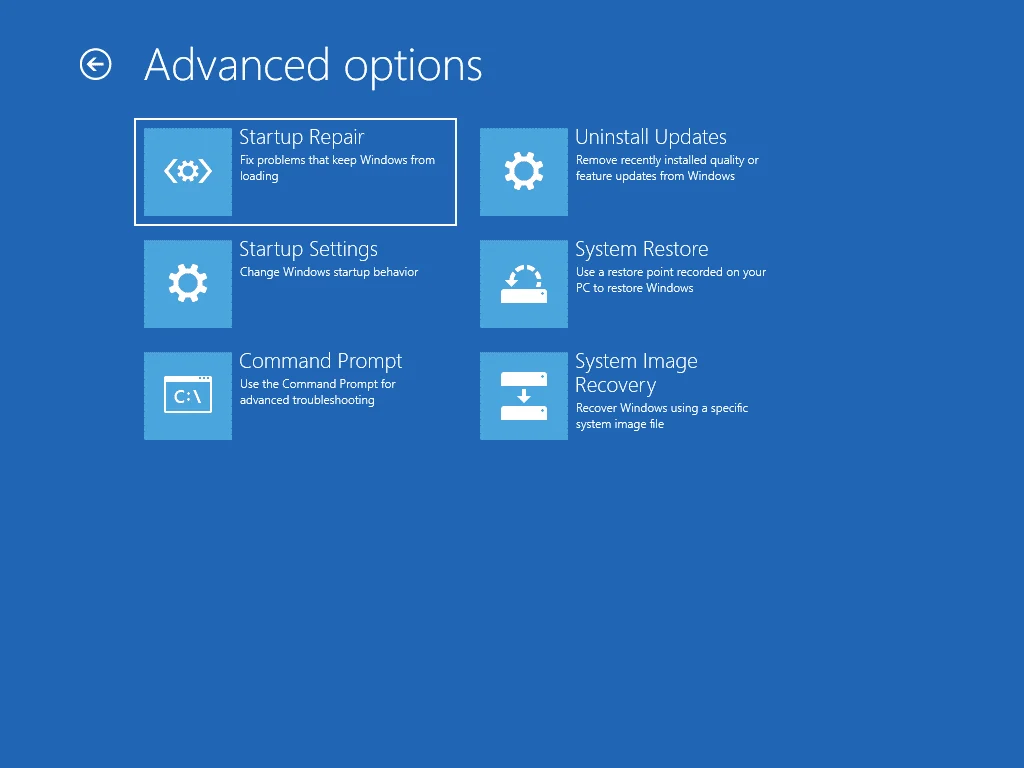
- Select Startup Settings.
- Press 3 to open in Safe Mode with Networking.
This method is one-off, i.e. once you restart, it would be back in the normal mode from Safe Mode in Windows 11.
Use Command Prompt to enable Safe Boot
You can also use the Command Prompt to enter in Safe Mode in Windows 11, using the steps below:
- In the Windows Recovery environment, select Command Prompt.
- Type bcdedit in Command Prompt and press Enter.
- Under the Windows Boot Manager section, locate the value next to default and note its identifier (for example, {current}).
- Then, use this command to enable Safe Boot with Networking.
bcdedit /set {identifier} safeboot network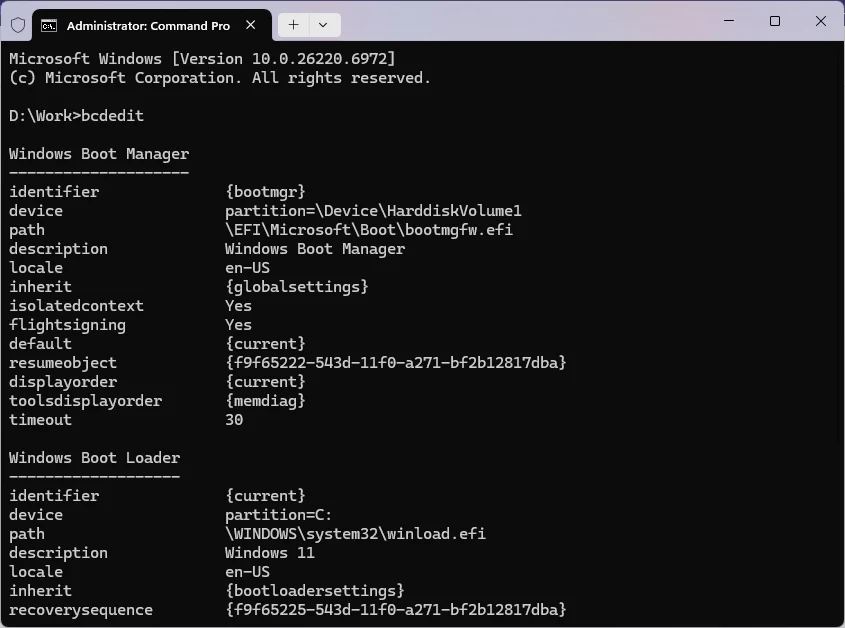
If you want to undo the safe Mode change, simply use this command:
bcdedit /delete {identifier} safeboot networkThese methods can help you access Windows 10 Safe Mode.