This article will guide you through the steps to perform a factory reset Windows 11 computer.
Table of Contents
Why would you want to Factory Reset Windows 11 computer?
Considering a Factory Reset on a Windows 11 computer may sound drastic, but it’s often the best solution for several persistent issues. Over time, computers can become slow and bogged down by leftover files, old programs, and system clutter. You might also be facing persistent errors, constant crashes, or strange behaviour that standard troubleshooting just can’t fix. A reset is also the most effective way to ensure a deep-rooted virus or malware is completely gone. Most importantly, if you’re planning to sell, donate, or recycle your PC, a factory reset is absolutely essential to securely wipe all your personal data and accounts, giving the next owner a completely fresh start.
Prerequisites
There are a few prerequisites if you want to remove everything on a Windows device. I describe them below:
- Your PC should have a Factory Image from the manufacturer.
- If #1 is not available, it is recommended to have an Internet Connection to facilitate downloading Windows 11 from the cloud.
- You have backed up your existing data.
How to trigger a Windows 11 Factory Reset
To do a Factory Reset of Windows 11 in an easier way, see the steps below:
- Please open Windows Settings and navigate to System > Recovery.
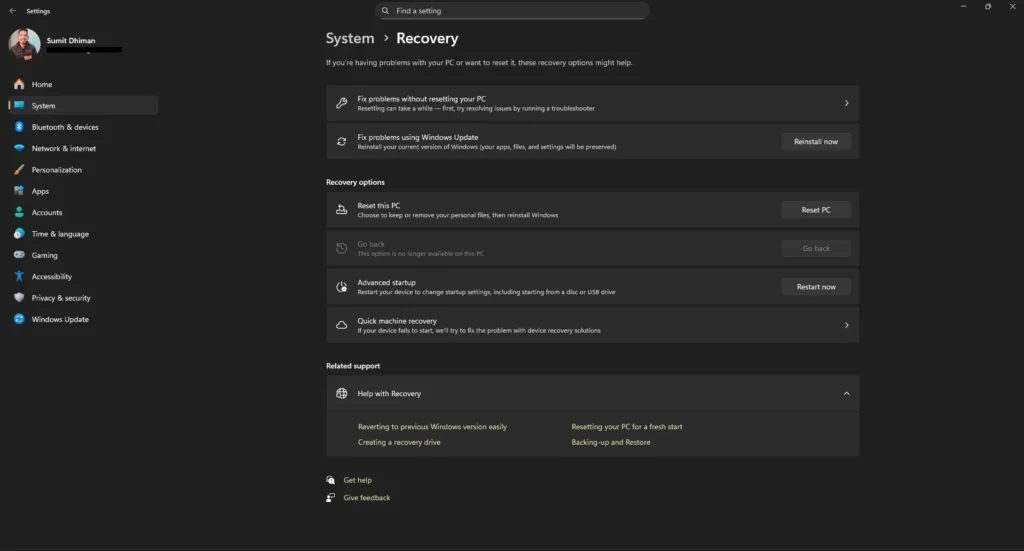
- Click the Reset PC button beside Reset this PC.
- Choose Remove everything.
- Select the appropriate option besides “How would you like to Reinstall Windows” using the following criteria:
- If you do not have a Recovery partition from the Computer manufacturer, choose Cloud Download.
- If you have a Recovery partition from the manufacturer, choose Local Reinstall.
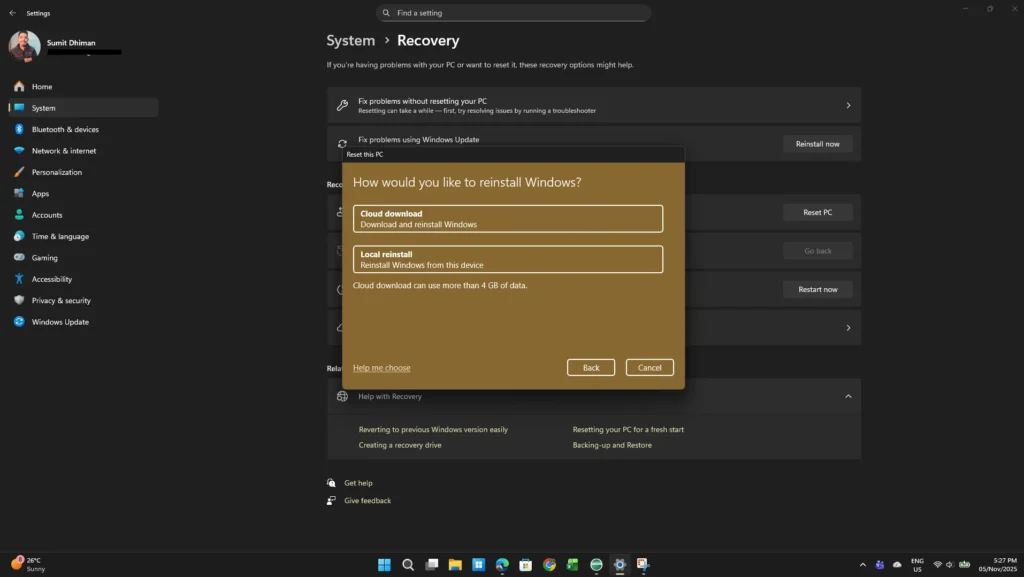
- You can verify if the computer has a Recovery partition by checking Disk Management and looking for a partition labelled as ‘Recovery’ that is approximately 10 GB in size. The Recovery partition essentially helps with a Factory Reset of Windows 11.
- Click Next and wait for the next screen or a Restart.
- The process would gradually be completed to Windows 11 Factory Reset.
The cloud option is very similar to a Clean Install of Windows 11, where it does not install any bloatware apps that come with the Factory.
Doing an Erase everything Reset from Windows Recovery
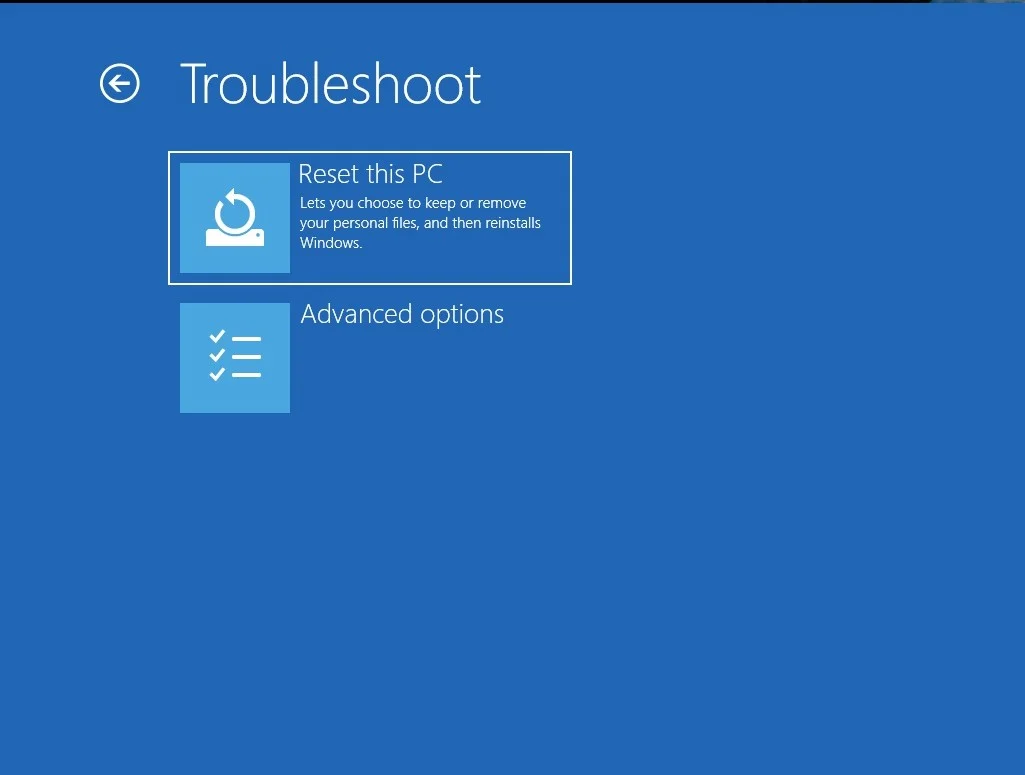
You can also do the same steps from the Windows 11 Recovery environment. For that, see the steps below:
- Boot into the Windows RE.
- Choose the Advanced Option, and then Troubleshoot.
- Subsequently, choose the Reset this PC option.
- Follow the on-screen instructions as written previously.
Using Factory Reset options from the manufacturer to trigger a recovery
Beyond the standard Windows 11 options, most manufacturers like HP, Dell, or Lenovo include their own dedicated recovery tool. This is often accessed by pressing a specific key (such as F11 or F12) immediately after your computer starts up, before Windows loads. Choosing this method triggers a recovery from a hidden partition on your drive, restoring the PC to its original factory state. This is particularly useful because it not only reinstalls Windows but also restores all the original drivers and pre-installed software specific to your model. I list some of the guides below:
- HP: HP PCs – How to reset your computer to factory settings (Windows) | HP® Support
- Dell: Factory Reset, Restore, or Reinstall Microsoft Windows on a Dell computer | Dell US
- ASUS: Cloud Recovery in UEFI BIOS – Introduction | Official Support | ASUS Global
- MSI: [Notebook] How to restore the default factory system through F3 Recovery?
- Lenovo: How to restore the system to factory settings – idea laptops, desktops – Lenovo Support US
To summarise, this guide can help you with Factory Reset Windows 11.
Lisanssız scriptler.
Your work has such a positive influence on everyone who takes time to read