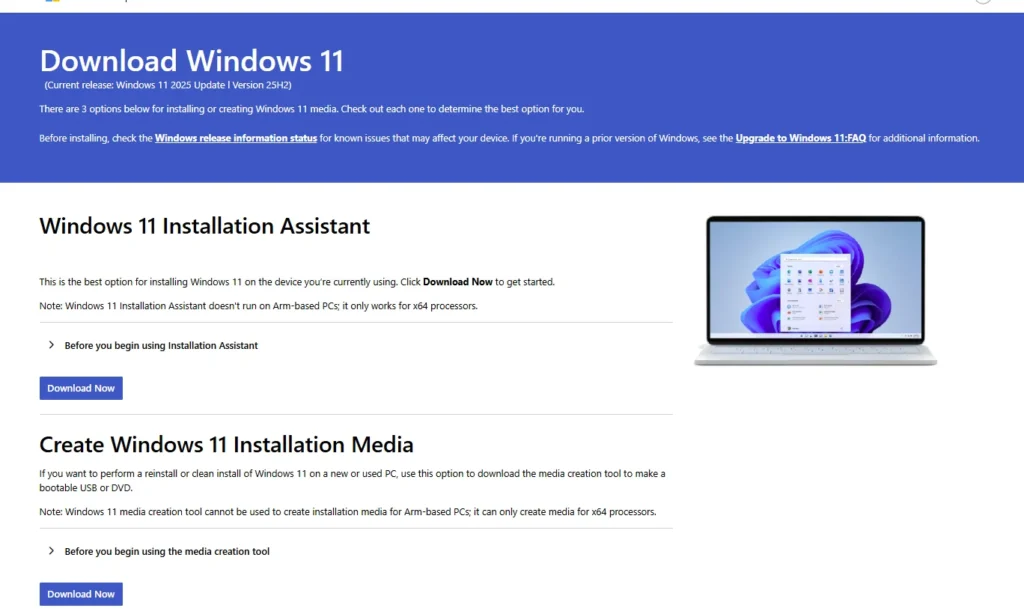
This article will help you manually install Windows 11 25H2, the latest feature update to Windows 11 for 2025, released on September 30. Manual installation can be performed using an enablement package or installation media. Currently, the Media for Windows 11 25H2 is available to all users via the software download page.
Table of Contents
About Windows 11 version 25H2
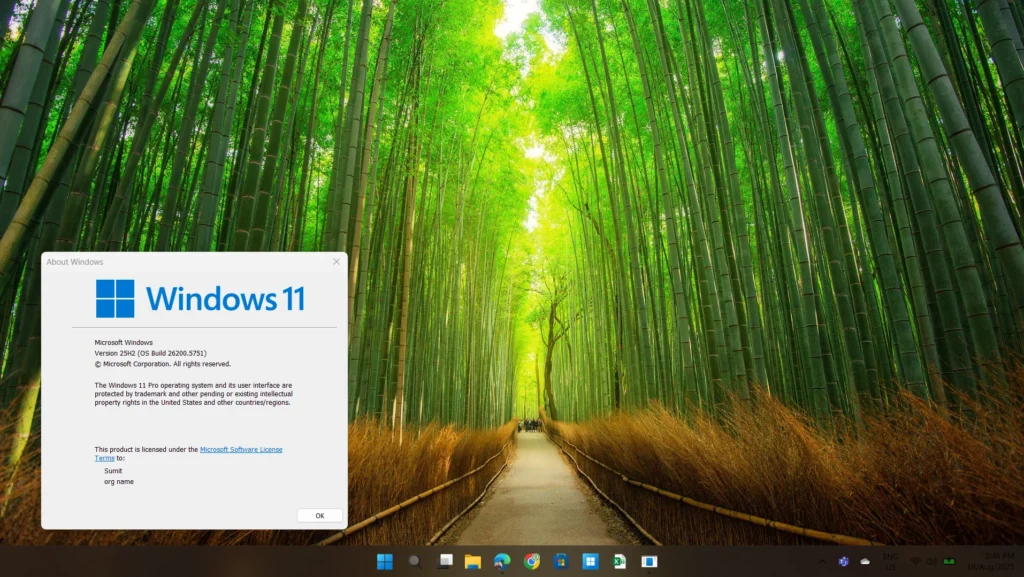
Windows 11 25H2 follows the annual release cadence for Microsoft, which typically involves one feature update per Calendar year. However, in alternative years, Microsoft normally makes the update small and uses the enablement package to make the update minor, as seen with the release of Windows 11 23H2. Simultaneously, to install Windows 11 25H2, upgrading from Windows 11 24H2 would be possible using an enablement package.
New Features in Windows 11 25H2
Windows 11 25H2 is a lightweight enablement update over 24H2 that installs quickly, resets the support clock, and primarily “turns on” features already in the OS. The Windows 11 2025 update works on the Principle of continuous innovation in Windows 11. This update enhances Narrator with on‑device image descriptions and a new on‑screen Braille viewer; brings Search photo grid results, per‑monitor Notification Center with full clock/seconds, and a Task Manager with consistent CPU metrics and other features rolling out to Windows 11 24H2 previously.
Install Windows 11 25H2 offline
To install the newest update, similar to previous releases, multiple methods are available, including the small Enablement package or Installation media file. Described below are the scenarios one by one:
Install Windows 11 2025 update when you are on 24H2
Microsoft has provided an enablement package that updates the version number to 25H2, as the codebase remains the same as Windows 11 24H2. However, A preview package is available here:
Install Windows 11 25H2 offline using Media Creation Tool
If you are on Windows 11 23H2 or earlier, i.e. the codebase is different from 24H2, you may want to upgrade to Windows 11 25H2 using the Media Creation Tool/ISO file. To upgrade, the following steps must be followed.
- Download the Windows 11 version 25H2 ISO. The steps are here.
- Download the ISO based on the Windows Edition and the language in which Windows is installed. Consequently, if you download the Wrong language ISO, your data will not be saved, including files and Apps. If you are in India, download the EN-US ISO.
- Once the ISO file is downloaded, double-click it to open it. Concurrently run Setup.exe.
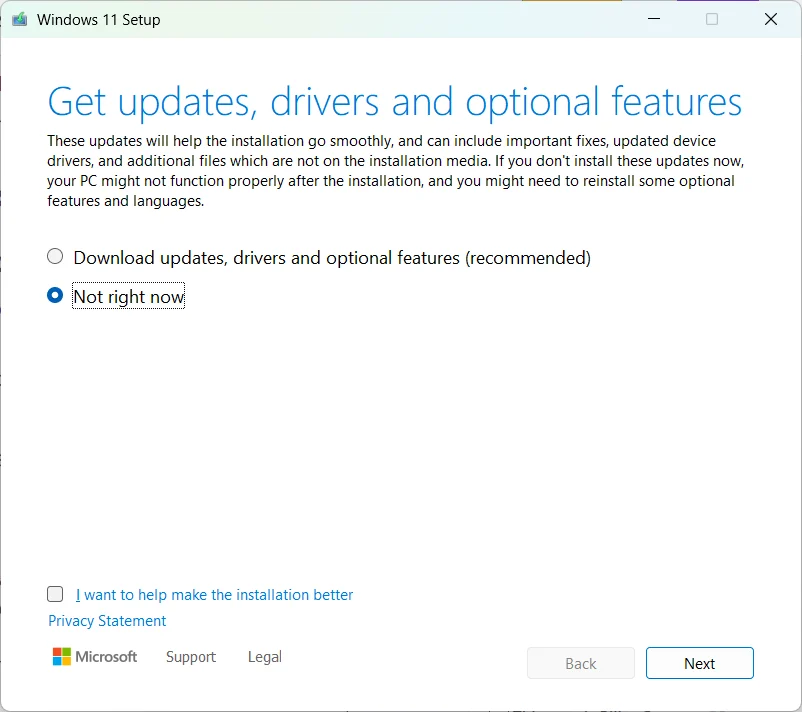
- The Setup should appear. For updating offline, you must turn off checking for updates by clicking “Change how Windows downloads updates” and then selecting “Not right now”.
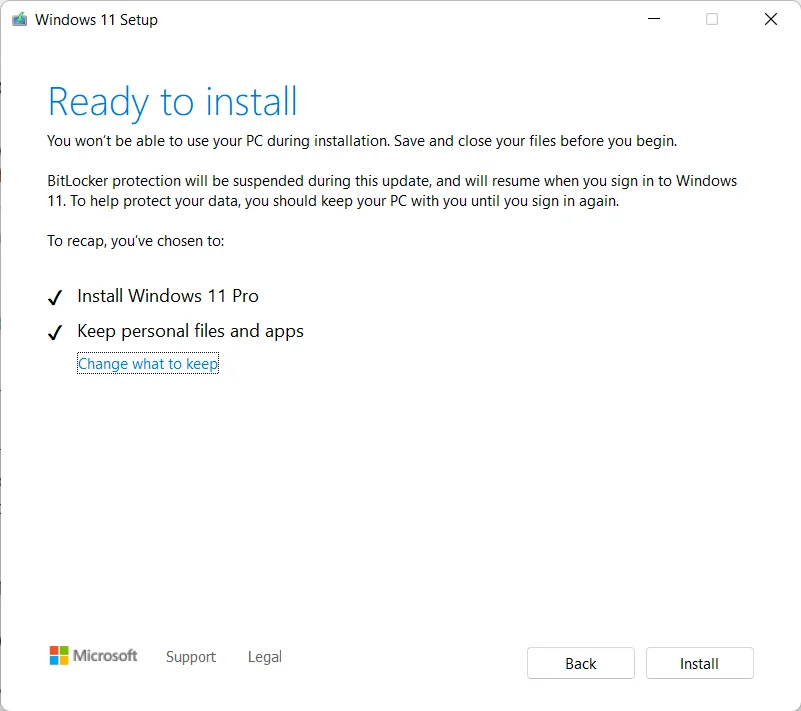
- Click Next, and follow the on-screen prompts until the computer confirms that your data has been saved.
- Subsequently, click Next, and the Upgrade to Windows 11 2025 update should start.
- After a few Restarts, the upgrade to Windows 11 25H2 would be complete.
This article would help you install Windows 11 25H2, aka Windows 11 2025 update. If you have any suggestions, leave them in the comments.