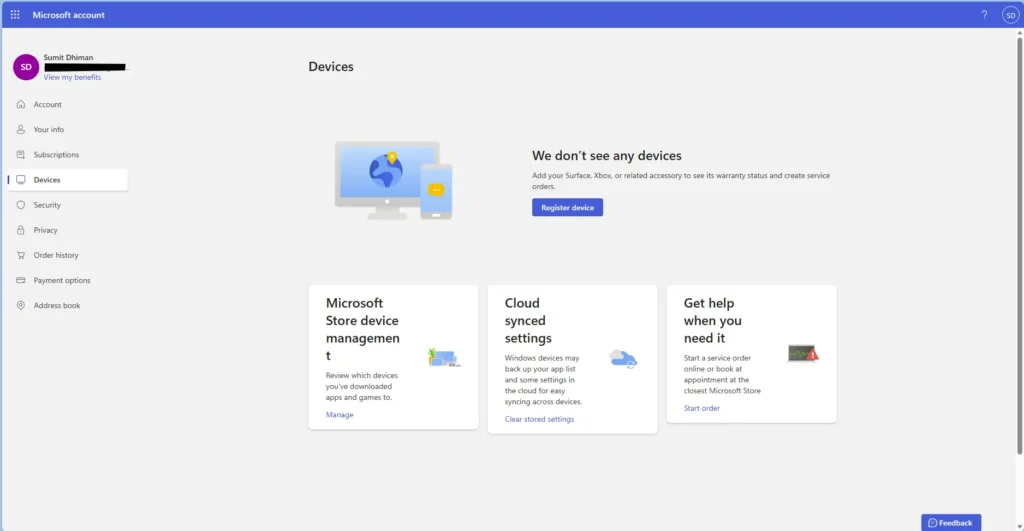
This article discusses about the issue with the Microsoft account devices page not showing devices that you have used with your Microsoft account, and explains why the device list may fail to appear.
Table of Contents
What is the Microsoft account devices page
The Microsoft Account Devices page is a central hub where all the devices linked to your Microsoft account, such as Windows PCs. These are displayed in one place, making it easier to manage your digital ecosystem. By signing in here with your correct Microsoft account, you can view details like PC name, remove old hardware, and even take security actions if a device is stolen. This page simplifies organisation and enhances security, ensuring you don’t have to juggle receipts or remember serial numbers, as everything is consolidated neatly under your account.
Microsoft account devices page not showing devices is a known issue
There have been many reports over the past 8 months that the Microsoft account page does not show devices correctly. The symptoms include:
- Device or Devices suddenly disappeared, i.e., the device not showing in the Microsoft account.
- Did a clean install, and the device does not populate.
- Purchased a new Windows computer, signed in with your Microsoft account, but the Microsoft account devices page is not showing the device.
All of these issues stem from a root cause – Microsoft’s back-end system, confirmed here. Additionally, you might also see that the https://account.microsoft.com/devices/content page is also blank.
Fixing Device not showing in Microsoft account
I’m afraid there is no definite fix to this problem. Rather, some workarounds are provided. Please note that these workarounds do not guarantee that the device page will be fixed, as this is a server-side issue on Microsoft’s backend.
Empty space on your Microsoft account
Your Microsoft account stored in space should have at least 1GB free. You can manage OneDrive Storage on this page. After 24 hours, the device not showing in the Microsoft account might get fixed.
Use another Microsoft account
People have also reported that if you use a spare Microsoft account and sign in with it, the device would register on that account’s device page. It is not a clever workaround, but it is what it is.
Send Feedback to Microsoft [IMPORTANT]
If you are affected by your device not showing in the Microsoft account, you must submit your issue with Microsoft for that, using the Support option and contacting an agent. The more the reports, the quicker Microsoft account devices page not showing devices should be solved.