Are you looking to modify your signature in your Email client? This guide perfectly tells you how to change signature in Outlook 365 and Outlook New, in a very easy manner. If you are looking for other Outlook guides, you can have a look here.
Table of Contents
What is an Email Signature in Outlook?
A signature in Outlook is a personalized block of text, images, or links that automatically appears at the bottom of your outgoing messages. Think of it as your digital business card; it typically includes your name, job title, and phone number, but it can also feature a company logo or social media icons. Instead of typing your sign-off every time you hit “Send,” setting up a signature ensures your emails always look professional and provide recipients with an easy way to find your contact details.
How to Change Signature in Outlook?
The steps to change Outlook signature vary between the two versions of Outlook: Outlook New version and Outlook Classic (also known as Outlook 365). We would cover both of them.
Change Outlook Signature in Outlook 365
To change the Signature in Outlook 365 which is a part of Microsoft 365, follow these steps:
- Open Outlook Classic and click File > Options.
- Click the Mail button.
- Click Signatures.

- Select the Email accounts you have, and then subsequently the Outlook Signature, under “Select Signature to edit”
- Edit your Signature and click OK.
Edit or Add Signature in Outlook New
In New Outlook for Windows or Mac, modifying the Email signature is very easy. Follow these steps:
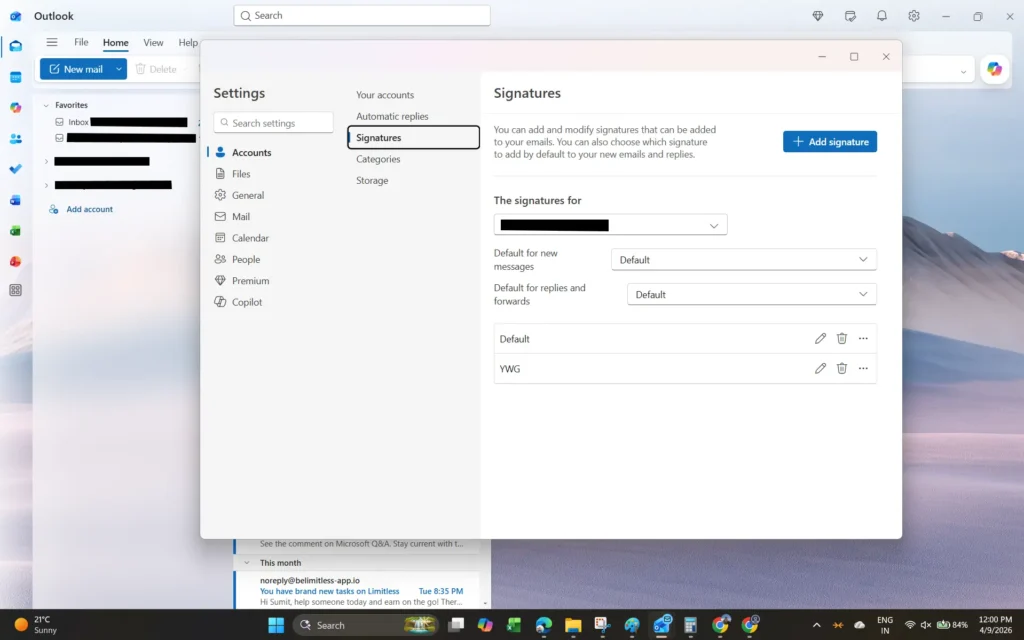
- In the New Outlook, click File > Settings.
- Go to Accounts > Signatures.
- Click the Pencil icon beside the existing signature to edit it.
- If you want to add a signature, click Add Signature.
- Click Save. The new Signature is now saved.
These comprehensive steps can help you with how to change your signature in Outlook apps. You can also refer to the Microsoft’s guide for more detailed information on this topic.