Is your laptop not turning on? You are not alone — this is one of the most common issues users face. Whether your screen stays black, the power button does not respond, or the laptop just stops working out of nowhere, it can be frustrating. The good news is that most of the time, a laptop not turning on does not mean it is permanently damaged. In this guide, the most common reasons and fixes for your PC not turning on will be covered.
Table of Contents
Identify the root cause of the laptop not turning on
There are multiple root causes that can cause the problem – first, identify if the laptop or your PC has any activity, i.e., any Fan activity, lights, etc., which is easy to determine. If there is a fan activity, it means your PC is not turning on due to a Blank display. If there is no activity, the problem revolves around Power. Let us discuss both scenarios.
PC not turning on, but has activity
If you see that the lights go up on your device and there is a Fan activity, try these steps:
Hard Shutdown[PC and Laptop both]
Press and hold the Power key for a few seconds until the lights turn off. Plug out the power cable and wait for 5 minutes. After that, try turning the device on again.
Try to enter the BIOS/UEFI menu
If your Laptop can enter the UEFI menu, it might narrow down the fault to a Windows one. To enter BIOS, look at the guide below:
How to Open BIOS on a Windows 10/11 PC – 2 simple methods
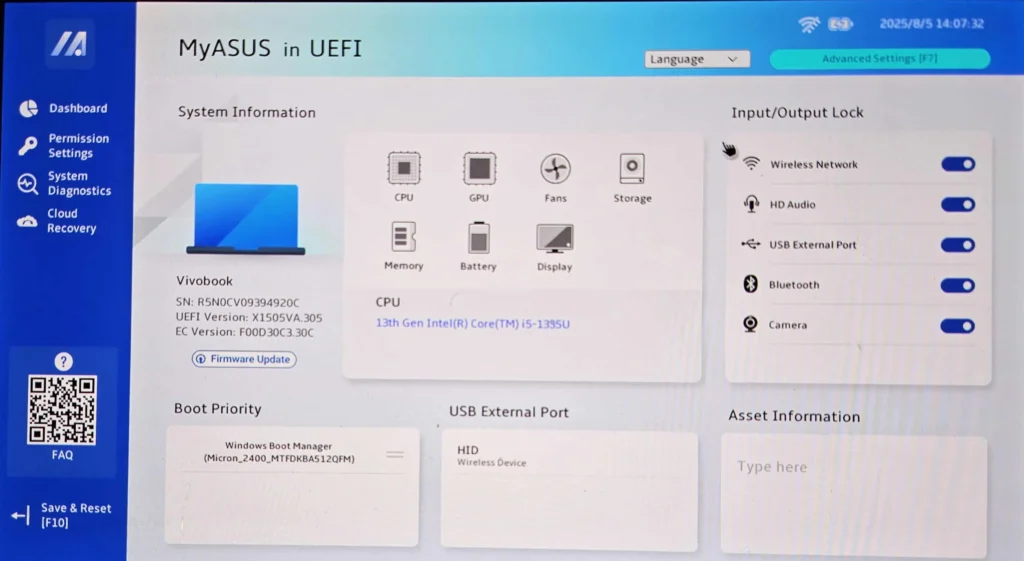
If you see that your Windows might be at fault when you successfully open the BIOS options, you may have to follow this guide.
Microsoft also has support documentation, which you can check:
Try using a bare minimum configuration
Please remove everything other than your keyboard and mouse, such as printers, and try turning the laptop on. Sometimes, 3rd party devices like Printers fetch too much power, rendering the existing supply to the laptop useless, causing the screen to go blank.
Try reseating components like RAM and the drive
If you are technically inclined to open the Laptop or PC Casing, removing and reinserting core components like RAM and the SSD may help. Be careful to remove the components and always watch a related video beforehand.
Reset BIOS using the jumper or the CMOS cell
Again, if you can open the laptop or PC casing, try removing the CR2032 cell or resetting the BIOS using the jumper, and see if you can turn the laptop on. For more instructions, refer to the computer manual.
[PC only] Try replacing the Display cable
If you have a PC and an external monitor connected, you may try a new DP/HDMI cable to troubleshoot the PC not turning on issue. Most often, it is likely a bad cable.
[Laptop only] Try resetting the BIOS or CMOS
Certain manufacturers, like HP, provide a key combination to reset the CMOS, for example, Windows key + B, which can help you reset BIOS software, thereby helping you. For HP, a guide is here.
The device shows no Power/sign of activity
If your device does not turn on and shows no signs of Power, follow a different set of troubleshooting steps, written below:
Check the Power source
Ensure the Power source is working perfectly. Try a different input/output and verify whether the laptop not turning on issue is resolved.
Check Cables or Charger
To try to solve the laptop not turning on, ensure the power cables or chargers for the PC and Laptop, respectively, are working properly. You can verify using voltmeter if you have, or try using a spare cable if you have. For the laptop, the charger is fine if the brick is warm to the touch.
Check for Burnt capacitors or ICs for PC not turning on problem
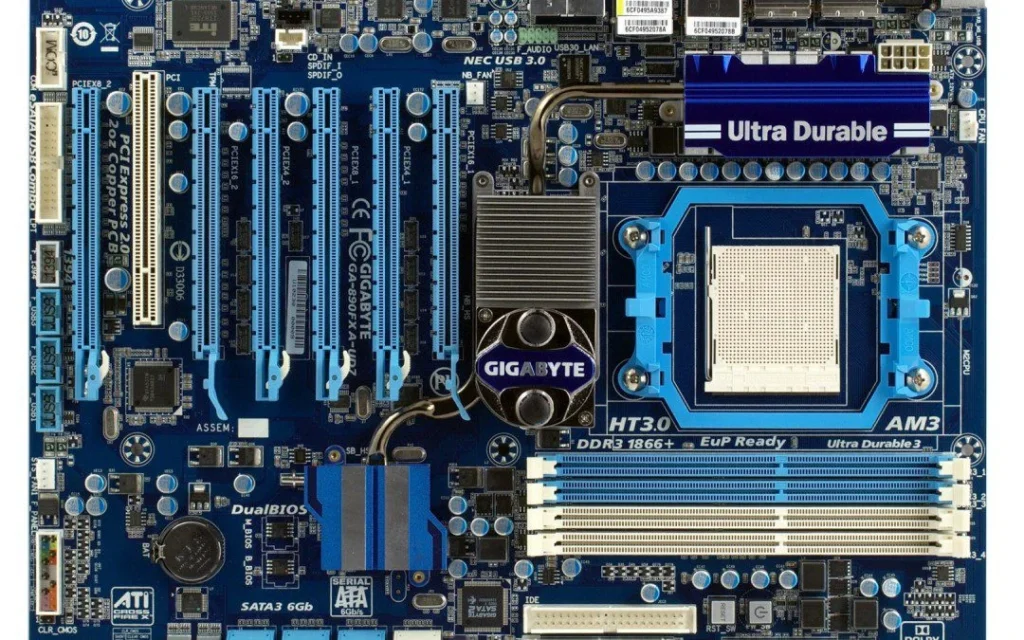
Physically check the motherboard for any burnt capacitors or ICs. If there are any burnt capacitors or ICs, you would need to consult a computer technician.
Finally, also look at the other steps in this article, which discuss a related issue: A freezing computer.