To disable Sticky Keys in Windows, the three methods listed here should help
This article should help you with how to disable Sticky Keys on all versions of the Windows Operating System.
Table of Contents
What are Sticky Keys?
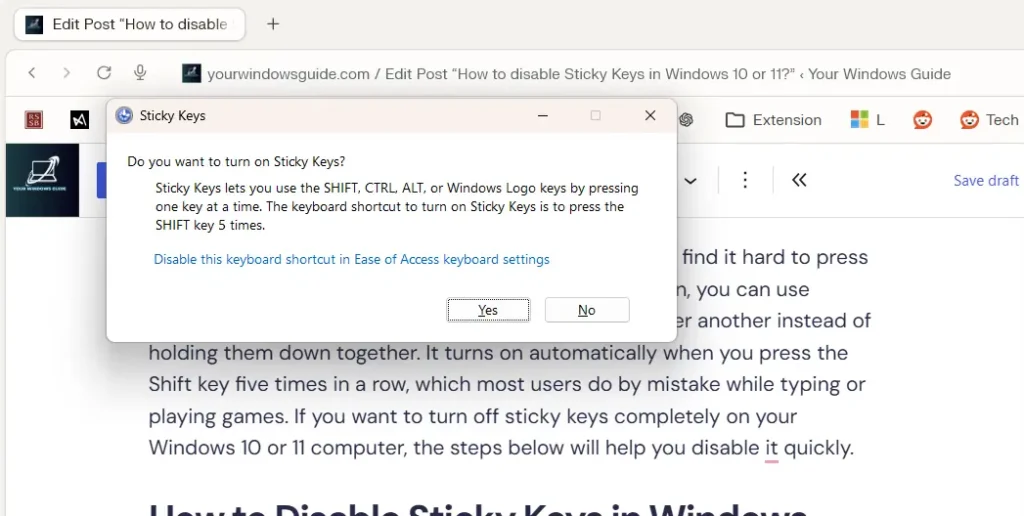
Sticky Keys is a Windows feature that helps people who find it hard to press two or more keys simultaneously. When this feature is on, you can use keyboard shortcuts like Ctrl + C by pressing one key after another instead of holding them down together. It turns on automatically when you press the Shift key five times in a row, which most users do by mistake while typing or playing games. If you want to turn off sticky keys completely on your Windows 10 or 11 computer, the steps below will help you disable it quickly.
How to Disable Sticky Keys in Windows – various methods
I list three methods below to turn off Sticky Keys:
Disable them using a shortcut
To disable Sticky Keys using a shortcut, simply press the SHIFT key 5 times. Concurrently, the pop-up should appear. You can turn on or off using the same.
Use the Settings app
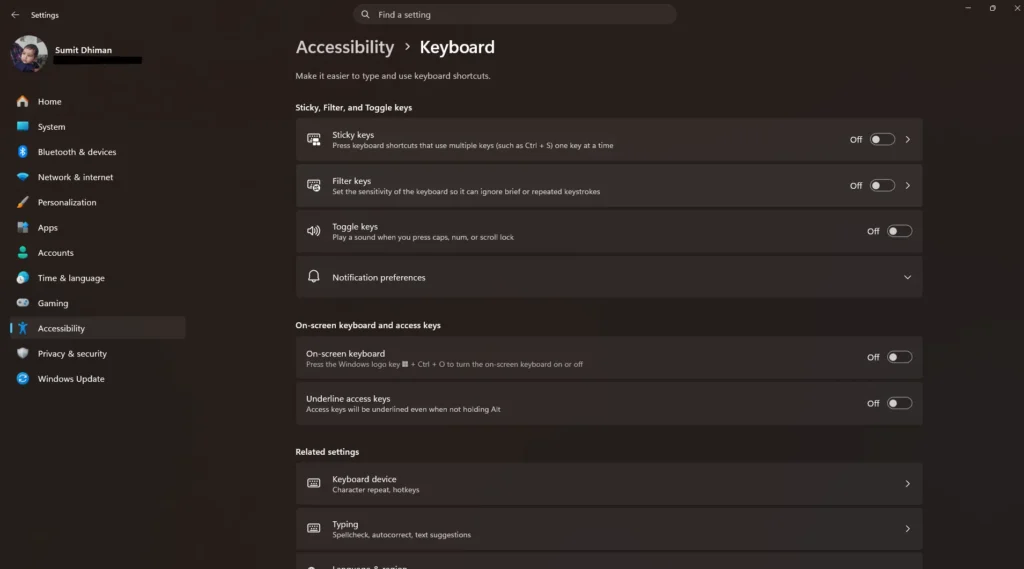
- Open Settings from the Start menu.
- Click Accessibility (Windows 11) or Ease of Access (Windows 10).
- Select Keyboard.
- Turn off the Sticky Keys toggle.
- (Recommended) Open the Sticky Keys options and turn off the Sticky Keys keyboard shortcut so it does not come back.
Turn off Sticky keys using Registry Editor.
You can also use the Registry Editor to get rid of this feature. See the steps below.
- Press Windows key + R and type regedit.exe
- Navigate to:
HKEY_CURRENT_USER\Control Panel\Accessibility\StickyKeys. - Set the Flags string value in this key to
506disable Sticky Keys and its shortcut.
These comprehensive steps cover how to disable sticky keys in Windows 10 and 11.