Microsoft Teams users may notice a change in how images are shared in chats and group conversations. Previously, copying an image or taking a screenshot and pressing Ctrl + V embedded the visual directly in the message; going forward, Microsoft Teams will upload pasted images to OneDrive as the standard.
Concurrently, Microsoft has confirmed this new behavior, and it’s being rolled out gradually to users. Here’s what has changed and how you can send feedback to Microsoft if you prefer the previous way of sharing images.
Table of Contents
What is Microsoft Teams?
Microsoft Teams is a communication and collaboration platform from Microsoft that allows users to chat, make audio and video calls, share files, and work together. It is widely used in workplaces, educational institutions, and for personal communication. Teams supports individual chats as well as group conversations, making it easier to share information with multiple people.
One useful feature of Microsoft Teams is the ability to share images and screenshots directly in a conversation. You can use the image attachment option or copy an image from another application and paste it into the message box using Ctrl + V. Previously, the pasted image appeared directly in the conversation in Microsoft Teams, so recipients could view it without opening a separate file or navigating elsewhere.
Microsoft Teams Pasted Images uploaded to OneDrive – A known change
Microsoft has changed how pasted images are handled in Teams conversations. When you copy an image or take a screenshot using Windows + Shift + S and press Ctrl + V in a Teams chat, the image is now uploaded to OneDrive and shared as a file attachment. Teams also displays a message stating, “Images are shared as attachments and saved in the Files tab.”
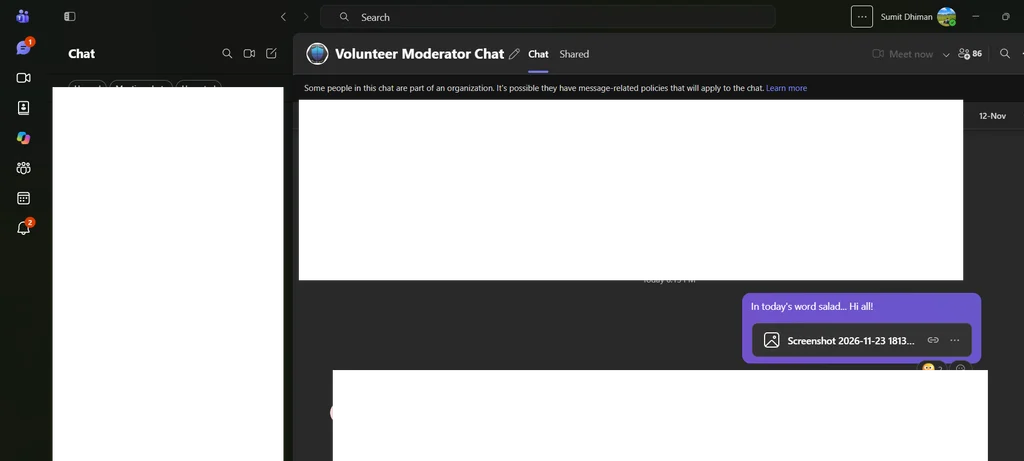
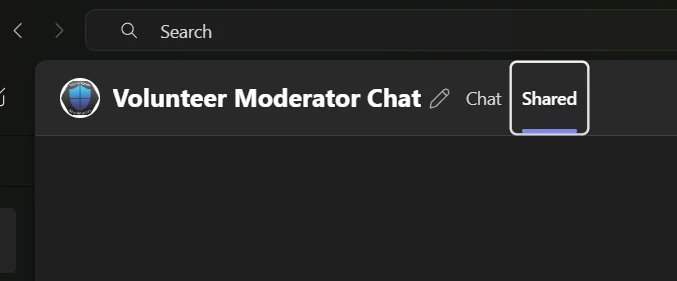
This is different from the previous behavior, where the image was inserted directly into the message composition area and displayed inline after sending. With the new behavior, Images in Microsoft Teams not appearing inline is a known change, and they will appear in the shared Tab.
The Microsoft Teams pasted Images uploaded to OneDrive change is being rolled out gradually, which means it may not affect every Teams account at the same time. Some users may still be able to paste images inline, while others may already see them uploaded as attachments. According to a Microsoft Q&A response from a Volunteer Moderator, Microsoft has confirmed this new behavior, and there is currently no setting available to restore the previous image-pasting experience.
How to send feedback to Microsoft about this change
If you regularly share screenshots or images through Teams, this change i.e. Images in Microsoft Teams not appearing Inline may affect your daily work. Opening attachments and waiting for OneDrive links to load can be less convenient than viewing images directly inside a conversation. If you prefer the previous inline image-pasting behavior, you can submit feedback to Microsoft and explain why you would like this functionality to remain available.
To report your feedback, follow these steps:
- Open Microsoft Teams.
- Click the Settings and more (three dots) option.
- Navigate to Feedback > Report a problem.
- Describe the change in image-pasting behavior.
- Mention that you would prefer pasted images to appear inline instead of being uploaded as OneDrive attachments.
- Submit your feedback