Bing Image Creator is one of the premier Image generation tools available on the Internet for free, with a very generous limit compared to the competitors. There are several ways to create Bing Images, with the most common method being to navigate to https://copilot.microsoft.com. This guide will help use Bing Image creator without visiting any Website, essentially providing a shortcut.
Table of Contents
About Bing Image Generator
If you want to create images online for free, Bing Image Creator is a great place to start. It’s super easy to use – type what you want to see, and Bing uses powerful models like DALL-E 3 and GPT-4o to turn your words into pictures. You don’t need to be an artist or tech expert; anyone can try it. Additionally, Microsoft keeps the limits fairly generous, allowing you to create a large number of images and being powerd by Reward points. So, next time you need a quick illustration, this tool is an innovative and simple way to bring your ideas to life visually!
How to Create an Image with Bing using Bing.com itself
Traditionally, you can make the Images using 2 methods that are given below:
- Microsoft Designer.
- Microsoft Copilot
Now, here is a shortcut: if you directly type your Image prompt on the Bing Homepage, the Image will be generated.
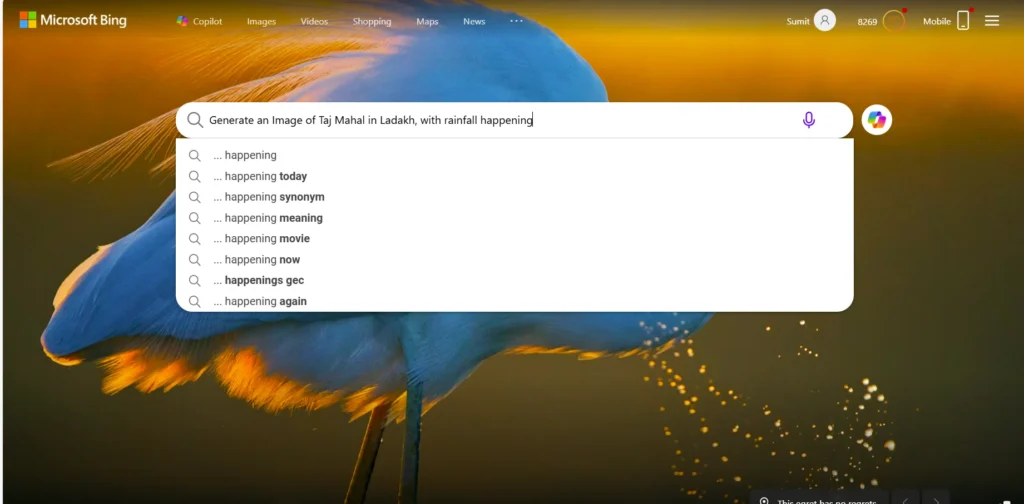
Now, when you enter the Prompt, on the SERP Page, the Image creation block would appear, and your Image would generate.
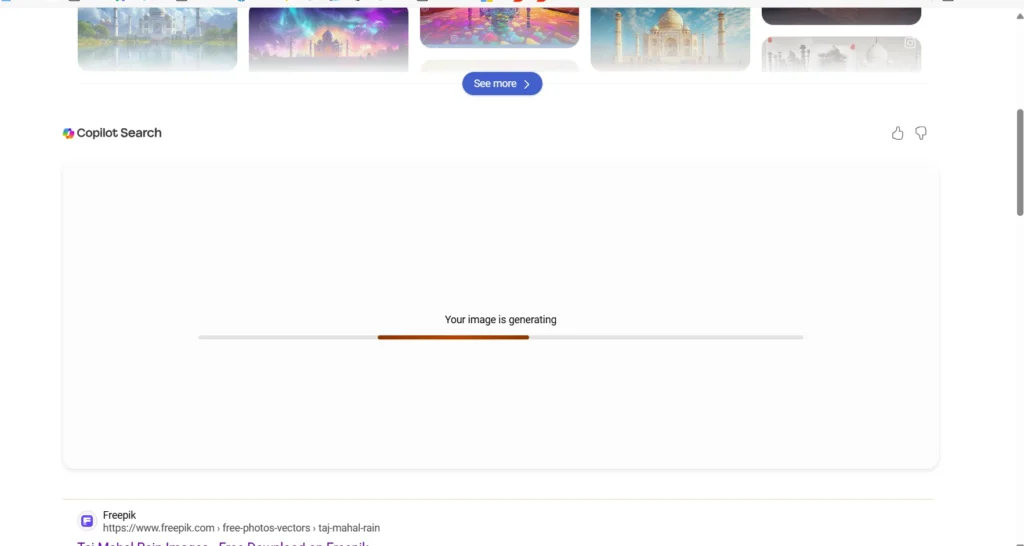
You can choose the model later if you wish, i.e. from GPT -4 or DALLE3.
Bing Image Creator Commercial use
Our other article here also covers the legality of using Bing Images commercially, which is now allowed. Head over to the link to Learn more.
This easy method to create an Image with Bing using the Home page saves you some clicks and effort – I hope it is helpful to you.