If you are looking for a way to disable the pesky Floating Copilot icon in Office apps present at the bottom right, this article is helpful.
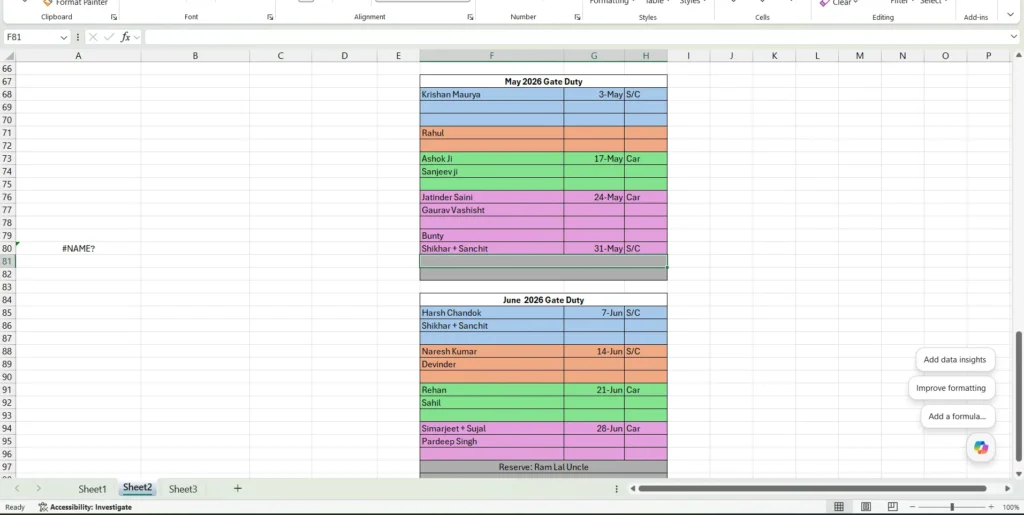
Microsoft recently made some changes to Microsoft Copilot in the Microsoft 365 i.e. Office apps, where instead of the Copilot present in add-in, they added it to the bottom right portition of any Office app, like Excel. This triggered a lot of backlash across Social media.
Table of Contents
What is Copilot for Office apps?
If you’ve been using Word, Excel, or PowerPoint lately, you’ve probably noticed a new AI assistant hanging around. Copilot for Office apps is essentially Microsoft’s built-in AI helper designed to draft text, summarize long documents, analyze spreadsheets, and build slide decks from scratch using simple everyday language. It sits right inside your favorite programs to speed up your workflow, though its placement can sometimes feel a bit intrusive. For instance, if you find the latest interface updates distracting, you could easily dive into your settings to disable new floating copilot icon and keep your workspace clean while still keeping the AI features just a click away in the main ribbon toolbar. However, it was not possible with the new desig
Updates to the New entry Point for Dynamic Microsoft Copilot icon in Excel and Word
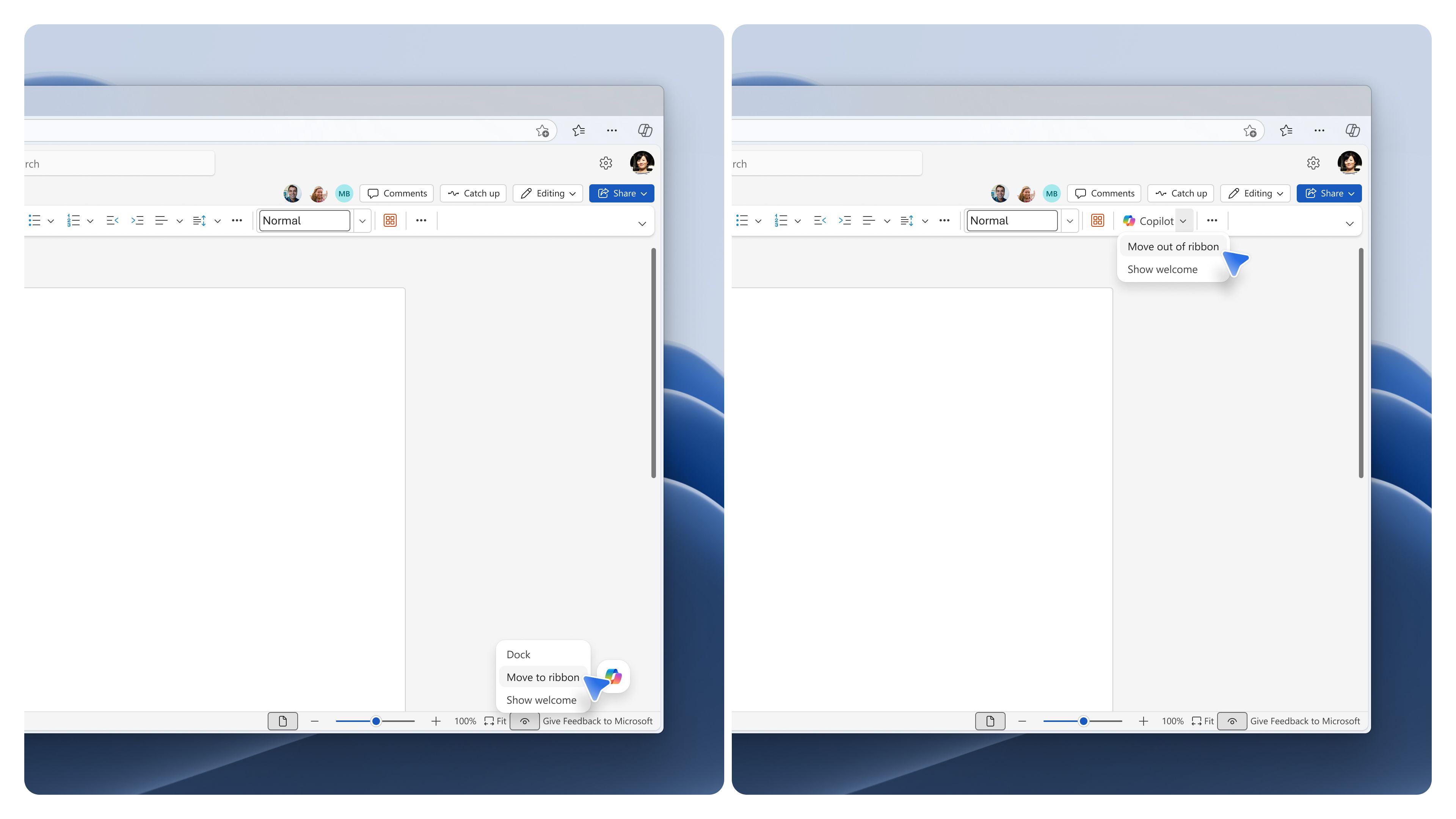
In a recent Blog post, Microsoft has announced that based on feedback, they are making some changes to the Copilot dynamic action button which now allows you to remove floating copilot icon in Office apps. The following changes are incoming:
- New “Move to ribbon” option added so users can shift the Dynamic Action Button into the ribbon for better control and cleaner workspace .
- Docked position now persists — once you dock the button to the window edge, it will stay there instead of jumping back after each Copilot interaction .
- More flexible placement options remain available, including docking or moving the button back onto the Ribbon depending on your workflow preference.
Additionally, if you want to remove copilot icon in Excel or Word completely, the turning off option would be there as discussed here. If you want to switch to a subscription without a Microsoft 365 Copilot subscription, see this article.
To summarize, you should be able to remove Copilot icon with the help of this article.