Office 2016 and 2019 showing “Unlicensed Product” or gone after “Click-to-Run Update Support”? Here is the fix
If your Office 2019 deactivated after a Windows update, your license is most likely still valid. Many people using Office 2016 and 2019 saw Word, Excel, and Outlook enter view-only mode. Some found Office completely uninstalled.
In this guide, I explain what caused it and give you fixes in the order to try them.
Table of Contents
What Happened to Office 2016 and 2019?
The cause is an update called KB5002907. In the Windows Update history, it appears as “Click-to-Run Update Support.” Microsoft made it for Microsoft 365 Apps that are more than 90 days out of date. But it also hit perpetual (one-time purchase) copies of Office 2016 and 2019. Microsoft has now confirmed the problem and paused the rollout.
Microsoft says there are two outcomes:
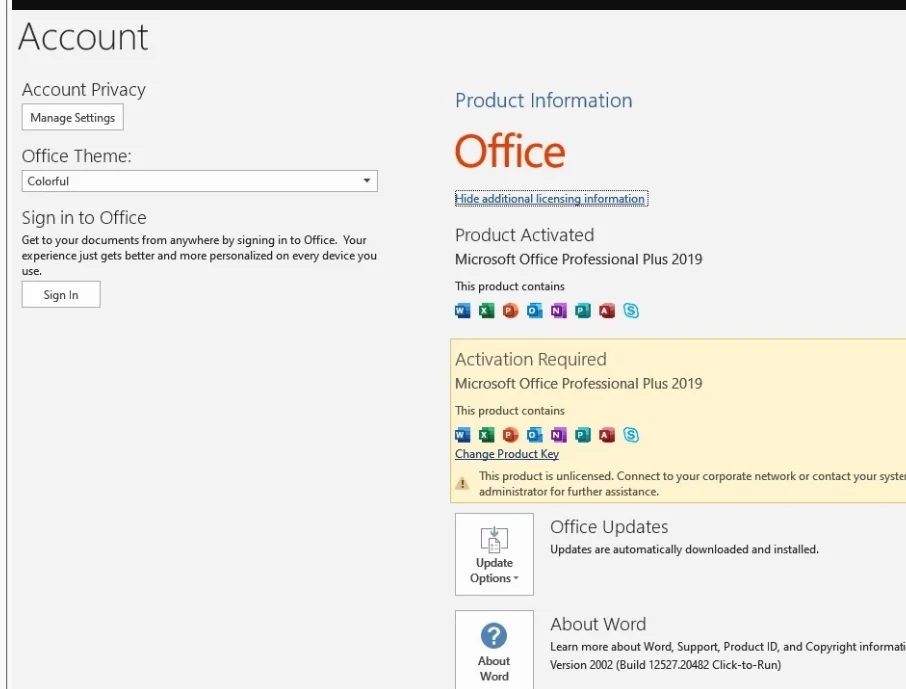
- Unlicensed: Office is still installed, but shows as unlicensed. You need to reactivate it.
- Removed: In rare cases, Office is gone. You need to reinstall it.
Microsoft says the update is optional and does not install automatically. But some users say it installed on its own anyway. So check your PC even if you never clicked install.
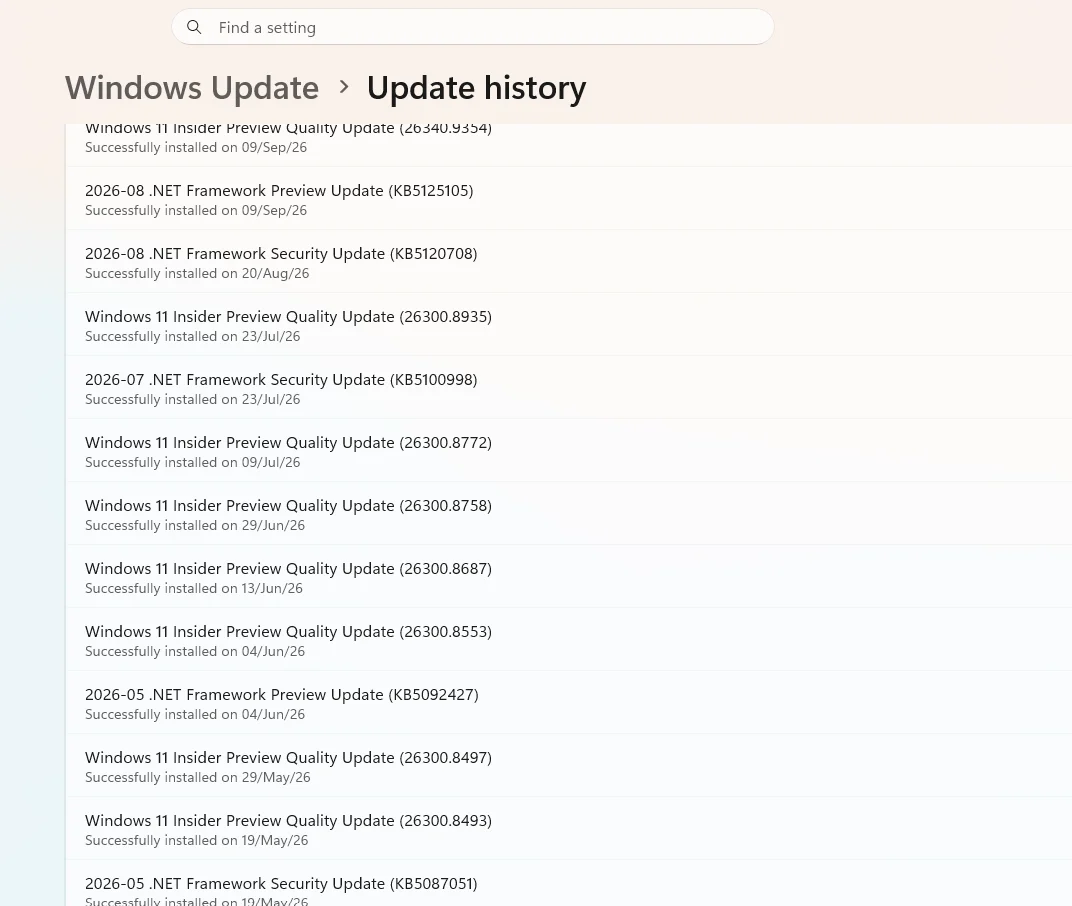
How to check: Go to Settings > Windows Update > Update history and look for Click-to-Run Update Support.
Stop the Update First
Do this before you reinstall or reactivate. One user reinstalled Office 2016 and the same update appeared again. It removed Office a second time.
- Go to Settings > Windows Update > Advanced options
- Turn off “Receive updates for other Microsoft products”
- Under Optional updates, skip anything that mentions KB5002907
Turn this setting back on after Microsoft releases a fix.
Fix Office 2019 and 2016 Showing “Unlicensed Product”
It should be clear here that your apps are still installed. Office just lost its activation. You may see a red banner, view-only mode, or a “Product Deactivated” message.
Sign In With Your Microsoft Account (Recommended)
Most copies of Office 2016 and 2019 are tied to a Microsoft account. This is the best first step.
- Open Word or Excel
- Click Sign in or Reactivate on the banner
- Use the same account you used to buy or redeem Office
Not sure which account? Go to account.microsoft.com/services and look for Office in your products.
Note: If you already redeemed your product key, you can’t redeem it again. Use your account instead.
Enter Your Product Key
If sign-in does not work and Office is still installed, add your key again.
- Open Word or Excel.
- Go to File > Account > Change Product Key.
- Enter your original product key.
Several users said re-entering the key fixed the problem.
Try a Quick Repair
Results are reported as mixed here, but worth a try.
- Go to Settings > Apps > Installed apps
- Find Microsoft Office 2016 or 2019
- Click the three dots and choose Modify
- Select Quick Repair and click Repair
Will the Fix Last?
Microsoft is still investigating and has not said when a permanent fix will come.
Here is what to do in the meantime:
- Keep the update off using the steps above
- Save your product key and account details somewhere safe
- Report it to Microsoft through Help > Feedback in Office, or contact Microsoft Support and describe the steps you tried
Also, Office 2016 and 2019 are out of support since October 14, 2025. If you can, plan a move to Microsoft 365 or a newer version.
In short, KB5002907 (listed as Click-to-Run Update Support) broke activation for many Office 2016 and 2019 installations. Your license is not lost. Stop the update first, sign in to reactivate, and reinstall only if Office is gone.
You can read our other Office troubleshooting guides here.