With recent developments around the world, the world is increasingly moving towards digital technologies. Teams and Zoom are quite common examples. For this software, you need a camera and a Microphone. In this article, I will provide troubleshooting steps for the Laptop Camera not working in Windows 10.
Usually, if the Laptop camera isn’t working in Windows 10, it may be due to a camera driver that was removed during a Windows update. Alternatively, you may not have been granted access to the Camera in the app. Here are the steps by which you can fix your camera:
Basic troubleshooting
Ensure you have checked the following first.
- Check if there is a physical switch on the Camera, such as an Fn key that may have been pressed, which could have ended up disabling the Camera.
- Ensure that you enable the camera in the computer’s UEFI settings.
- Ensure the computer’s firmware is up to date. See this article for the same.
Permissions
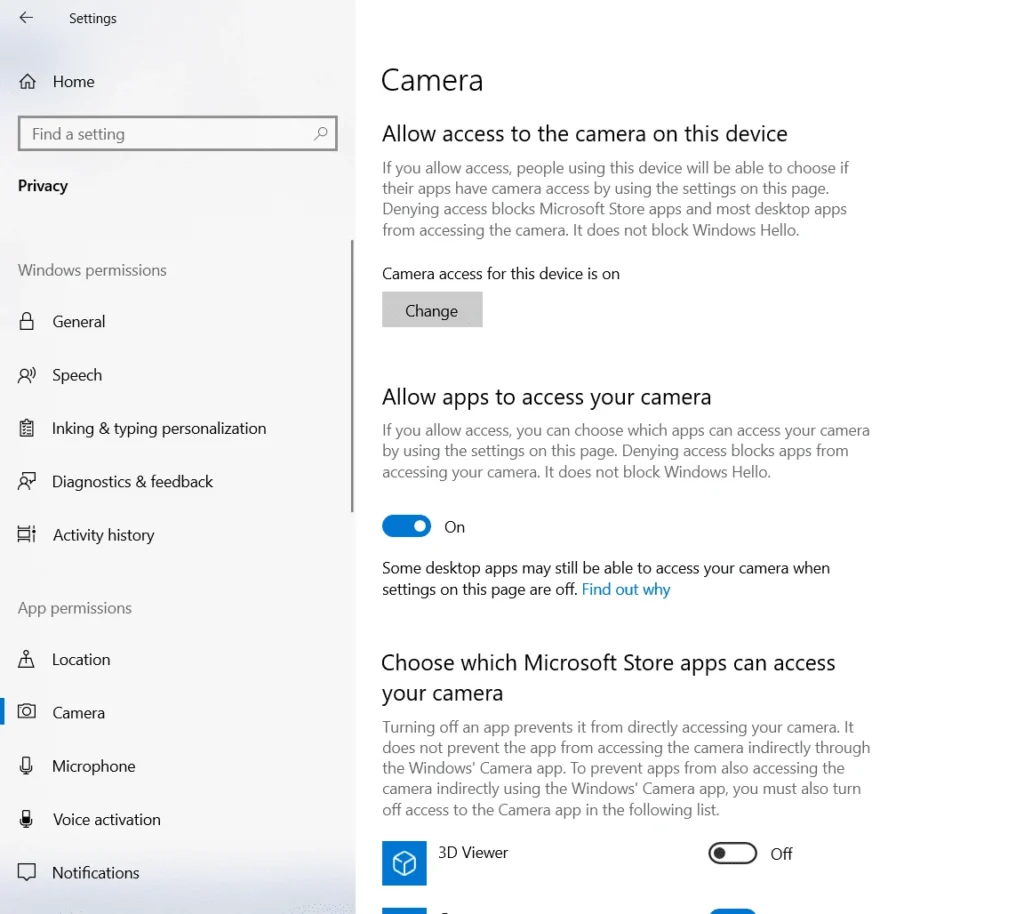
Go to Start>Settings>Privacy>Camera. (Click this link to access the Settings directly). Toggle Access to Camera as ON. Also, enable the slider for the apps you want to give access to Teams. It should include your “digital conference” Softwares, so make sure Teams and Zoom have the access.
Troubleshoot Camera drivers
Ensure the driver is installed: In Windows 10, Cameras require drivers to function properly. In some cases where Windows detects compatibility problems, drivers may get removed during a Windows update. In that case, you may have to reinstall drivers. To check if there is a driver issue,
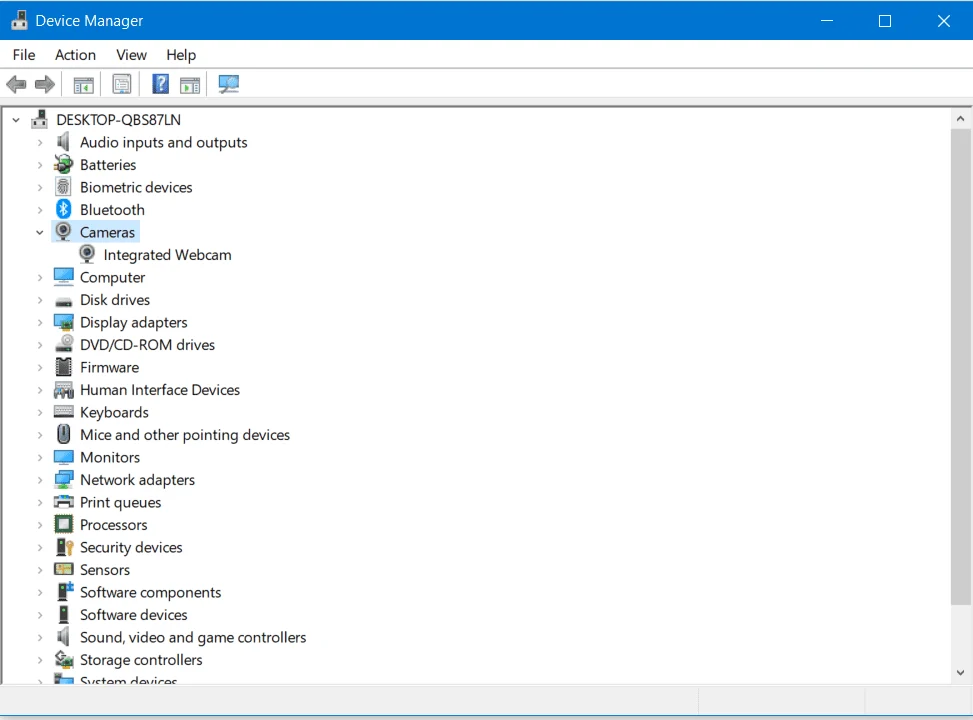
- Right-click Start and choose Device Manager.
- Look for camera, imaging devices, sound, Video, and Game controllers. Expand it.
- Mine is working, so it shows up as usual. If it isn’t working, you may see it listed under ‘Unknown Devices’ with a yellow? Or an exclamation point on the Camera device.
There are several ways to attempt to fix it, which are discussed below. 3rd method is what I recommend.
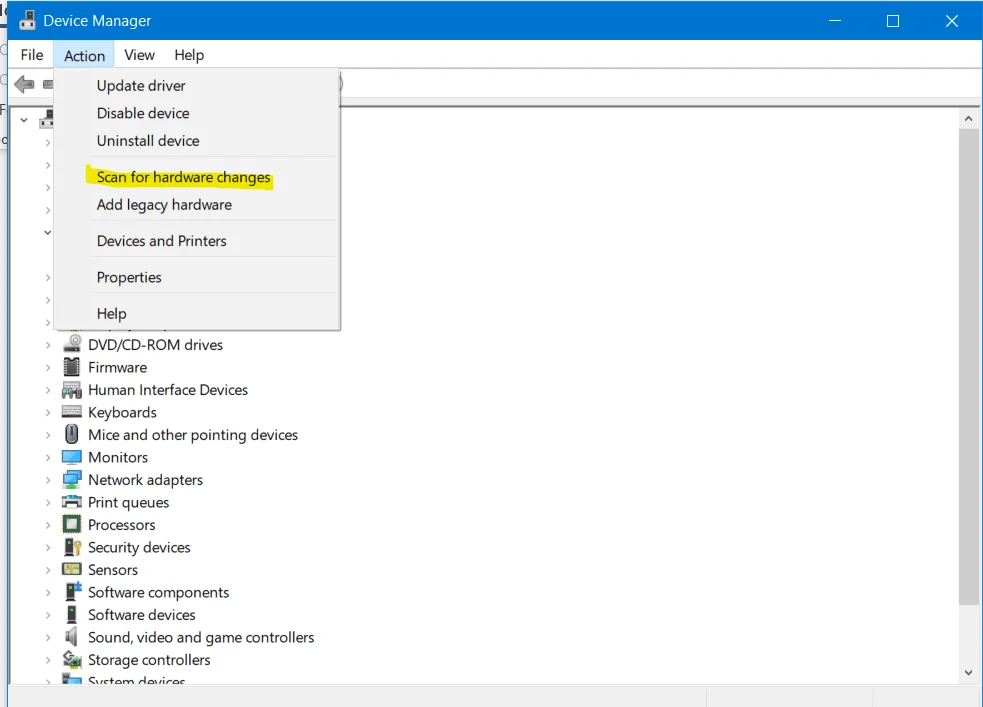
- Scan for Hardware Changes: Right-click the Camera and choose Scan for Hardware Changes. This will search for and install the best driver available.
- Update: This option would attempt to retrieve drivers from Windows Update and install them.
- Download the driver package from the manufacturer; this is the recommended method. Go to the device manufacturer’s website and search for updated drivers for the Camera. All the devices have webpages on the site having all the drivers.
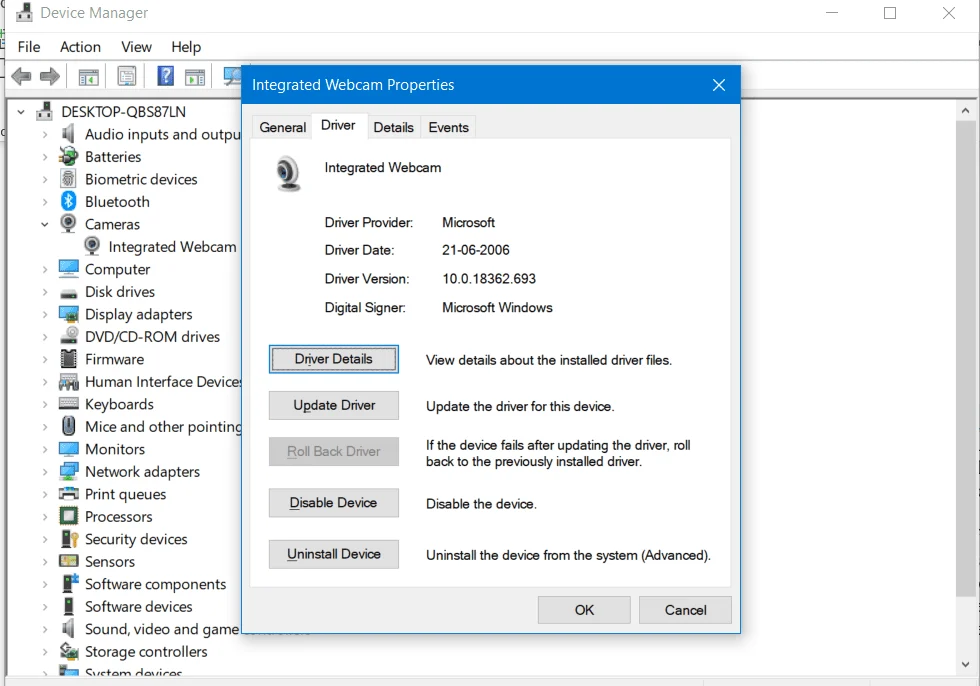
- Rollback: You may try rolling back to an older version of the driver if it was recently updated. Right-click the device>Properties. Under the driver tab, see if you can roll back the driver.
Check if Camera is compatible with Windows 10:
Furthermore, Devices shipped with an older release of Windows may not work properly with Windows 10, especially the Camera device. To confirm this, Select the Driver tab, select the Driver Details button, and look for a file name that includes stream.sys. If it’s there, your Camera was designed before Windows 7, and you’ll have to replace it with a newer webcam.
Check your Security Software:
Sometimes, your security software can block access to the Camera stream. Concurrently, Look for Security settings and change them as needed. You may also try disabling real-time protection and checking. Remember, do this only for a short period.
Miscellaneous:
Some other housekeeping steps you can try are:
-
- Check for display driver updates.
- Run diagnostics provided by the manufacturer.
To conclude, these steps can help you resolve the Issue with the Camera not working in Windows 10. Also, see this support documentation from Microsoft.