This article serves as a handy guide for downloading ChatGPT for Windows 10/11 and setting it as the default. ChatGPT is the best AI provider in the industry, as you might know. While the website offers a good experience, users generally consider the native app superior, as is often the case, despite the website being available.
Table of Contents
About CHATGPT
ChatGPT is an advanced AI developed by OpenAI, used for understanding and generating text through natural language processing. It powers Microsoft’s Copilot experiences across products like Word, Excel, and Windows. Additionally, it provides real-time AI support for productivity, summarization, and automation, essentially acting as the intelligent backbone behind Copilot’s capabilities.
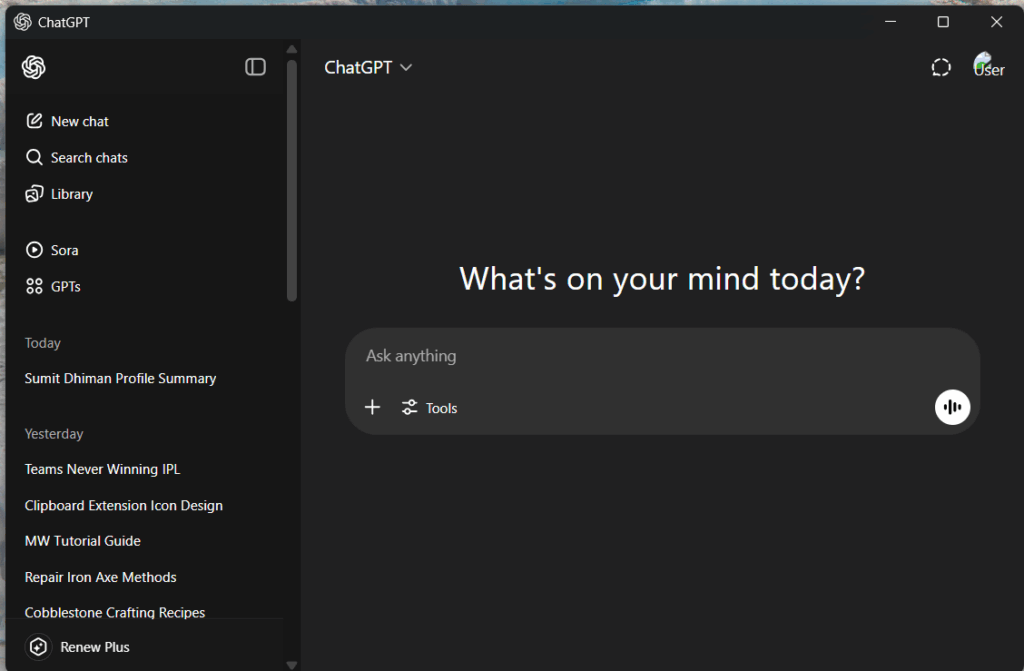
Download ChatGPT for Windows 11
The ChatGPT app is available on the Microsoft Store. You can download it from the link below:
ChatGPT – Free download and install on Windows | Microsoft Store
You can also use WinGet to download the app – more information is available here in this article.
Set ChatGPT as the default in Windows
If you rely on AI excessively and do not use Microsoft Copilot, you may want to set the ChatGPT Windows 11 app as the default in Windows. Consequently, Microsoft is providing an option to customize the Windows key + C shortcut.
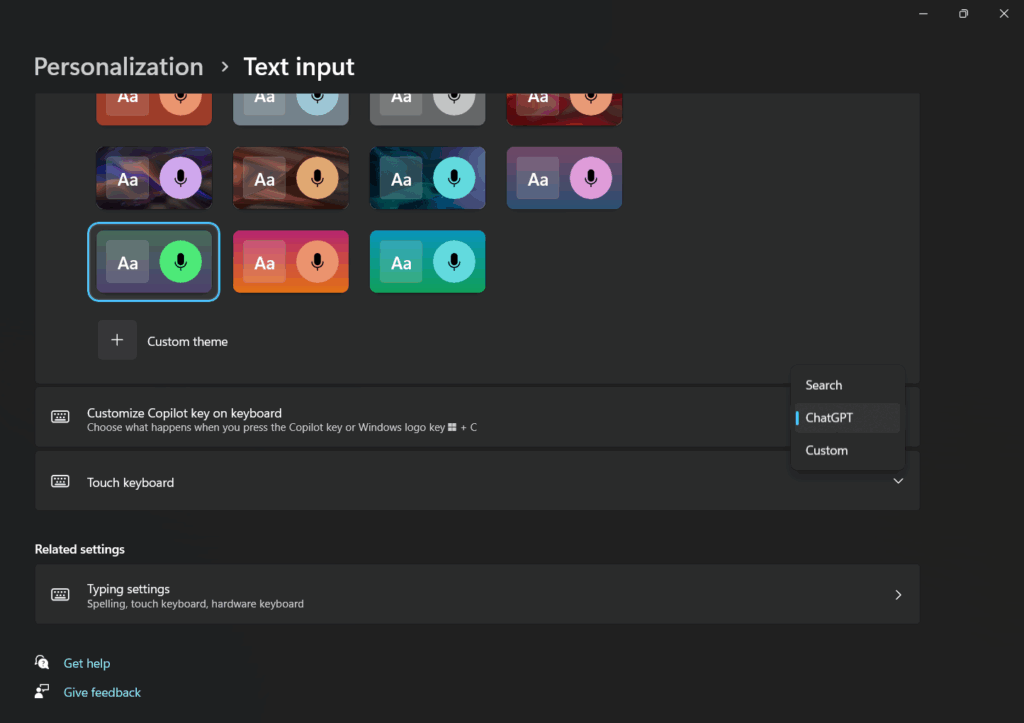
For setting ChatGPT App as the default, see the steps below:
- Open the Windows Settings App using the Win+I keys.
- Go to Personalisation> Text Input.
- Change the Customize Copilot key on the Keyboard to “ChatGPT”.
To summarise, download ChatGPT for Windows using this guide. Since Microsoft now allows you to set the Windows key + C shortcut on Windows.