This article would help you configure the Microsoft Indic Language Input tool, also known as the Microsoft Indic tool for Windows 10 and Windows 11. The steps essentially are the same for both of the Operating Systems, but it can vary a bit depending on the Settings.
Table of Contents

What does the Microsoft Indic tool do?
The Indic Language Input Tool is a typing tool that lets you easily write in Indian languages using an English keyboard. You type the words the way they sound in English (like namaste), and the tool converts them into the correct script (like नमस्ते in Hindi). It supports multiple Indian languages such as Hindi, Bengali, Tamil, Telugu, Kannada, and more. It works on the Principle of Transliteration, and is beneficial for users who speak Indian languages but aren’t familiar with native keyboard layouts. Microsoft Indic Language Input Tool makes it easier and faster to express yourself in your preferred Indian language using a standard English keyboard.
How to Install and configure Microsoft Indic Language input tool in Windows
The Installation of an additional Phonetic keyboard is a bit tricky to find and configure. However, using this guide, you should be able to install it successfully. The information is sourced from the Microsoft Support document present here.
- First of all, open the Settings App using the Win+I shortcut.
- Then navigate to Time & Language > Language & Region Settings.
- Add the Respective Indian Language pack if you haven’t already. It should show like this:
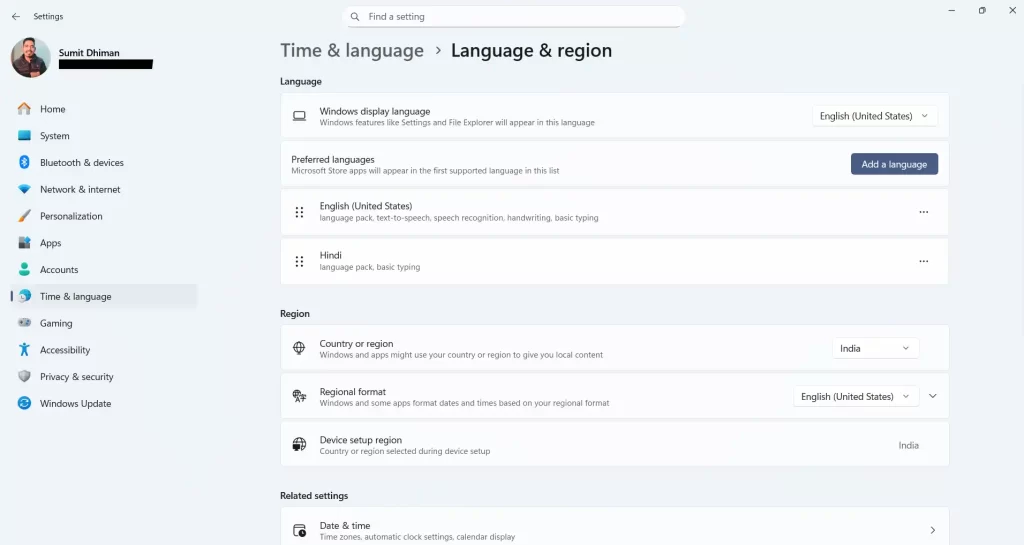
- If you want to add a Language pack, use the Add a Language button. Remember, you must add that language for the tool you need.
- Once the Language is installed, click the 3 horizontal dots (…) next to it and select Language options. The following page would open:
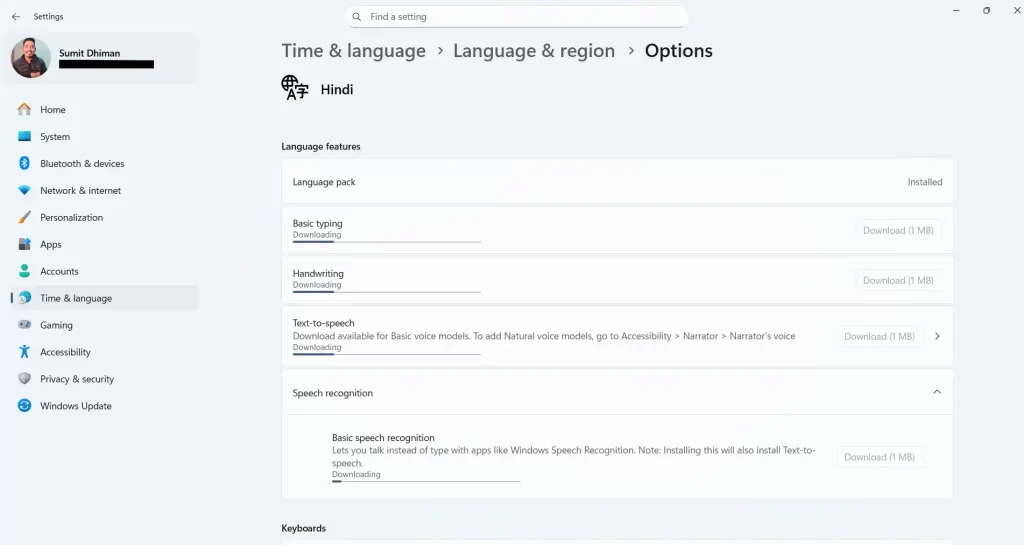
- Scroll down to the Keyboards Section to add the respective Microsoft Indic tool keyboard.
- Click Add > Phonetic Keyboard, which is typically the second option.
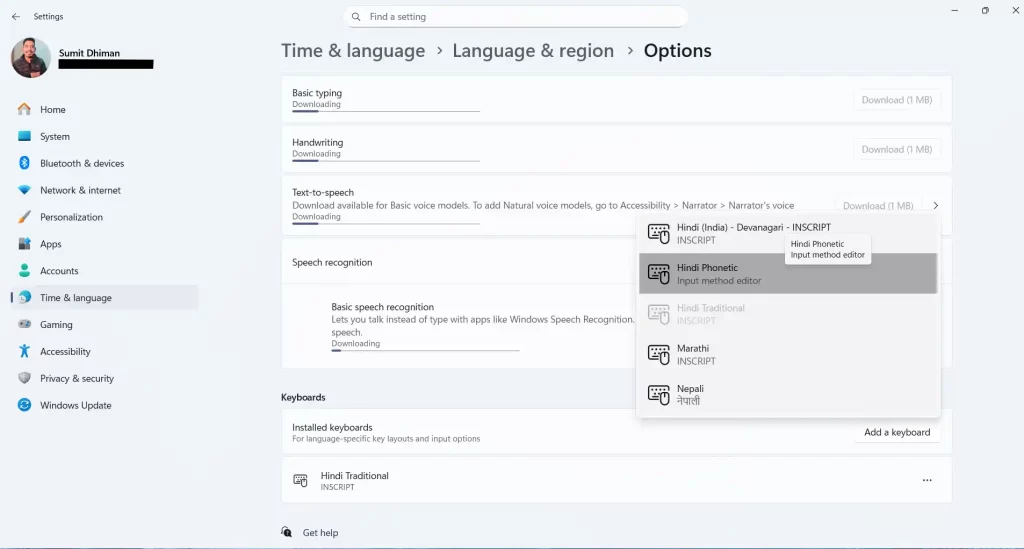
- Afterwards, you can remove the INSCRIPT keyboard if you wish, which uses the traditional layout. To do that, click the three dots and select Remove next to the Input keyboard. Consequently, removing the INSCRIPT keyboard will make the Phonetic keyboard the default.
How to use the Microsoft Indic Language Input tool?
To use the Phonetic keyboard for a language, Microsoft recommends switching keyboard layouts. The shortcut for changing the keyboard is Windows key + Space, and as soon as you press it, the Indic keyboard, such as Hindi, will appear. Repeatedly pressing the Space key while holding the Windows key would switch the Input methods.

If you plan to use the Multiple Language Microsoft Indic tool, keep adding the language packs and consequently, add the Phonetic Keyboard for it as well.