Are the Hyperlinks not working in Microsoft Office apps like Word and Excel? A simple Registry fix can take care of that
A known issue has recently arisen for Microsoft 365 apps like Word and Excel, where Hyperlinks in Word / Excel / Outlook have stopped working. There have been several reports on Microsoft Forums and Reddit.
Table of Contents
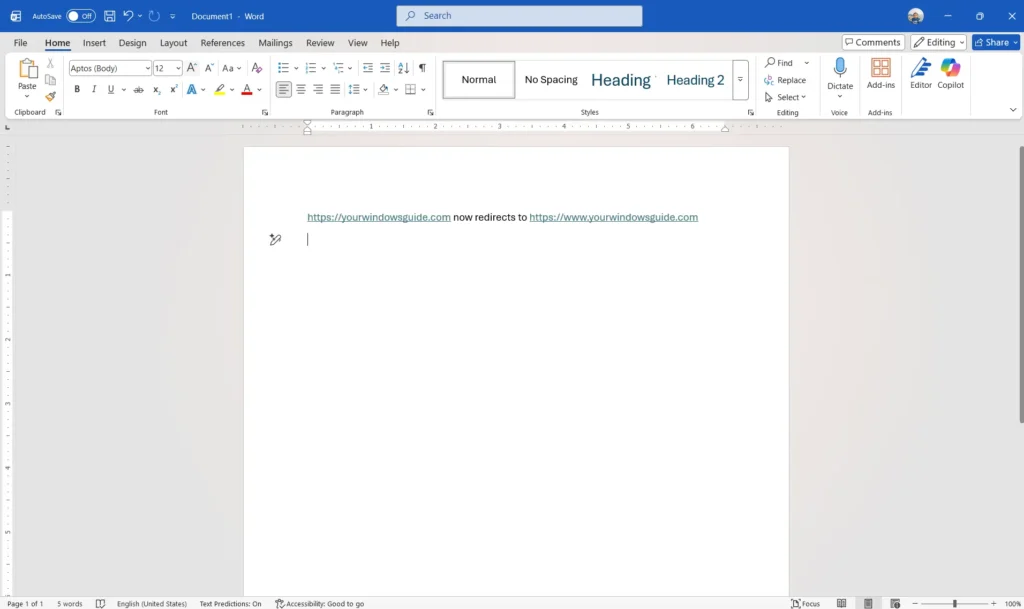
Why Hyperlinks are used in Microsoft office apps
Hyperlinks are used in Microsoft Office apps to make documents easier to navigate and more useful. They let you connect text or images to websites, files, email addresses, or even specific places inside the same document. This helps readers jump directly to related information without scrolling or searching, making the document feel more interactive and organized. Hyperlinks also improve accessibility by giving quick, one‑click access to extra details, references, or supporting material, which keeps your content clean and easy to follow.
Hyperlinks not working in Microsoft 365 – why?
With the latest 2604 release of Microsoft Office on stable channel, a few reports of Hyperlinks in Word or Excel or Powerpoint have stopped working. Fortunately, there exists quick fix for the issue, which I write below.
- Type “regedit.exe” without Quotes to open the Registry editor.
- Go to the path HKEY_CURRENT_USER\Software\Microsoft\Office\Common
- Right-click the Common folder key on the left pane and choose Delete.
- Restart the computer.
- The key would be rebuilt on startup, and subsequently, Hyperlinks not working in Microsoft Office issue should be gone.
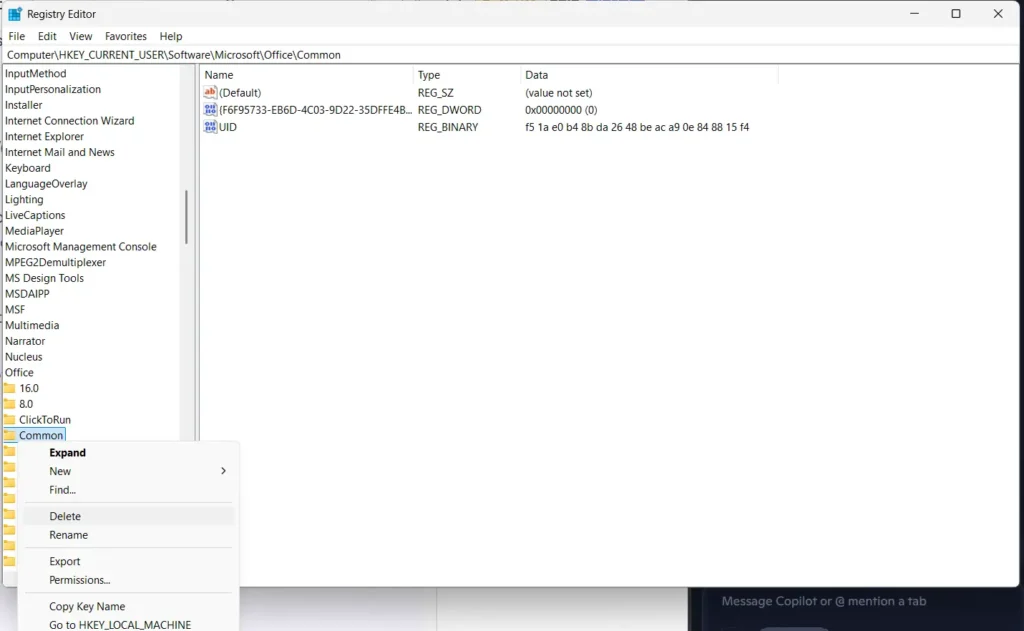
To summarize, this quick fix should kick in the Hyperlinks, and they should start working again. The deletion is pretty safe, and the key is automatically created at next start of Office.
Also read: