This article discusses a known problem, i.e., the Invalid Credentials Interaction required error in Outlook while configuring an IMAP account.
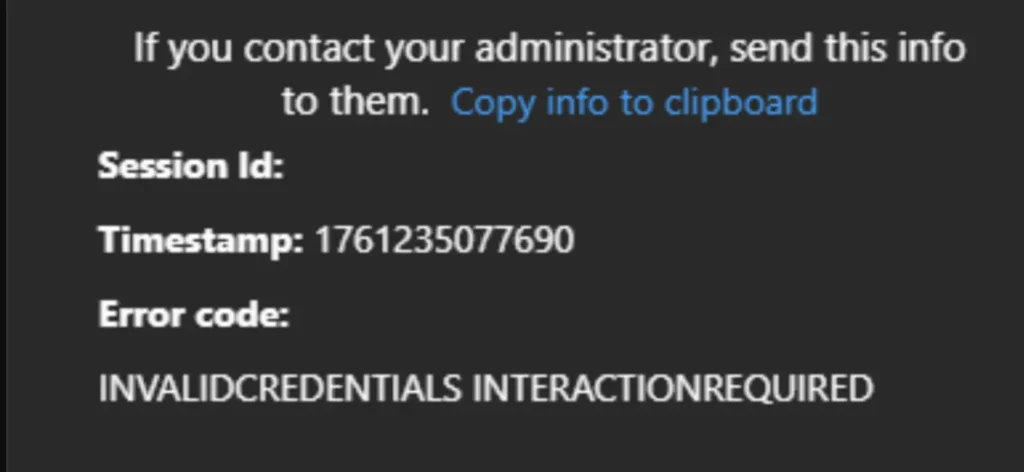
Table of Contents
What is the INVALID CREDENTIALS INTERACTION REQUIRED error in Outlook?
Outlook New, the replacement for the Mail and Calendar app in Windows and the next generation of Outlook 365 (check out the comparison here), supports a variety of accounts, including POP and IMAP, as well as all accounts that can be auto-configured. There is heavy criticism, although Outlook New, as it is right now, is subpar compared to Outlook 365. In the name of Security, certain accounts, such as IMAP accounts, cannot be configured in New Outlook, and the setup typically fails with either “Interaction required” or “Invalid Credentials Interaction required” errors. This is seen very frequently in QA forums, too.
The error message is pretty generic and does not provide a direct answer to the root cause. It suggests, though, that the credentials are invalid or that 2nd authentication is required (Interaction required).
Possible Solutions for this error
There are some solutions for the Invalid Credentials Interaction required issue in Outlook New, which are below:
Clear Stored Credentials in Control Panel
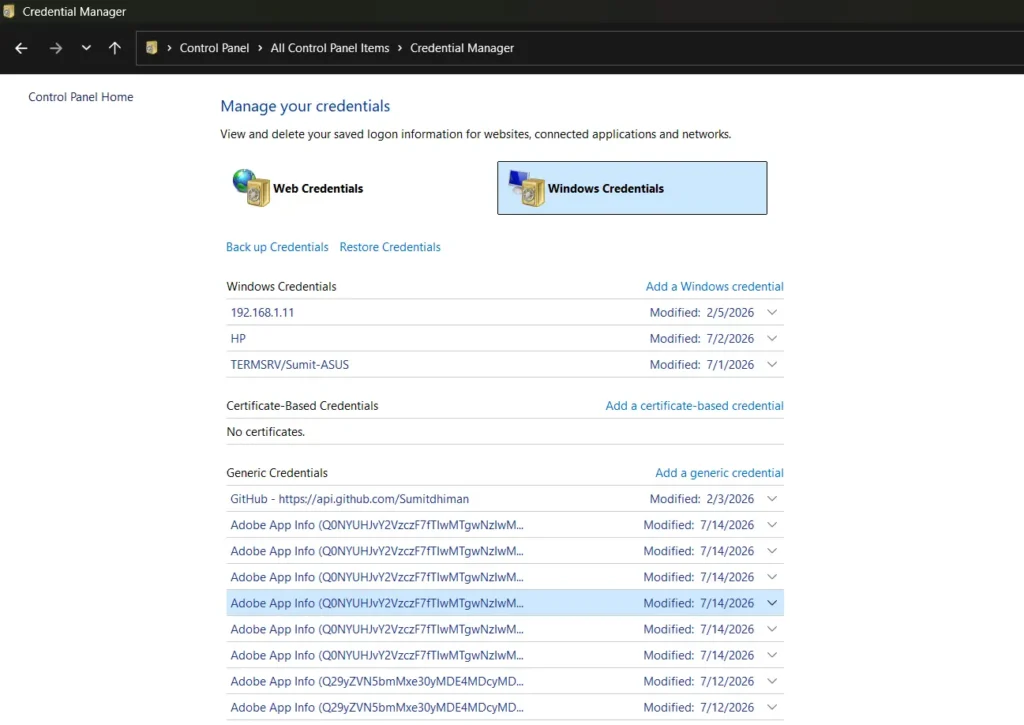
To resolve this Interaction required error in Outlook, see the steps below on how to clear Credentials in Control Panel:
- Open Credentials Manager from Control Panel.
- Click Windows Credentials first.
- Locate your account in the list. Select it and Choose Delete credentials.
- Subsequently, locate the Web credentials and delete them.
- Try configuring the account again.
[IMPORTANT] You need an App Password
Most commonly, an app Password is used by the Email Service provider, which can be used to configure your account in the email client, rather than an IMAP account password, to resolve the INVALID CREDENTIALS INTERACTION REQUIRED error. The steps to get an app password vary – you can ask support for that.
For example, via this post for BigPond, an Email Provider in Australia, has these instructions to generate an App Password:
- Sign in to your BigPond webmail account.
- Click the nine-dot (squares) icon in the upper-left corner, then select Settings.
- Go to Accounts.
- Select Generate App Password.
- Enter a name for the app password, such as Mail, then generate it.
- Copy the long app password that is displayed.
- Open the Mail or Outlook app and set up your BigPond account again. When prompted for your password, use the newly generated app password instead of your regular BigPond account password.
You can follow similar instructions to get an App password, and resolve the Interaction required error in Outlook New.
If you are aware of any other methods, let us know in the comments.