If you are a Windows 11 user and are getting the following message while trying to get a preview of a PDF or any similar file, i.e., you are encountering the PDF preview in File Explorer not working problem, you aren’t alone. Most of the users see this message while previewing a file, from Network Sharing.
“The file you are attempting to preview could harm your computer. If you trust the file and the source you received it from, open it to view its contents.”
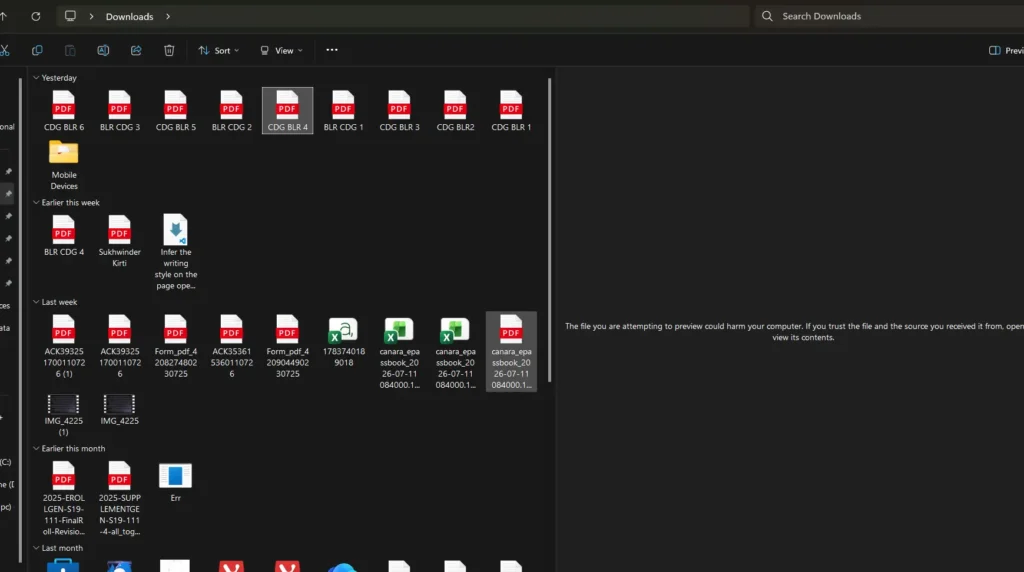
This article lists some comprehensive steps to fix this issue.
Table of Contents
File Explorer Preview Pane features
The Preview pane in File Explorer lets you view the contents of supported files without opening them. It can display previews for images, PDFs, text files, Microsoft Office documents (with the appropriate preview handlers installed), and several other file types. This makes it easier to quickly verify a file’s contents, compare documents, or locate the correct file without launching a separate application. To enable it, open File Explorer and select View > Show > Preview pane, or press Alt + P.
How to fix “The file you are attempting to preview could harm your computer”. If you trust the file and the source you received it from, open it to view its contents” issue ?
To fix the he PDF preview in File Explorer not working, the following steps should help.
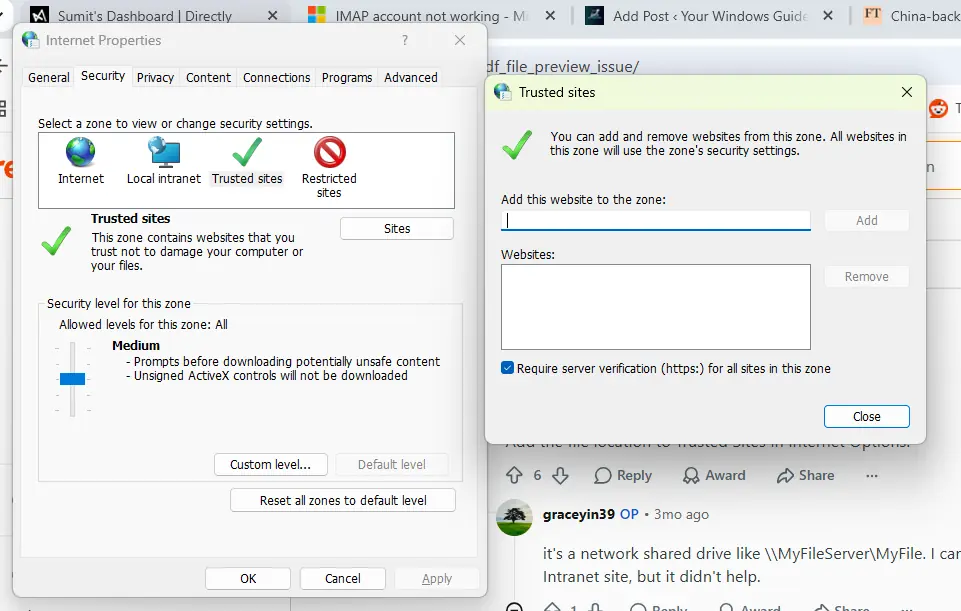
Add the Path to the trusted Location list
- Press Windows + R, type
inetcpl.cpl, and press Enter to open Internet Properties. - Go to the Security tab and select Trusted sites.
- Click Sites.
- In the Add this website to the zone box, enter the path you want to trust. For example, if you want to trust the Downloads folder, enter:
file:///C:/Users/<YourUserName>/Downloads- Uncheck the checkbox which says “Require Server verification”
- Click Add, and then click Close.
- Click Apply, and then OK to save the changes.
Replace
<YourUserName>with your Windows account name, or use the full path to the folder or network location you want to add as a trusted site.
Use PowerShell to fix PDF preview in File Explorer not working issue
You can also use PowerShell to fix this error by simply writing a command in your Windows 11 computer.
- Open Windows PowerShell as an administrator.
- Run the following command, replacing
C:\folder pathwith the actual folder path that contains the downloaded files:
Get-ChildItem -Path "C:\folder path" -Recurse | Unblock-File- The command recursively removes the Mark of the Web (MOTW) from all files in the specified folder and its subfolders, allowing Windows to treat them as trusted local files.
- Another command worth trying:
Get-ChildItem -Path C:\Folder - Path -Filter *.pdf -Recurse -File -ErrorAction SilentlyContinue | Unblock-File- Replace C:\Folder Path with the actual path.
Use the Registry
You can also use Registry Editor to fix this issue.
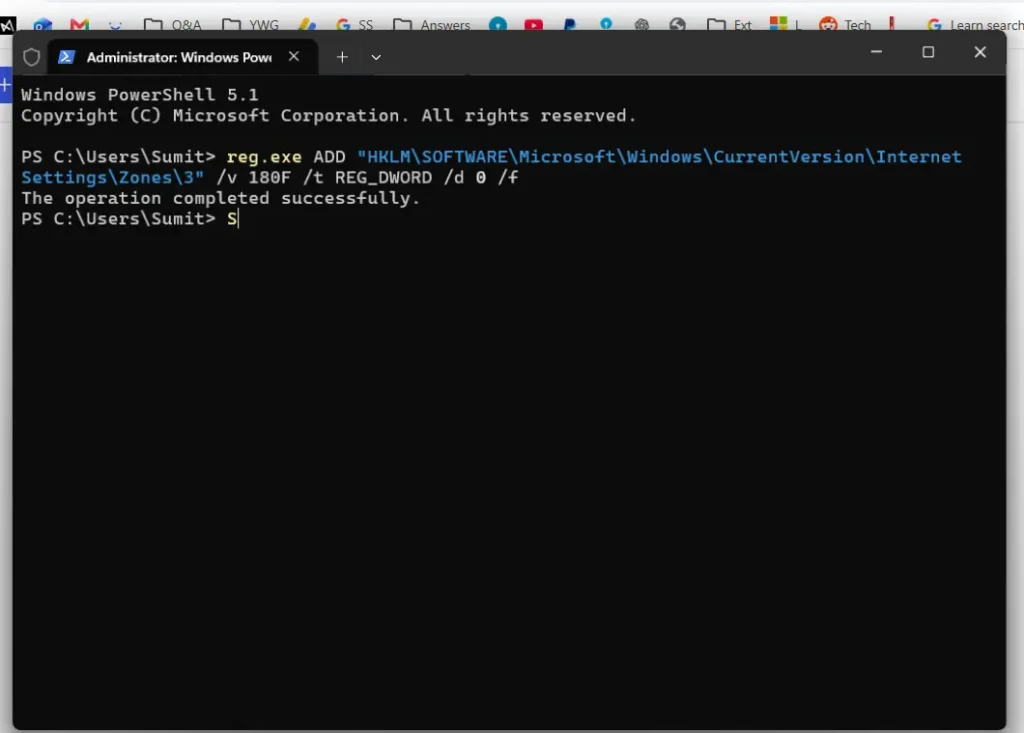
- Open the Command Prompt as Administrator.
- Execute this command:
reg.exe ADD "HKLM\SOFTWARE\Microsoft\Windows\CurrentVersion\Internet Settings\Zones\3" /v 180F /t REG_DWORD /d 0 /fThis sets the 180F policy under the Internet Zone (Zone 3) to 0 (Enable). Restart the computer afterwards.
The comprehensive steps in this guide should help you, with “The file you are attempting to preview could harm your computer error with some simple fixes”. Microsoft has also posted a support document on this which can be checked here.