Is your Microsoft Authenticator not working properly? Check out this guide
Recently and lately, many users have been reporting Microsoft Authenticator loop i.e. Microsoft Authenticator app is asking for a code from itself. This article explores the available options for the same.
Table of Contents
What is Microsoft Authenticator?
Microsoft Authenticator is a Microsoft-provided multi-factor authentication app that sends one-time codes to help protect your account. This is widely used for Microsoft Business and Personal accounts as the default way to enforce 2 Factor authentication, and it also supports 3rd-party logins via a QR code. Although it is one of the worst products for 3rd-party logins when it comes to backups, it is advantageous if you want to keep your accounts in one place.
What is meant by the Microsoft Authenticator Loop problem?
The Microsoft Authenticator Loop problem is a frustrating “chicken-and-egg” scenario where the system requires you to verify your identity using the Authenticator app, but you need to be logged into the app to do so. This typically happens when you upgrade to a new phone or attempt to add an account (like an AT&T or Microsoft account) to the app for the first time.
When you enter your username and password to log in, the system prompts you to approve the sign-in or enter a code generated by the Microsoft Authenticator app. However, because you are actively trying to set up or sign into that exact app, you cannot access the prompt or generate the required code. This creates an endless cycle – the app demands authentication from itself leaving you locked out of your accounts because you cannot complete the setup process.
How to solve the Microsoft Authenticator app is asking for a code from itself issue?
There are a few methods to resolve this issue.
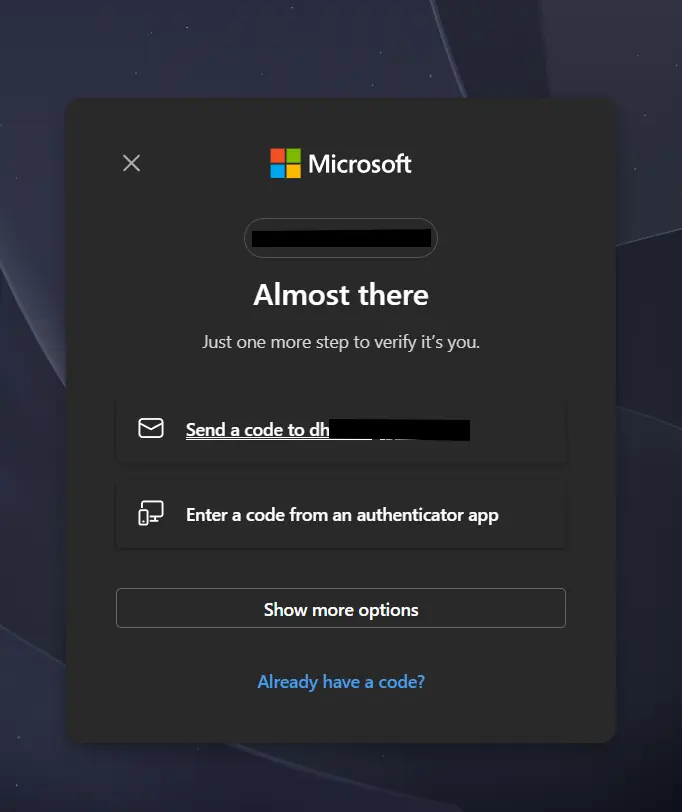
Use another alternative method to verify
You can simply click ” I do not have access to Microsoft Authenticator app” right now and verify using the recovery email or phone number you provided(SMS authentication is going away soon) and login back.
Restore Microsoft Authenticator
In case you have a new phone, and the older one isn’t accessible, the backup of the Authenticator can be restored, which can help you get a code. The catch to this approach is that the backup must be made beforehand. Also, the backup option works sporadically, so this method may or may not work, despite a backup confirmation.
- If you have already installed the app, uninstall and reinstall it again.
- Open the app and tap Begin recovery (or Restore from backup).
- Sign in with the same personal Microsoft account that was used to create the backup.
- If prompted, verify your identity using the verification method for your Microsoft account.
- Wait for the app to restore your backed-up accounts.
- For work or school accounts, you may need to sign in again or re-scan the QR code provided by your organization to complete the setup.
- Verify that all accounts appear in the app and, where possible, test signing in.
This should resolve the Microsoft Authenticator loop issue. You can find more information here on Restoring.
[Business only] Contact the Microsoft Data Protection Team
If there are no other Global admins for your Business account, and there is no recovery method available, contacting Microsoft support is the next step. The complete details are here in this guide: