Use this simple guide to understand the font formatting bug in the latest New Outlook for Mac updates and how to bypass it
If you have recently updated your New Outlook for Mac and noticed that your fonts are suddenly misbehaving, you are not alone. A recent update has introduced a frustrating bug in which selecting a new font while drafting an email forces the text to Arial, regardless of your choice. Here is a complete breakdown of the issue and the only known way to resolve it right now.
Table of Contents
What is the Outlook for Mac font bug?
Following the update to New Outlook for Mac version 16.110, users are experiencing severe inconsistencies with font formatting when drafting or replying to emails.
When you start typing a message, the default font (specified under Outlook > Settings > Composing > default fonts) works perfectly fine. However, the moment you attempt to change the font from the drop-down menu, the interface will display your newly selected font name, but the actual typed text will appear in Arial. Once this happens, the text remains stuck in Arial even if you try selecting a different font again.
Additionally, users have reported that the Format Painter is also broken in these builds, failing to apply copied formats to selected text. This issue has been widely observed on Apple M3 devices, specifically MacBook Airs running macOS 15 and 26.
Why is the font stuck in Arial?
The root cause appears to be a bug in how New Outlook for Mac generates the underlying HTML for the email message.
When you change a font, Outlook attempts to wrap the text in an inline HTML <span> tag. However, the current versions incorrectly handle quotation marks in the code. It is converting single quotes into double quotes and mashing them together, resulting in a broken font-family definition. Because the email client cannot read the corrupted font name, it falls back to a safe default: Arial.
What does not work to fix it?
Before you spend hours troubleshooting your Mac, you should know that standard font troubleshooting steps will not resolve this bug. The following common fixes do not work:
- Reinstalling fonts manually into the Mac Font Book
- Resetting fonts via Font Book advanced settings
- Updating to minor patch versions like 16.110.1, 16.110.2, or 16.110.3 (users confirm the bug persists across all these builds)
How to fix the Outlook for Mac font bug/issue
Because the Outlook for Mac font bug is an active software bug introduced by Microsoft, there is currently only one reliable workaround until an official patch is released to the stable channel.
1. Roll back to a previous version
The only confirmed way to restore proper font functionality is to downgrade your Outlook for Mac installation to version 16.109.2. You will need to uninstall your current version of Outlook and download the older installer directly from Microsoft’s update history page. Be sure to disable automatic updates once installed, so they do not immediately overwrite the fix.
2. Wait for the upcoming Beta fix
Microsoft support agents have noted that the issue appears to be resolved in Outlook Version 16.112 (build 26063025), which is currently in the Beta Channel. If you do not want to roll back your software, you can switch your Microsoft AutoUpdate to the Beta channel to grab this release early, or simply wait a few weeks for it to reach the standard production channel.
3. Report the problem
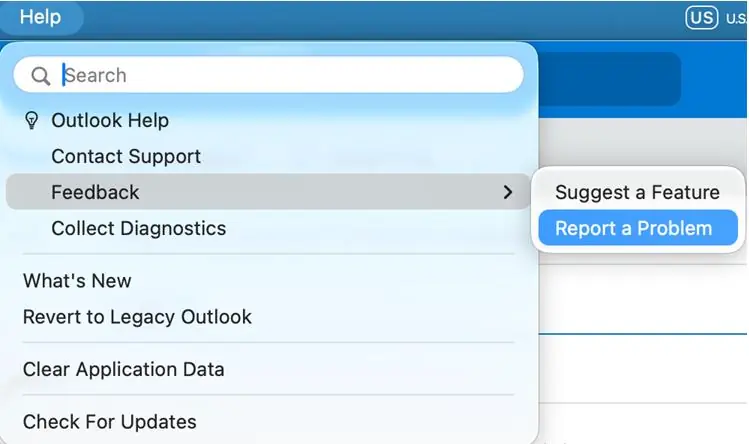
To help speed up the patch rollout related to Outlook for Mac issue, you should send diagnostic data directly to the product team. Open your Outlook app and navigate to Help > Report a Problem. Describe the font issue and submit your feedback so Microsoft can track the impact.
To summarize, the font and Format Painter issues in Outlook for Mac version 16.110 are caused by an HTML coding error on Microsoft’s end, and the best immediate solution is to roll back to version 16.109.2 until version 16.112 is officially released. You can check out our other Microsoft 365 articles here.