This article is an easy-to-follow guide for uninstalling Windows 11 26H2, released on 29th September 2026.
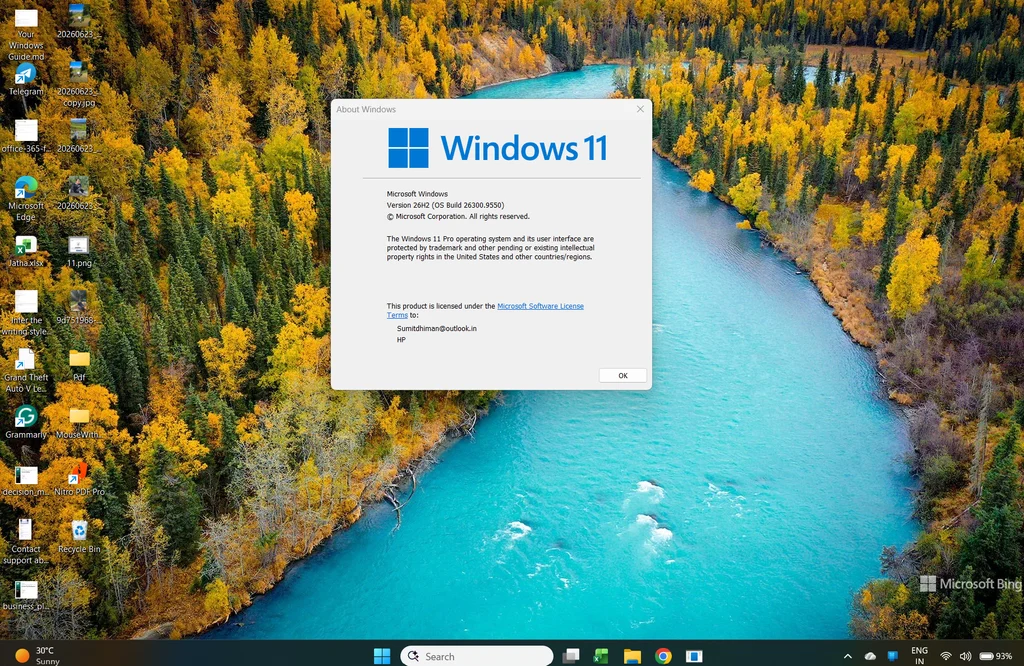
Table of Contents
Uninstall Windows 11 26H2 if you installed using the enablement package
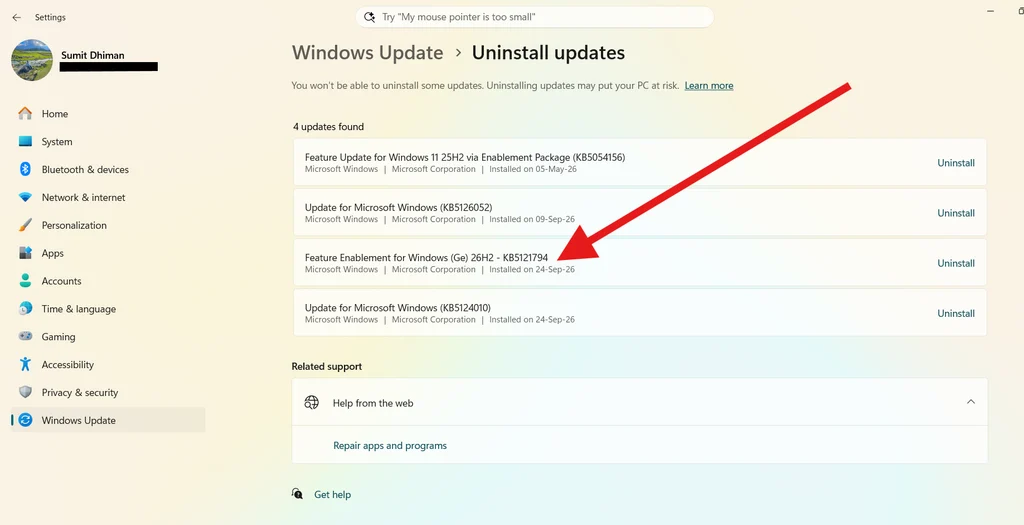
If you installed Windows 11 26H2 using the enablement package as instructed here, refer to these instructions for uninstalling Windows 11 26H2:
- Please go to Settings > Windows update > Installed updates.
- Click the Uninstall button beside the “Feature Enablement package for 26H2”.
- Follow the instructions.
Uninstall the update if you used an ISO file
If you installed Windows 11 26H2 manually as instructed here, the steps for uninstalling this update are different. For uninstalling the update, refer to these options:
Using the Windows Settings app
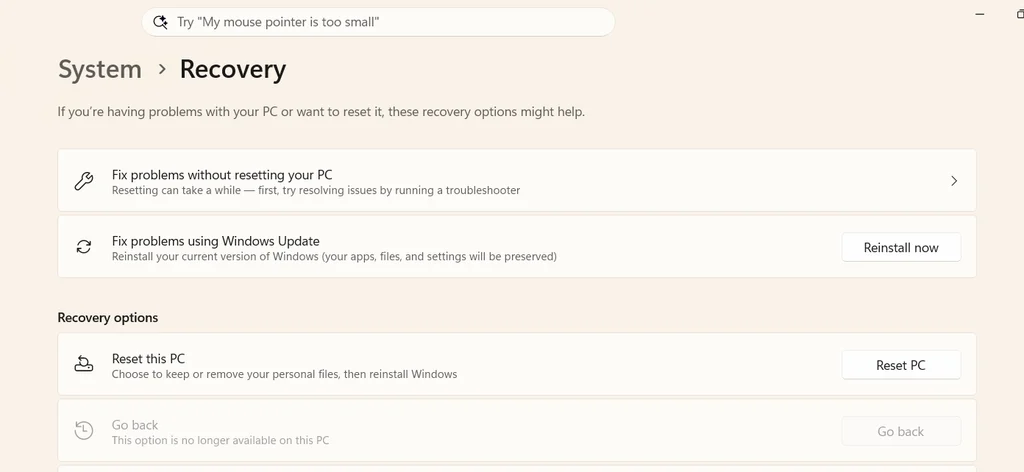
If you are able to access the desktop and can open the Settings app, the easiest way to uninstall the update is the following:
- Open the Settings app using Windows key + I.
- Navigate to System > Recovery.
- Under Go back, select “Go back to the previous version of Windows” and choose Go back.
- Wait for the process to complete.
Remove the 26H2 update using the Windows Recovery Environment
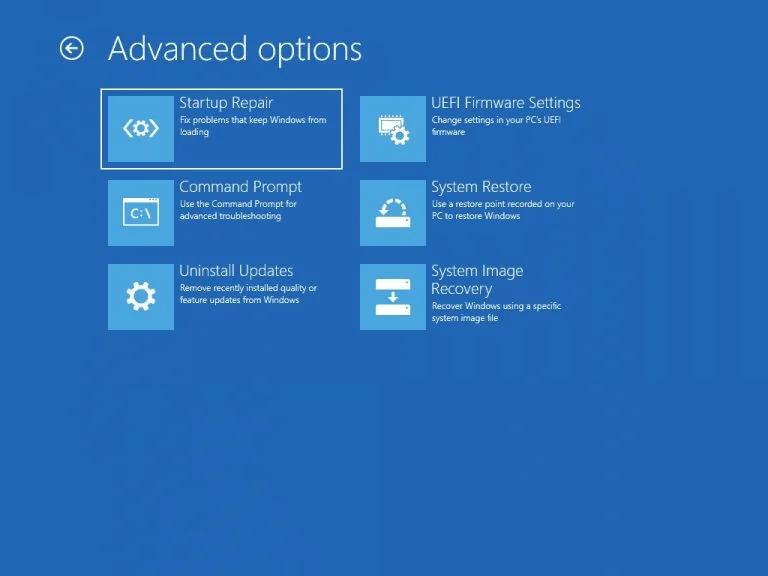
If you are stuck in a boot loop because the update did not complete successfully, first go to the Windows Recovery Environment:
- Boot to the Windows Recovery Environment using either of these two methods. A comprehensive guide is given here.
- Restart/Force shutdown your PC twice when the boot screen is shown. The third time, the Recovery environment should open.
- Please go to Settings > System > Recovery. Subsequently, click “Restart Now”.
- Click Troubleshoot > Advanced Options
- Under Uninstall updates, choose “Uninstall latest feature update”
- This will remove 26H2 update in a few minutes.
These methods will help you easily uninstall Windows 11 26H2.