Get Your Power Mode Settings slider Back in Just a Few Steps
All of us reading this Blog have used Windows 10 at some point in our lives. With the transition to Windows 11, Microsoft removed a number of features from Windows 10, including the vertical taskbar (which is coming soon) and several other minor features. This article discusses another feature that was removed, i.e., how to restore Power slider in Windows 11.
Table of Contents
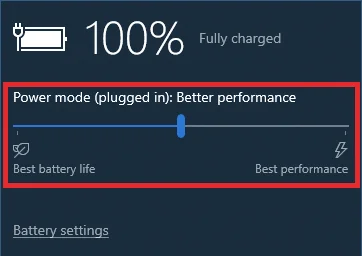
What is Power Slider in Windows 10?
The Power Mode Settings slider in Windows 10 lets you control how your device balances battery life and performance. Positioned under the Taskbar, it offers a range from Best battery life on the left to Best performance on the right, with Balanced sitting in the middle. Dragging it toward Best performance pushes the processor to run at higher speeds. Sliding it toward Best battery life, however, throttles background activity and reduces power draw. It is a simple yet powerful way to adapt your PC’s behavior to what you need, whether you are on a long flight or running a heavy workload at your desk. Unfortunately, Microsoft removed this Slider in Windows 11.
How to Restore Power Slider in Windows 11 – multiple methods
There are multiple ways to get the Battery vs Performance Slider back in Windows 11. I describe them each:
Use the PowerPlanSwitcher App from the Microsoft Store
A freeware app known as the PowerPlanSwitcher App does exactly the same job as the earlier slider present in Windows 10. If you click the icon on the Taskbar, the flyout displays the available Power Plans.
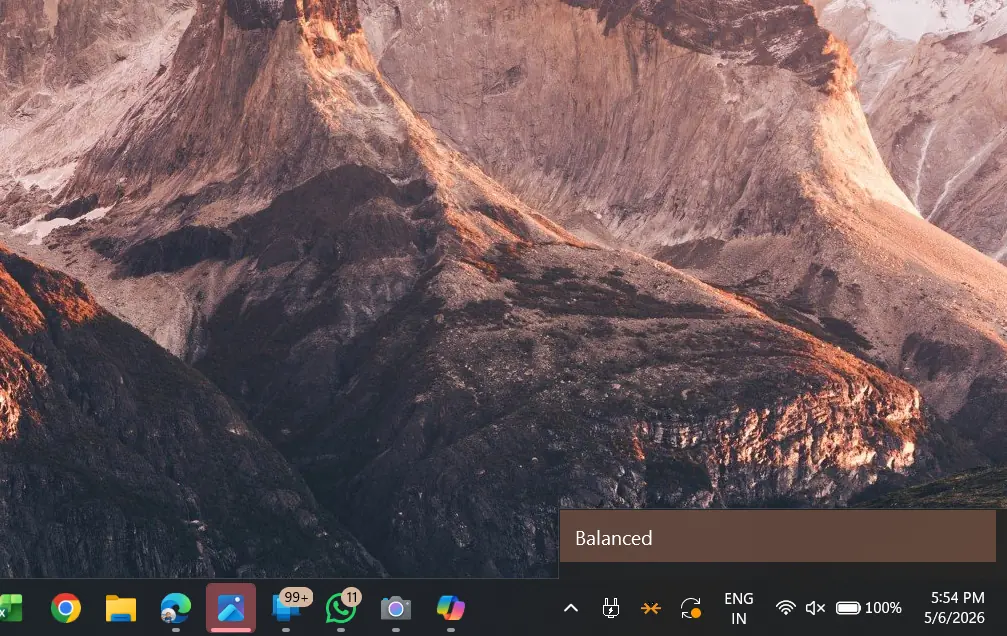
You can download it from the Link below:
PowerPlanSwitcher – Free download and install on Windows | Microsoft Store
ExplorerPatcher
You can also use ExplorerPatcher to restore the Windows 10-style Taskbar and other shell items, too. We discussed it in another article below: