A simple guide to fix the AMD chipset drivers not installing error in AMD Software
If you’re seeing AMD chipset drivers not installing in AMD Software: Adrenalin Edition, you are not alone. A lot of users on RX 9070XT, RX 7600, and RX 6750 XT cards are hitting this same wall right now. The good news, it’s a known issue, and there’s an easy fix.
Table of Contents
Why this happens
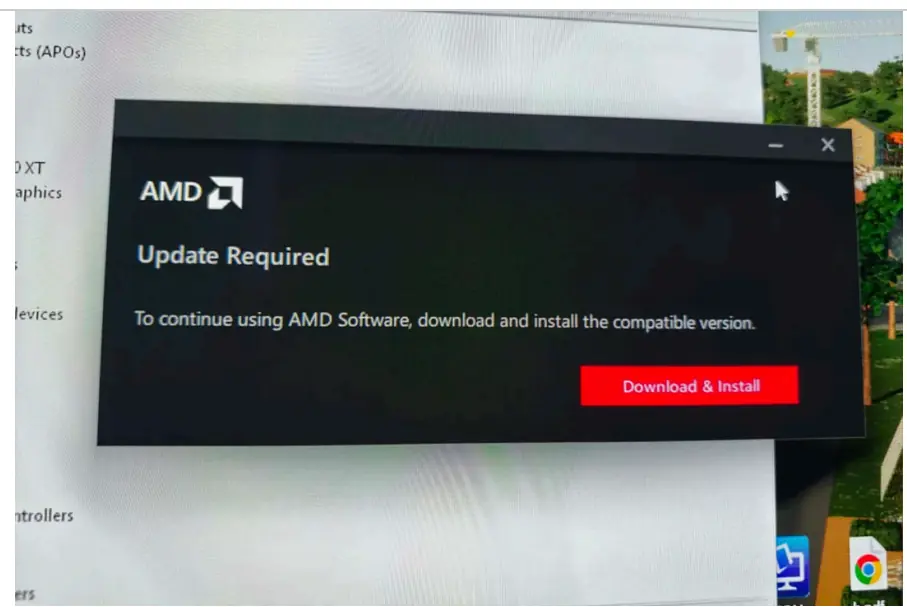
This is mostly caused by a bug in AMD Install Manager itself, not your GPU, as per Reddit. The install manager gets stuck on an older version and can’t pull the newer chipset driver, so it just loops between “downloading,” “installing,” and back to “update required”, no matter how many times you try. Some users also saw this start right after a Windows update, which can reset or corrupt driver files in the background.
How to fix AMD chipset drivers not installing
- Turn off Auto-Update in AMD Install Manager first. This stops it from fighting you while you fix things manually.
- Download the chipset driver directly from AMD’s own download page, not through the install manager. This is the fix that worked for most people.
- If the update still doesn’t clear even after installing, go to C:\Program Files (x86)\AMD\Chipset_Software, run the update file once so it removes the old files, then run it again to reinstall. This forces the install manager to recognize you’re up to date.
- If nothing above works, use DDU (Display Driver Uninstaller) in Safe Mode to fully wipe old AMD drivers(more on that here). Restart, then install the GPU driver first, and install the chipset driver separately from AMD’s website afterward.
- Once done, restart your PC and open AMD Software again to confirm the chipset driver status shows as up to date.
To summarize, AMD chipset drivers not installing is currently a bug in AMD Install Manager, not a hardware fault, as reported by many users. Downloading the chipset driver manually from AMD’s site fixes it for most people, and DDU is the safety net if the update still won’t clear.
Unrelated Note: AMD Error 1603 is also seen for Chipset drivers
Some users get a more specific version of this problem: the install cancels itself right at 20%, with error 1603. If that’s you, skip DISM, SFC, and repairing your Visual C++ Redistributables; several users confirmed none of that fixes it here. The AMD Cleanup Utility won’t help either, since it’s built to leave chipset driver files alone.
To fix this, see below:
- Go to C:\Program Files (x86)\AMD\Chipset_Software and run AMD_Chipset_Drivers.exe.
- Once it’s uninstalled, download the manual installer straight from AMD’s release notes page for your chipset driver version, and run that.
This should get rid of AMD Error 1603 for Chipset drivers