File History has stopped working after the September 2026 updates? KB5124008 appears to be the problem
If you are facing File History not working after September updates, you are not alone. Several Windows 11 users reported that File History worked normally before installing the September 2026 updates but stopped working afterward. The update most strongly linked to the issue is KB5124008, the September 2026 Security Update for Windows 11. Uninstalling this update has restored File History for multiple users.
As a side note, Microsoft recommends Windows backup powered by OneDrive for many Windows users.
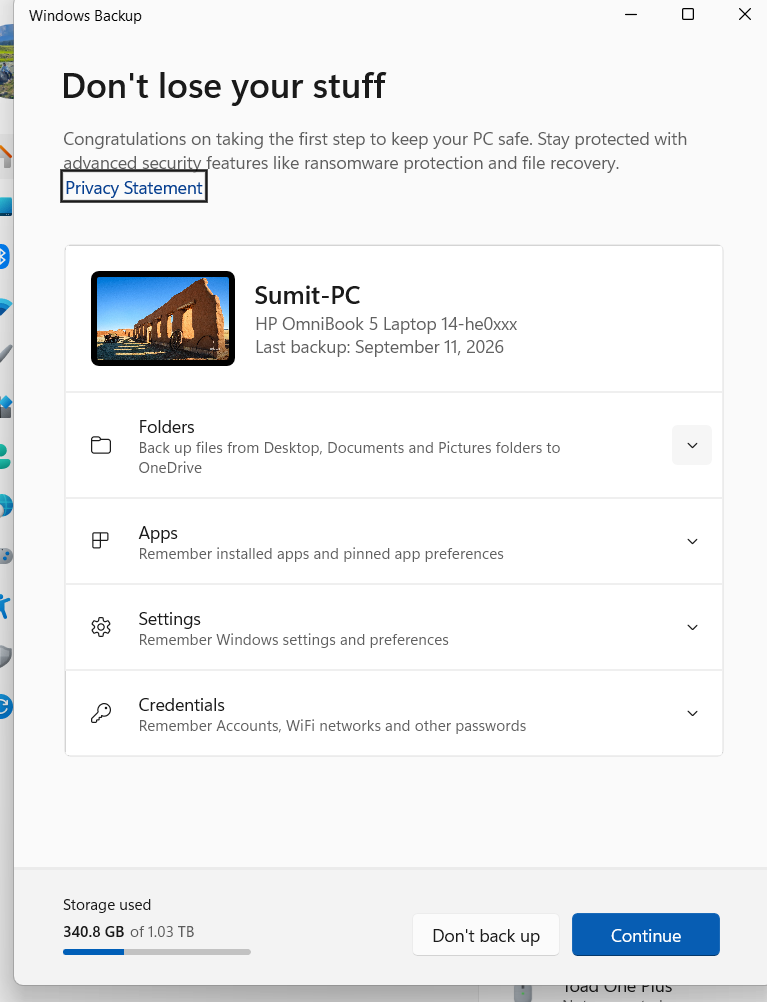
Table of Contents
Why is File History not working after September updates?
The problem appears to have started after installing KB5124008. It worked before Windows Update was installed and stopped working immediately afterward, as per reports on Reddit. The same issue occurred on many different computers. Additionally, Users have reported that File History shows the drive connection message even though the backup drive is connected and working normally.
Which update is causing the problem?
Several updates were installed on the affected computers, including:
| Update | Description |
|---|---|
| KB5124008 | September 2026 Security Update |
| KB5126052 | September 2026 .NET Framework Security Update |
| KB890830 | Windows Malicious Software Removal Tool |
| KB5122878 | September 2026 Windows update |
| KB5126146 | September 2026 .NET Framework update |
However, the likely culprit is KB5124008, which is the latest update to Windows 11. Users reported that uninstalling this particular update restored File History.
Is there a fix for File History not working after September update?
No permanent fix is confirmed yet for the problem, but uninstalling KB5124008 has worked for affected users.
Go to:
- Open Settings > Windows Update.
- Select Update history.
- Select Uninstall updates.
- Find 2026-09 Security Update (KB5124008).
- Click Uninstall and restart your PC.
After restarting, check File History again. You can refer to this guide to uninstall the update as well.
Does Emergency Patch KB5129195 fix the issue?
Unfortunately, KB5129195 (OS Build 26200.9457), released after KB5124008, does not appear to fix the issue.
Is Microsoft aware of the problem?
Several reports about the issue are circulating on various social media platforms, and users have also submitted feedback through Feedback Hub. However, Microsoft has not yet acknowledged the problem. The evidence is clear: File History works before KB5124008, stops working after installation, and resumes once the update is uninstalled.
To summarize, if you are experiencing File History not working after September updates, KB5124008 is currently the update most closely associated with the problem and uninstalling the update should solve your issue.